
Your app
The App tab shows your branded app: what’s in the App Store and Google Play, what’s coming next, and the developer accounts it’s published under. Culminate builds, publishes, and updates your app; this tab lets you see where it stands.
Open Organization → App & Web, then the App tab.
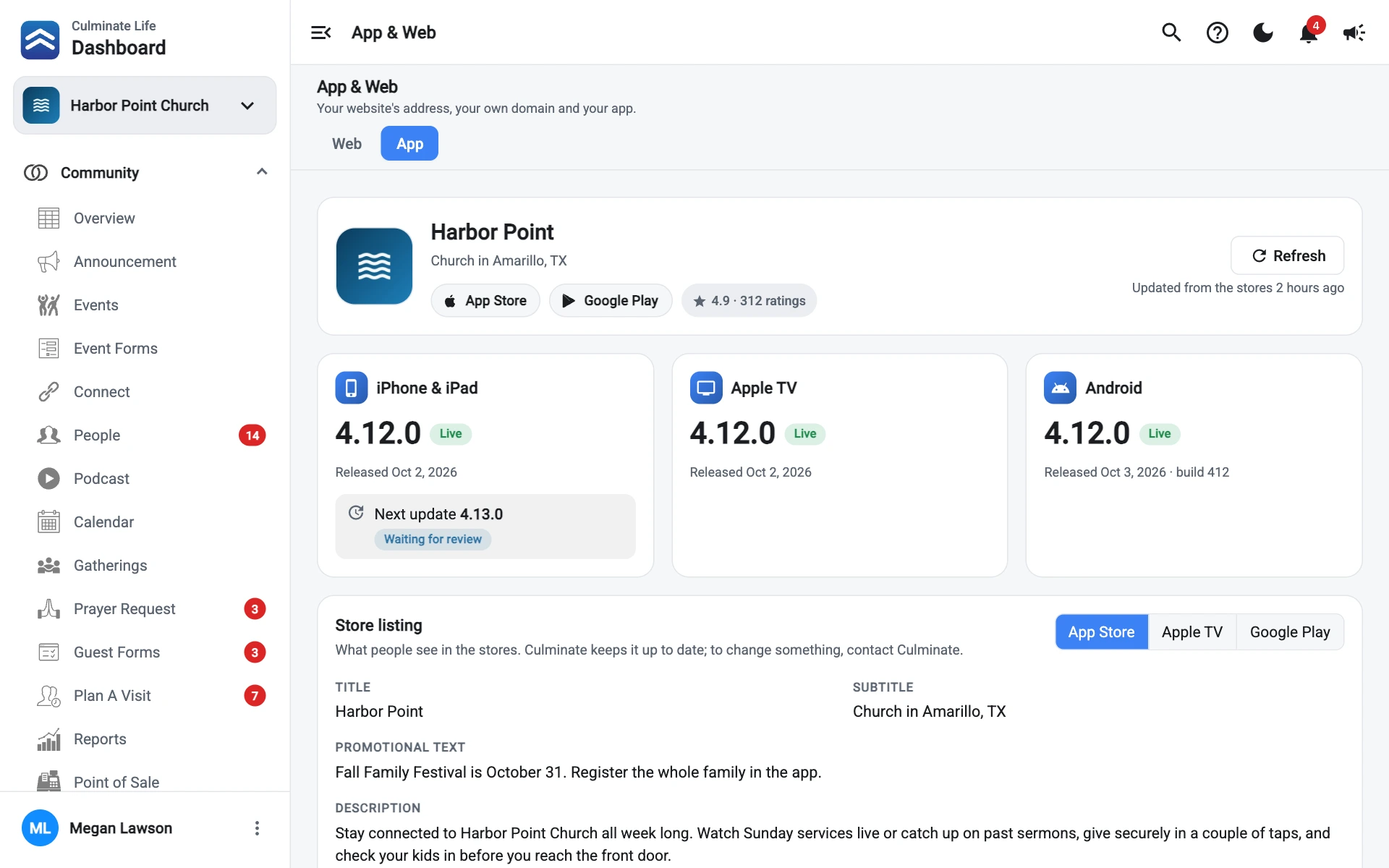
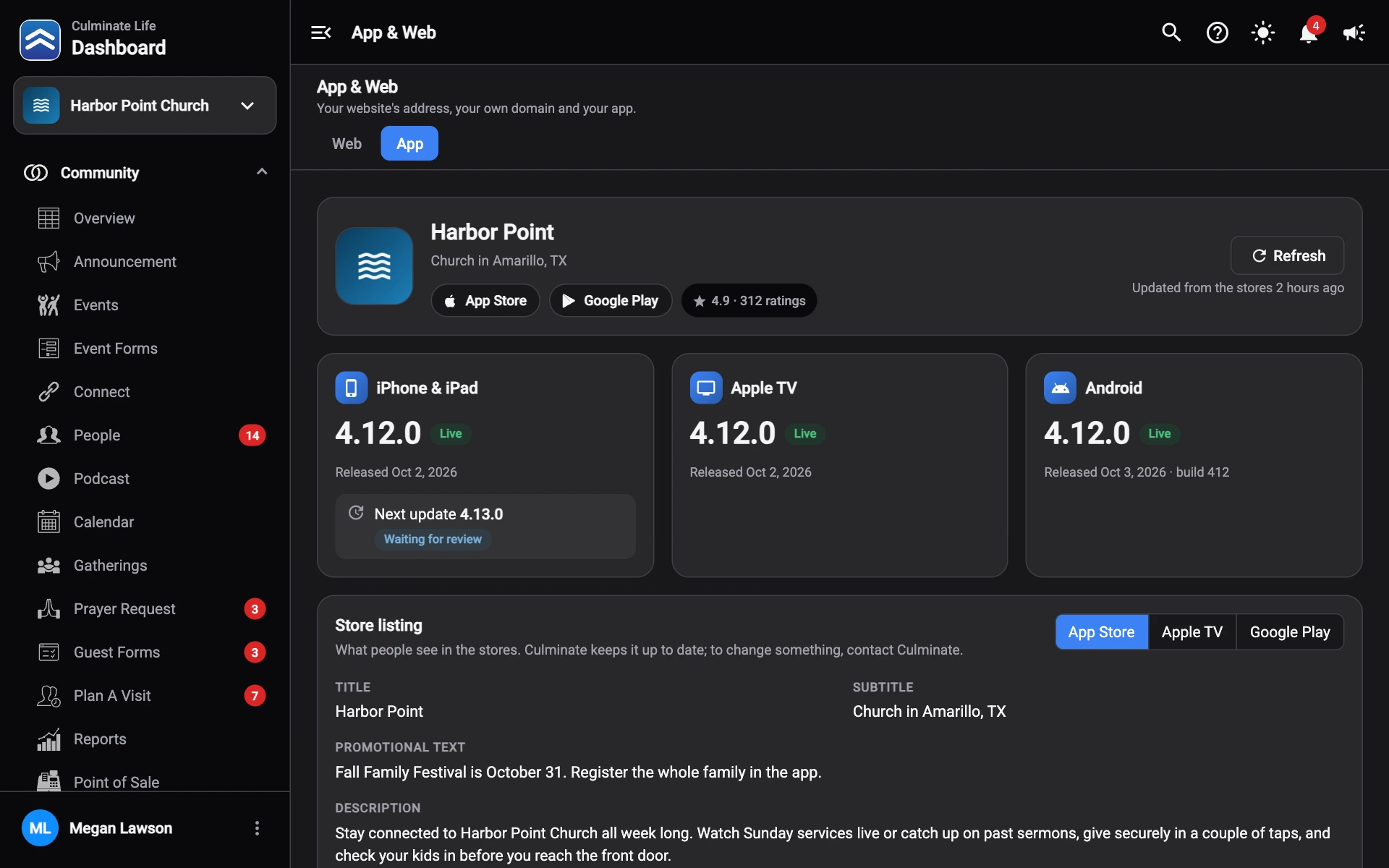
Your app at a glance
The top card shows your app’s icon, name, and subtitle, with links to it in the App Store and on Google Play, and its App Store rating.
Details come from the stores. Refresh checks the stores again, and Updated from the stores shows when that last happened.
Versions
A card for each platform, iPhone & iPad, Apple TV, and Android, shows:
- The version people can download now, with its status and the date it was released.
- Next update (or First version), when a new version is on its way, with its status, like in review.
If a store can’t be reached, you’ll see the last details we had.
Store listing
Store listing shows what people see in the stores. Switch between App Store, Apple TV, and Google Play to see each one.
- App Store: title, subtitle, promotional text, description, what’s new, and keywords.
- Google Play: title, short description, description, and what’s new.
- The screenshots for each kind of device. Select one to see it full size.
What’s new is the note for the current version. When an update is on its way, its note shows underneath.
Culminate keeps your listing up to date. To change something, contact us.
Developer accounts
Your app is published under your organization’s own Apple Developer and Google Play Console accounts. Developer accounts shows, for each:
- Apple Developer: the Team, the Account Holder and their email, and the Bundle ID.
- Google Play Console: the Developer, the Owner email, and the Package name.
Each account shows whether its terms are Up to date, Action needed, or Confirming, and when they were last checked.
When Apple or Google has new terms
Apple and Google sometimes update their developer terms. Until your account holder accepts them, the store holds back updates, so Culminate can’t send new versions, fixes, or features to your app.
When this happens:
- Your home page shows … is holding back updates to your app. Select it to open the App tab.
- The App tab shows a red alert with how long it’s been waiting, and any note from the store or from Culminate.
To fix it:
- Open How to fix it to see the steps.
- Ask your account holder to sign in and accept every new agreement:
- Apple: the Account Holder signs in to App Store Connect and accepts every agreement under Business, and any banner on their Apple Developer account. If the membership has expired, they renew it there too.
- Google: the account owner signs in to the Play Console, accepts the updated terms at the top of the page, and finishes any account verification Google asks for.
Open App Store Connect, Apple Developer account, and Open Play Console go straight there. Not sure who the account holder is? Their email is shown under the steps. - Come back and select I’ve accepted them.
The alert then shows Confirming while we check with the store. Your app gets updates again as soon as it’s confirmed. If the store still shows terms waiting, you’ll be told so.
Don’t have a branded app yet?
If your organization doesn’t have its own app, the App tab shows what you’d get.
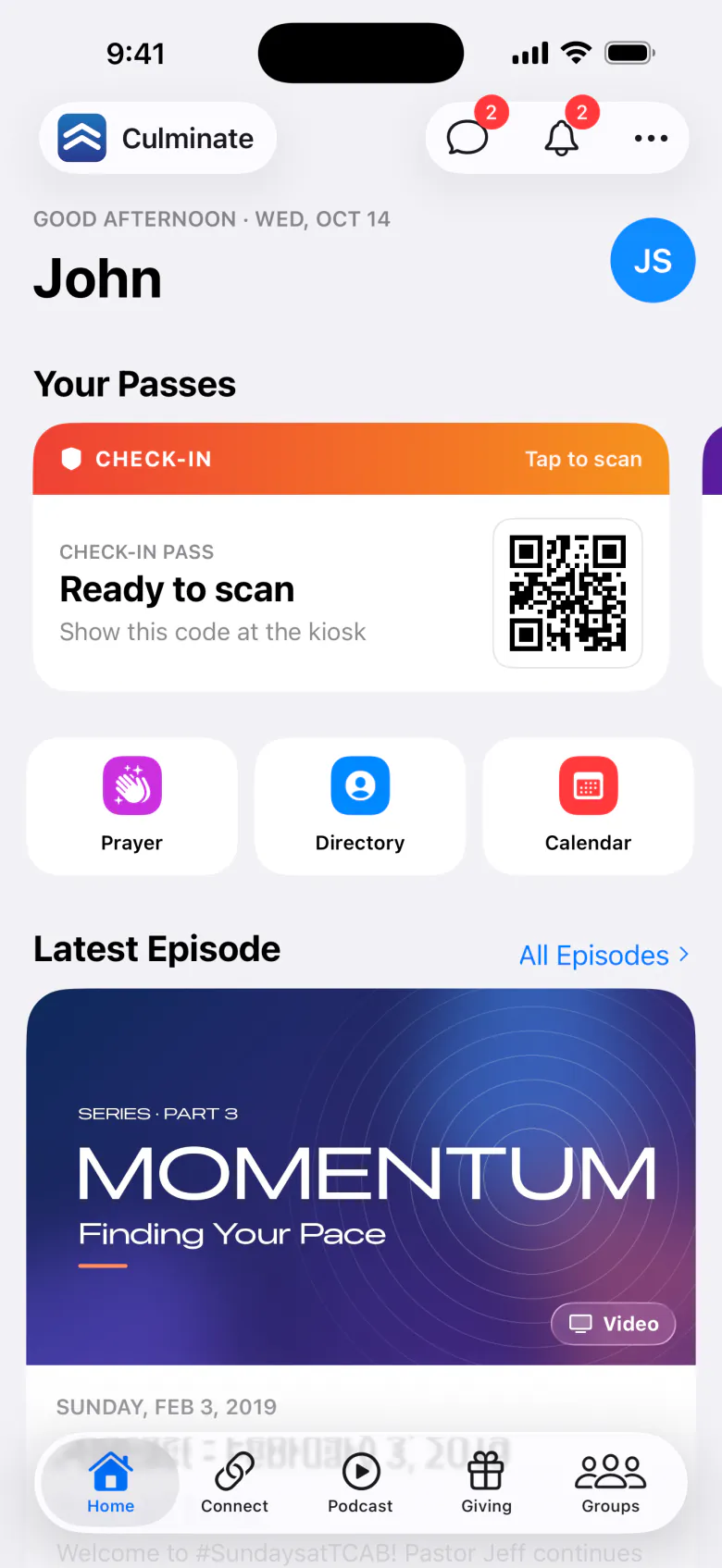
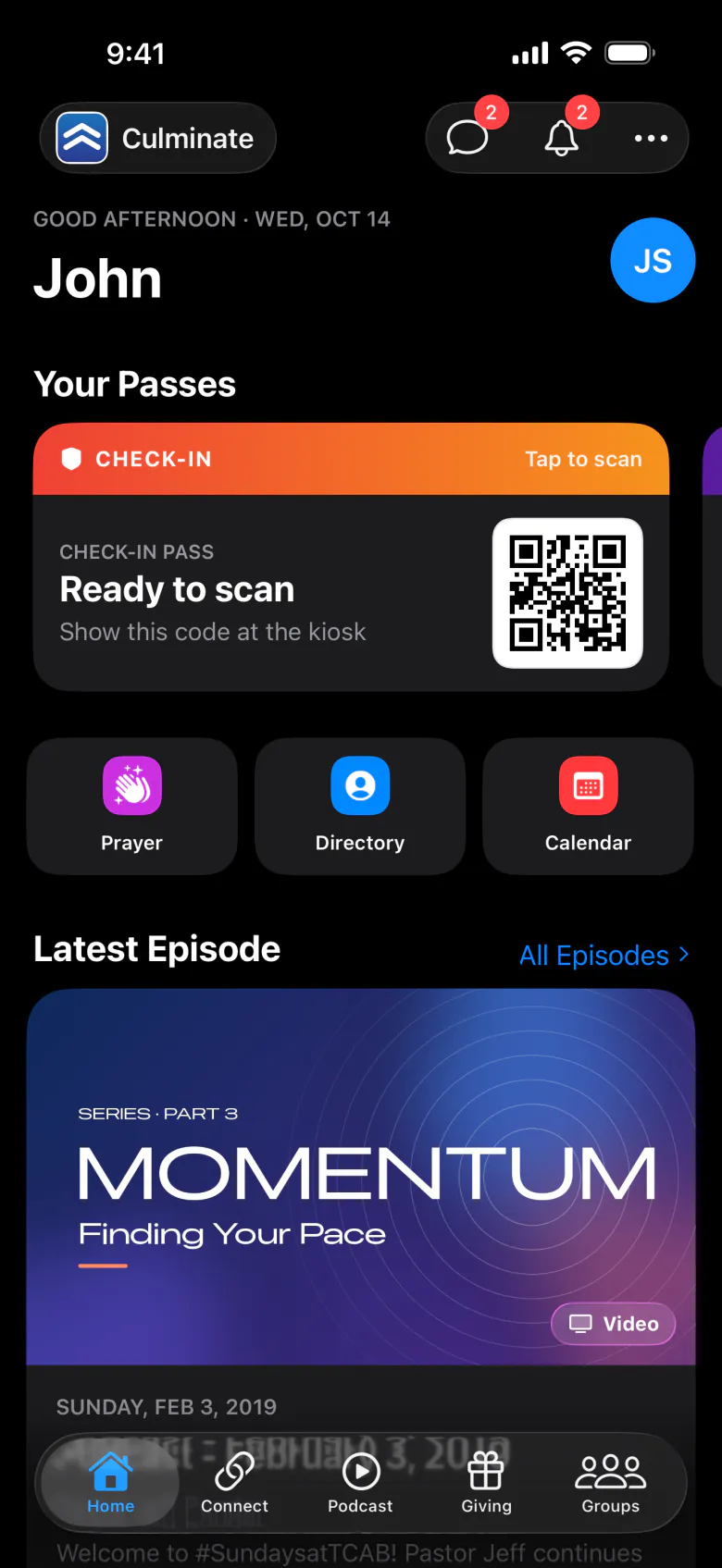
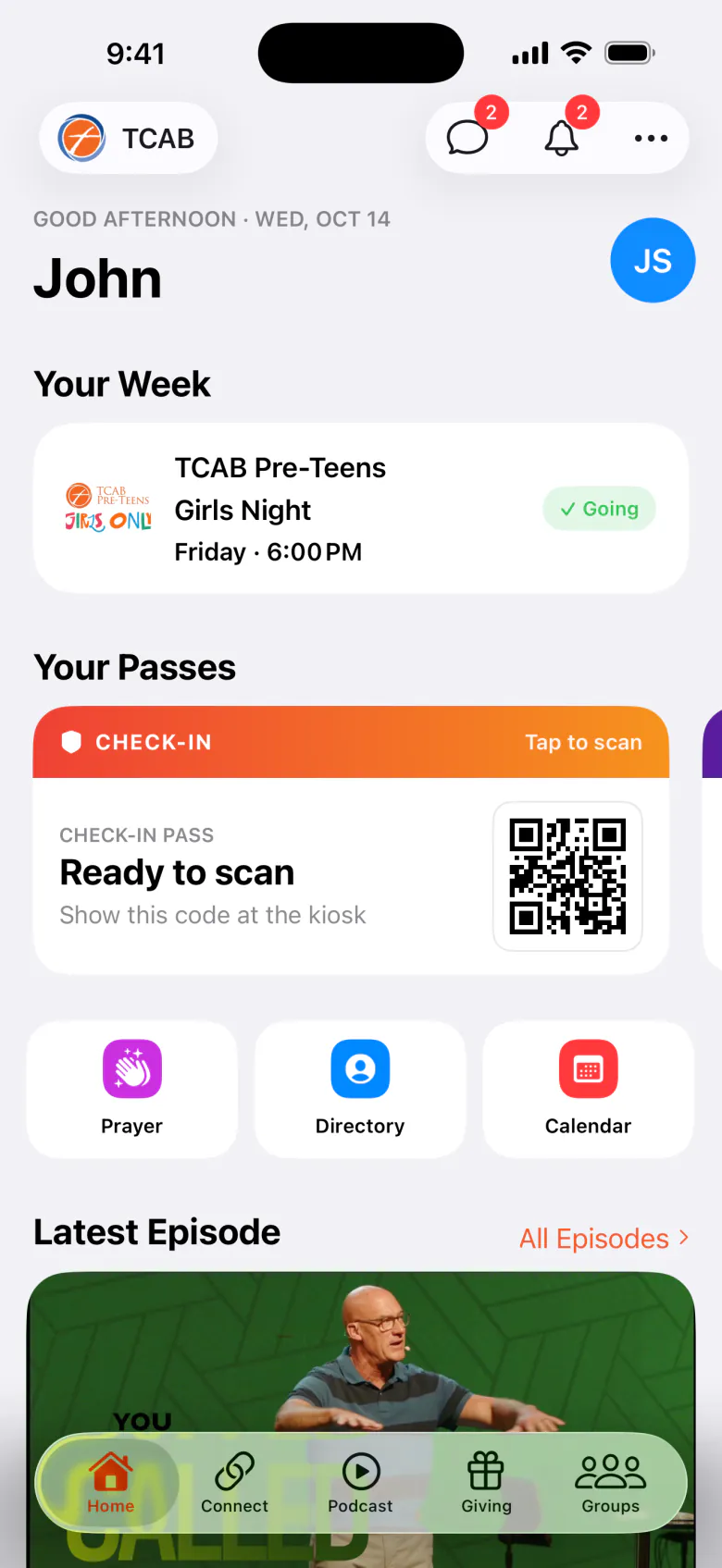
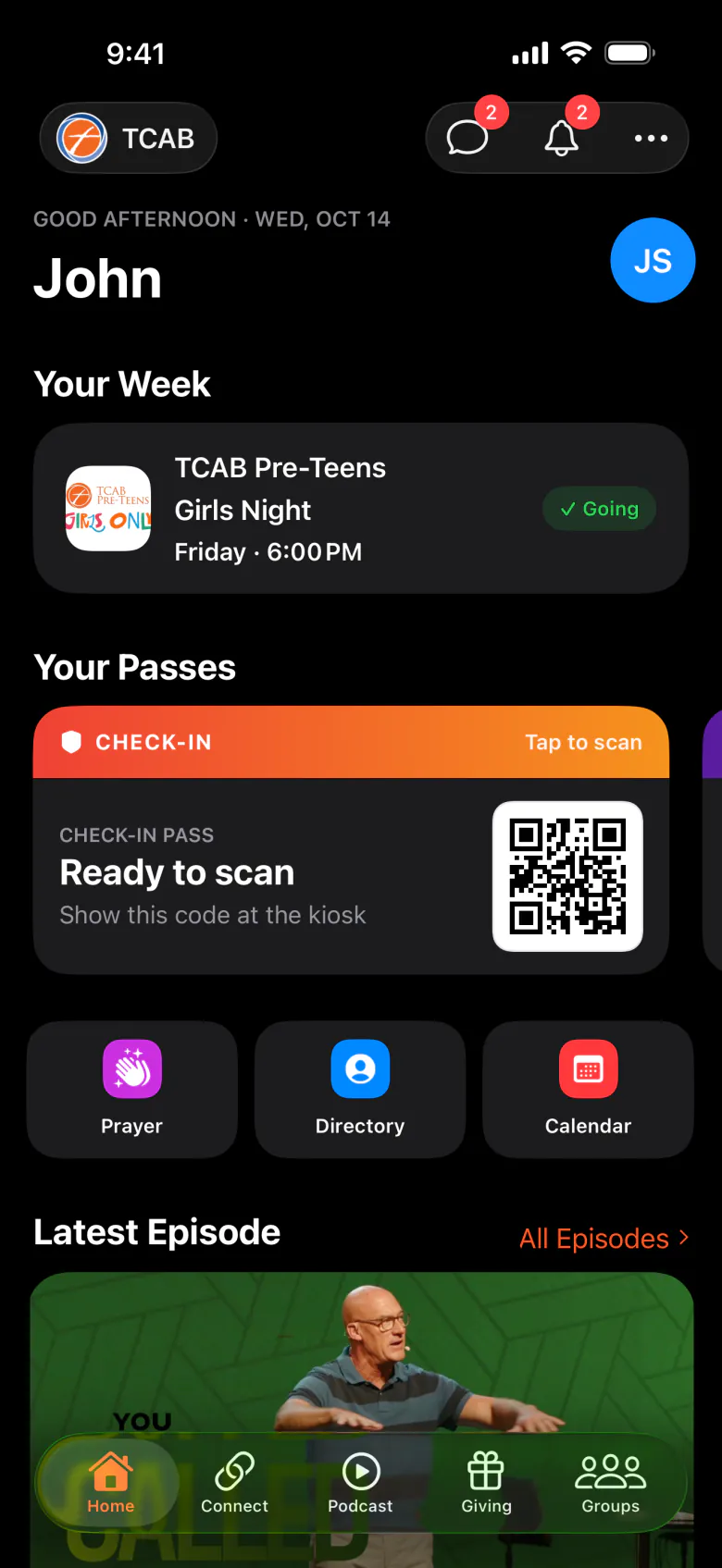
- Before and after: the Culminate Life app your people use today, next to the same app with a church’s own name and colour.
- What’s included: push notifications, giving, check-in, groups and messaging, sermons and live streams on every screen, and your own name in the stores.
- A look inside: real screens from the app, like giving, check-in, group chat, sermons and live, and the podcast, shown with a sample church.
- How it works: your church opens Apple and Google developer accounts (we walk you through it), we build your app, then we publish it and keep it updated.
Select I’m interested, and ask your Culminate contact to get your app started. See Your own branded app.