
Point of sale
Inventory
Check stock and see each item’s sales over a date range.
Open Community → Point of Sale and select the Inventory tab.
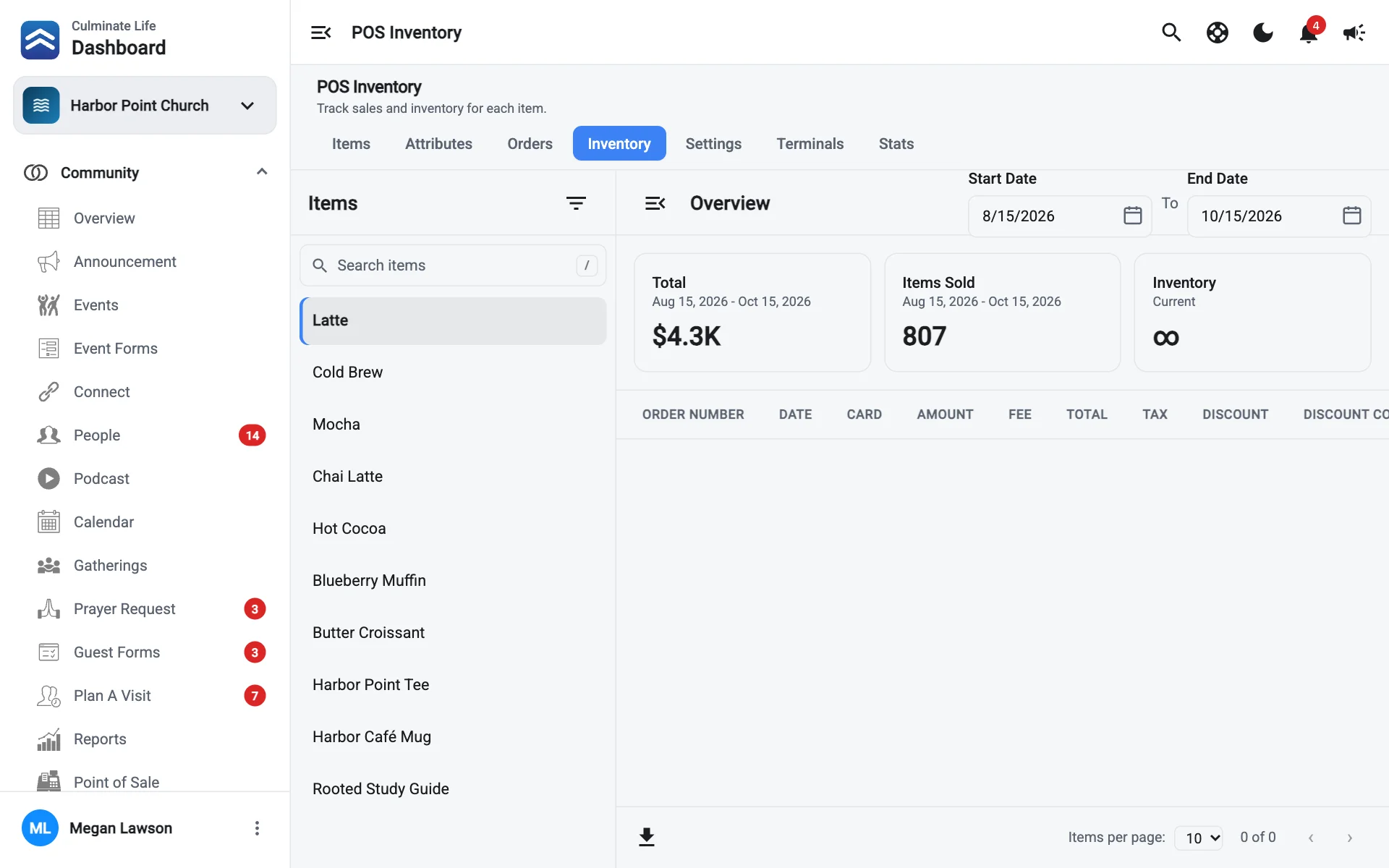
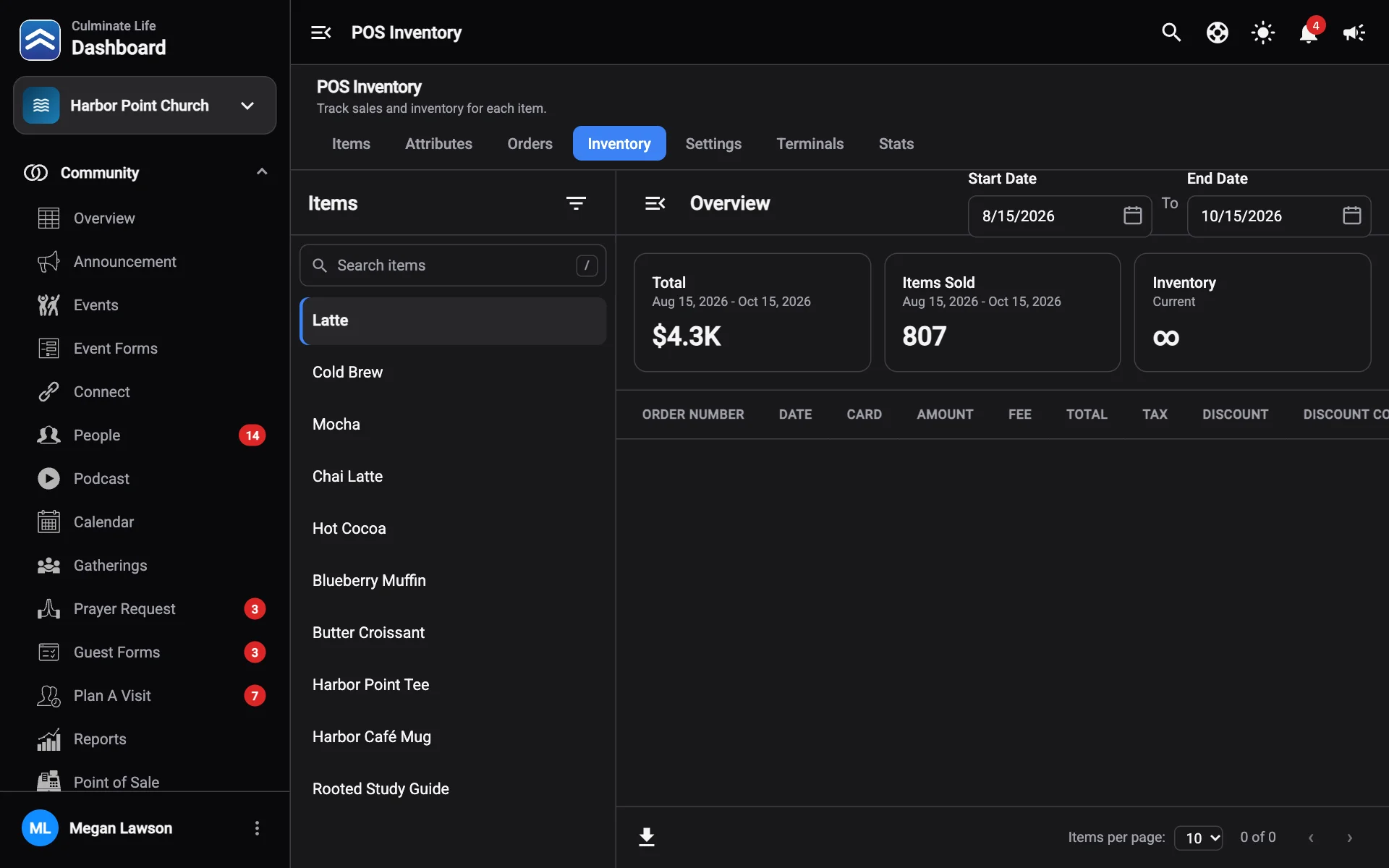
- Filter by store (All Stores or one store), and search items on the left.
- Select an item.
- Pick the Dates.
You’ll see:
- Overview: Items Sold and Total sales in the range.
- Inventory: how many are left (Current).
- Every order that included the item, with card, amount, fee, tax, discount, and more.
Select Download orders to save the item’s orders as a CSV file.
To change an item’s stock, edit the item on the Items tab and update How much do you have in inventory.