
Your profile
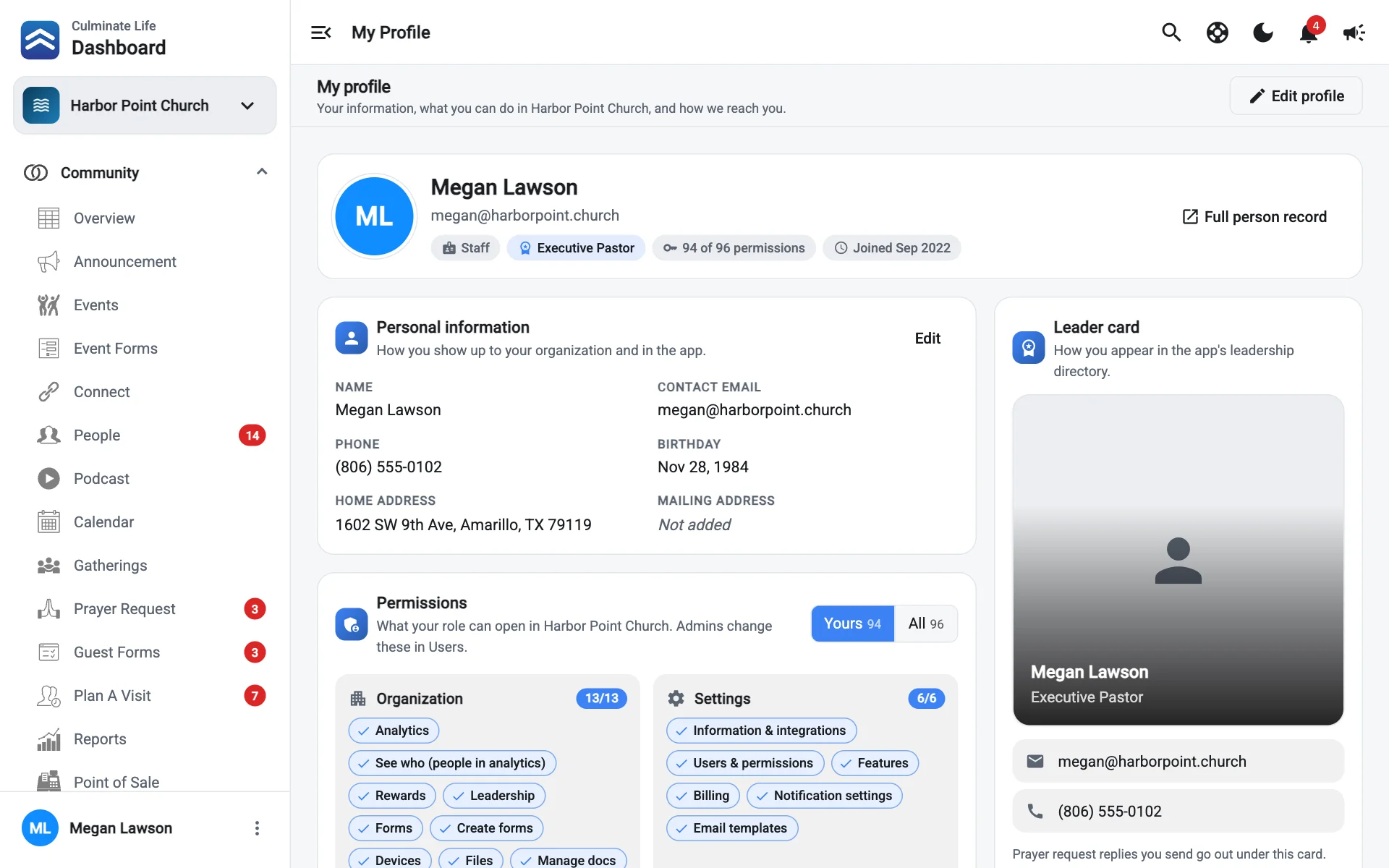
Your profile shows who you are in your organization and what your role can do. Open it from the menu under your name at the bottom of the sidebar, then My profile.
Personal information
How you show up to your organization and in the app: your name, contact email, phone, birthday, home address, and mailing address.
- Select Edit profile (or Edit on the card).
- Change what you need. Check Same as home address if your mailing address matches.
- Select Save.
Permissions
Lists what your role can open in this organization, like “24 of 60 permissions”. Switch between Yours and All to compare with everything available. If your event access is limited to specific events, it says so here.
Only admins can change permissions, in Users & permissions.
Notifications
Shows the dashboard alerts you’ve turned on and how the app reaches you. Select Manage to open your notification settings. App notification settings are set from the Culminate Life app.
My changes
Everything you’ve changed in the dashboard, newest first. It’s a handy way to retrace your steps.
Leader card
How you appear in the app’s leadership directory. Prayer request replies you send go out under this card. Select Edit in Leadership to change it.
If you’re not linked to a leader card yet, an admin can link one to your role from Users, so your replies and messages show your leader name and photo.
Organizations
Every organization where you have dashboard access. Current marks the one you’re in.
Shared with members
What other members can see about you in the app, such as your email, phone, and address. Choose what to share with each switch.
Account
The email you sign in with, and Log out.