
Website
Landing pages
Show a full-screen welcome or announcement on your website and in your app, then let people continue.
A landing page is a full-screen page visitors see before your website, like a big Easter invite or a new series. Visitors can always close it to get to your website. It can show in your app too.
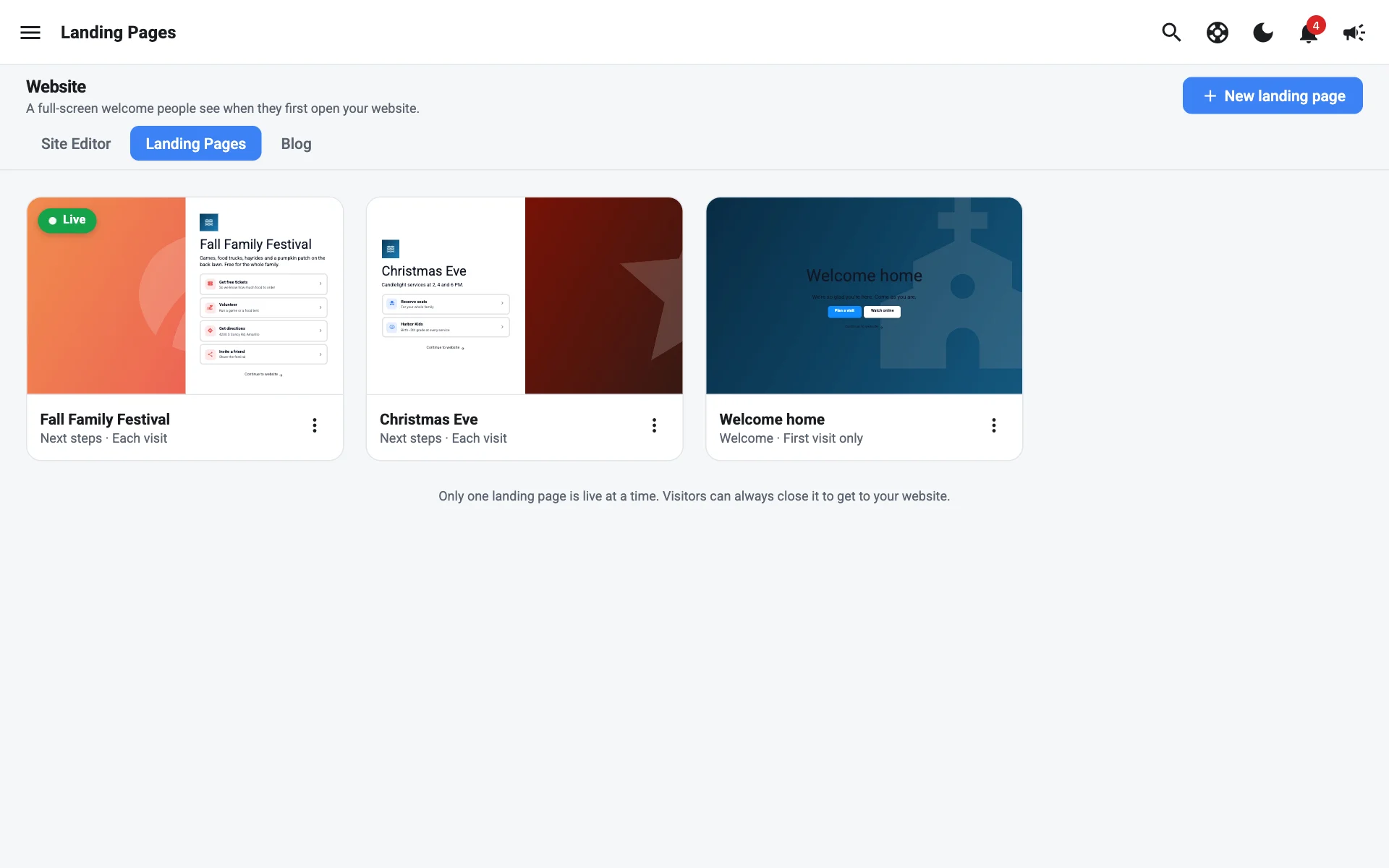
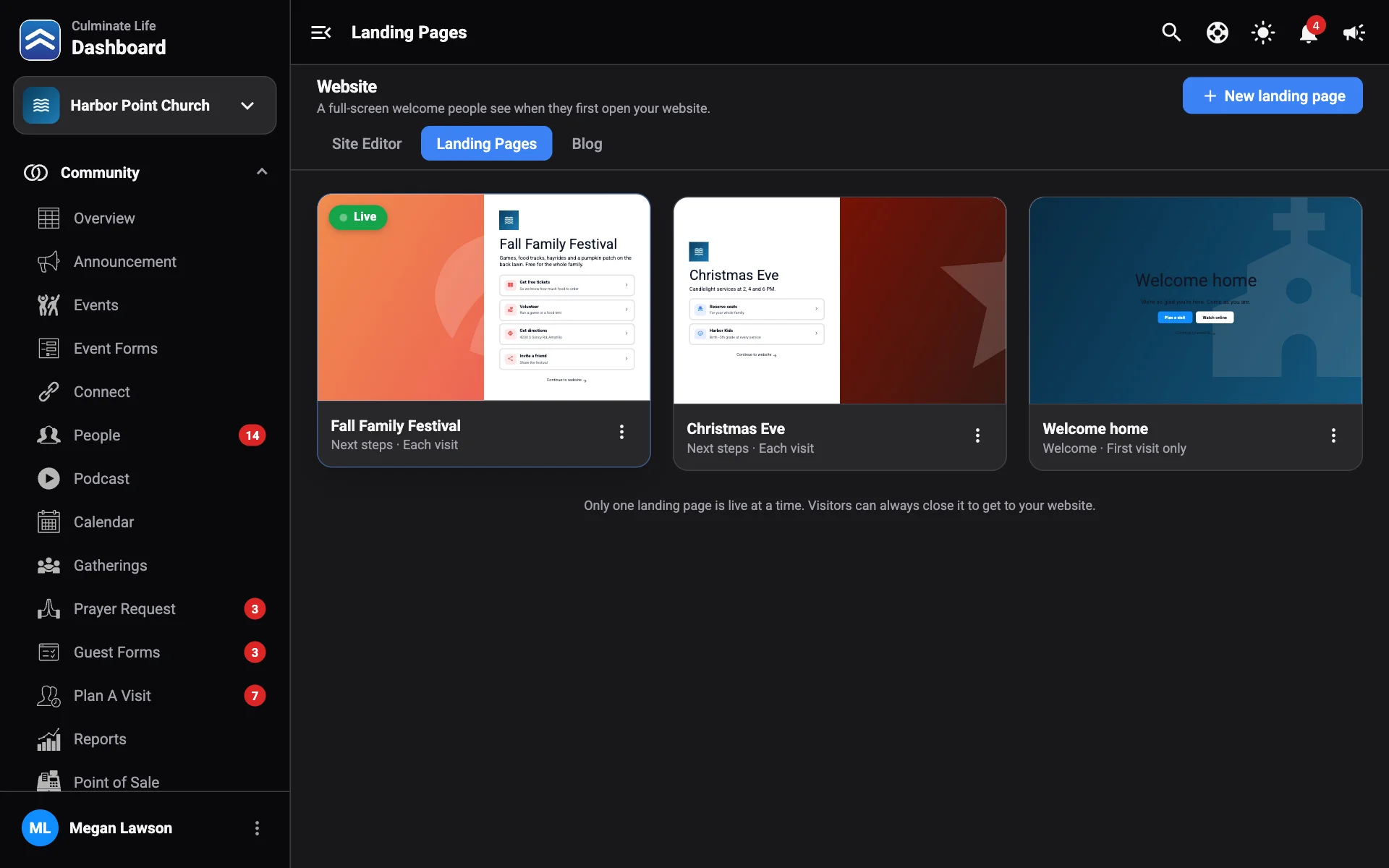
Create a landing page
- Go to Organization → Website and select the Landing Pages tab.
- Select New landing page, pick a Template, and enter a Name (only you see it).
- Select Create.
Edit it
Click the headline and text to edit them right on the page. In Settings:
- Template and Appearance: switch templates any time; each keeps its content, so you can switch back.
- Background: an image, colour, or a short muted video. The video uploader checks your file before it uploads. See Background videos.
- Content: tiles, steps, or buttons, depending on the template.
- Show it and Show until: how often it shows and when it turns itself off.
- Show a “continue to website” link, with your own Link text.
- Show in the mobile app: people see it full screen when they open the app, as often as Show it says, then as a card on Home. Buttons to your live stream, events, groups, ministries, or blog posts open those screens in the app.
Select Save, or Discard to undo changes.
Go live
Only one landing page is live at a time. Use a landing page’s menu to make it Live, Rename, Duplicate, or Delete it.