
Organization
Organization information
Your logo, name, description, service times, location, and contact details.
Your organization’s information shows on your profile in the app, in emails, and on your website. Open Organization → Settings, then Information.
The Settings menu on the left has Information, Users, Permission templates, Features, Notifications, Integrations, and Billing. You only see the settings your role includes.
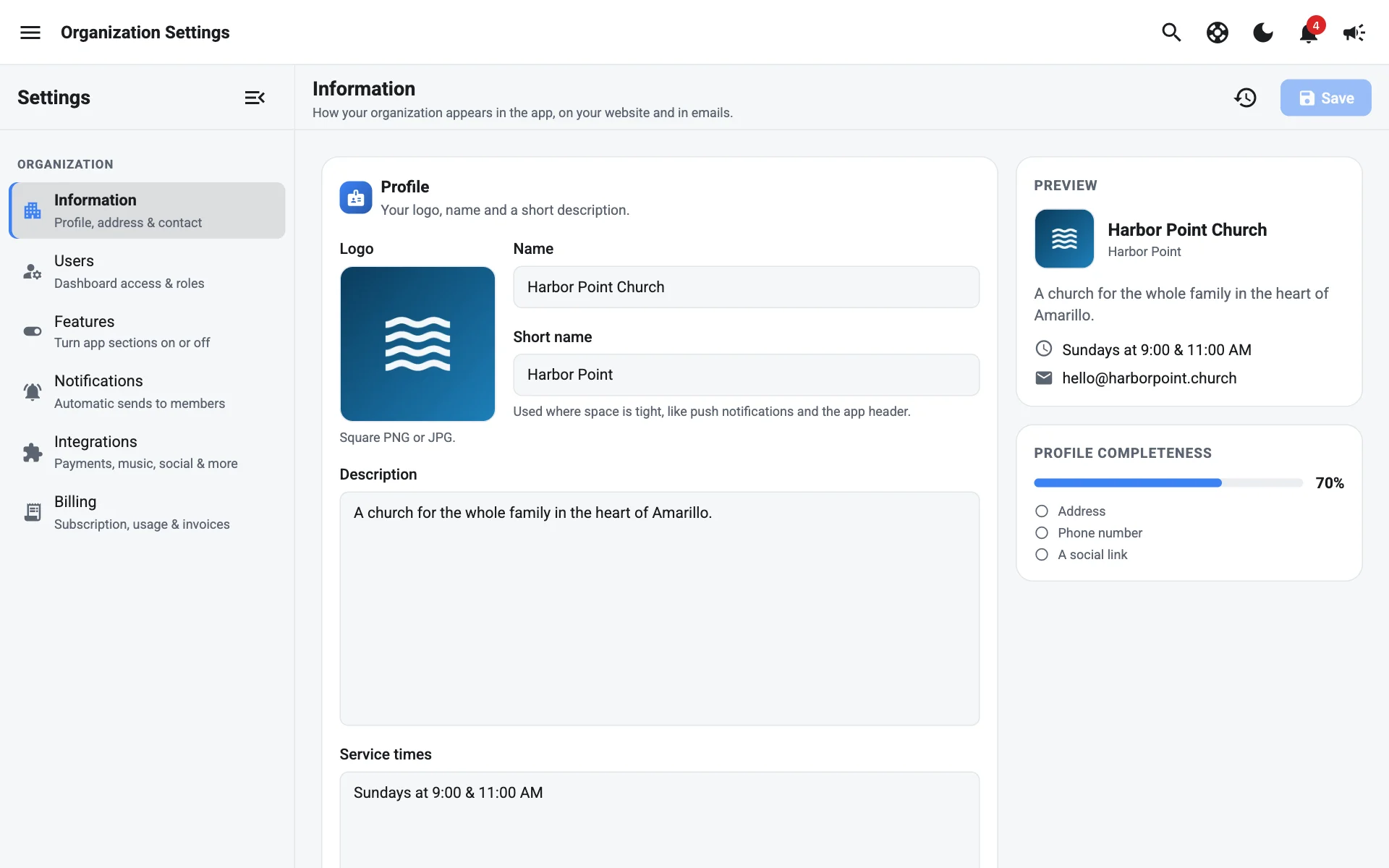
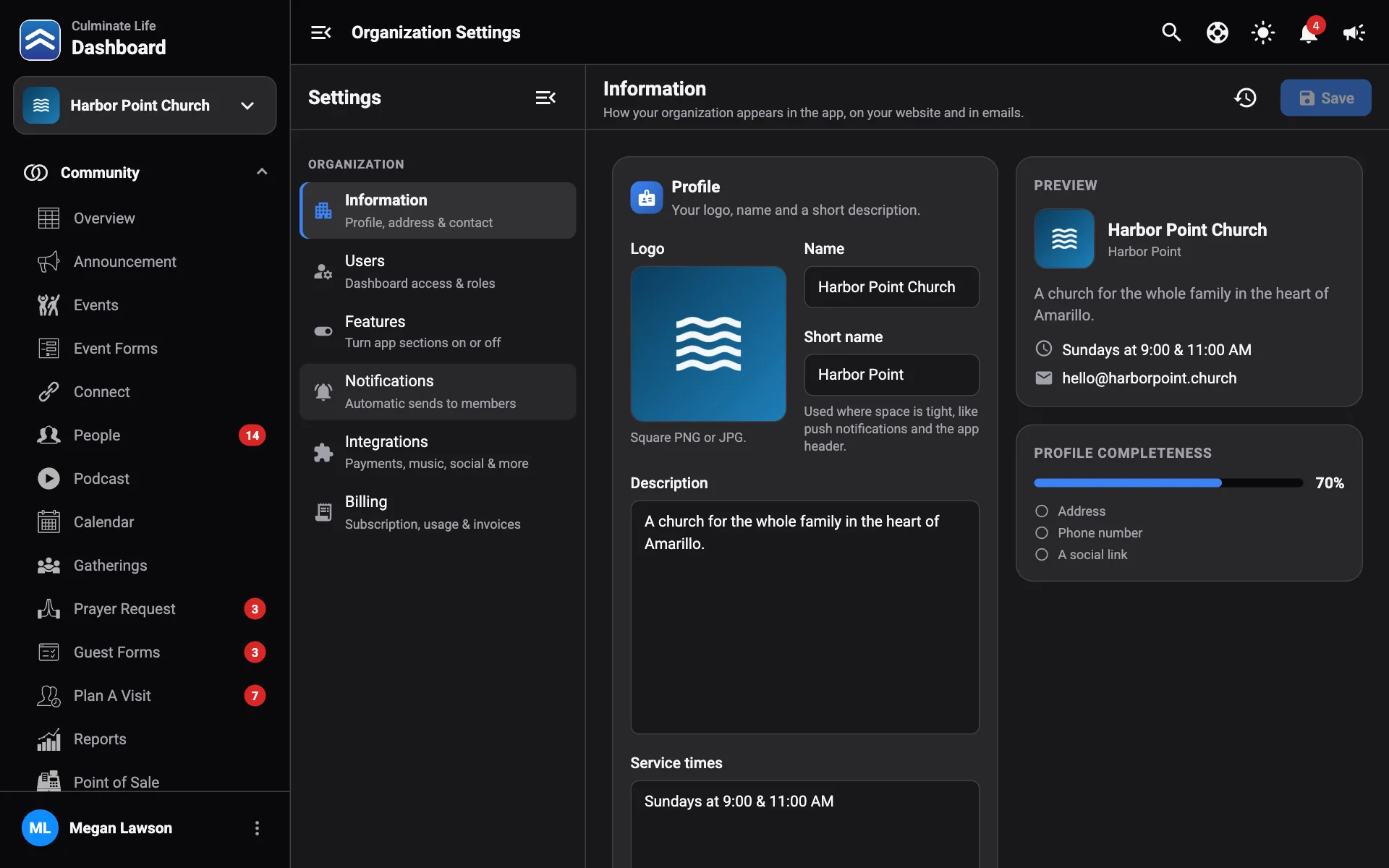
Profile
- Logo: a square PNG or JPG. Select Add logo or Change.
- Name: your organization’s full name, like “Grace Community Church”.
- Short name: used where space is tight, like push notifications and the app header (“Grace”).
- Description: a short description.
- Service times: shown on your profile in the app. One service per line works well.
Location
Start typing your address or your organization’s name in Street address and pick a suggestion. It fills in the city, state, zip code, and map coordinates, which power maps and directions. If we can’t find it, fill in the address by hand, including Latitude and Longitude.
Contact & social
- Phone number and Email.
- Social media: select Add link for Facebook, Instagram, YouTube, or X. These show in the app, in emails, and in your website’s footer.
Save
Select Save, or Discard to undo. Profile completeness shows what’s left to fill in; aim for Everything’s filled in.