
People by status
Everyone who joins your organization in the app, fills out a form, registers for an event, or is added by your team appears in People.
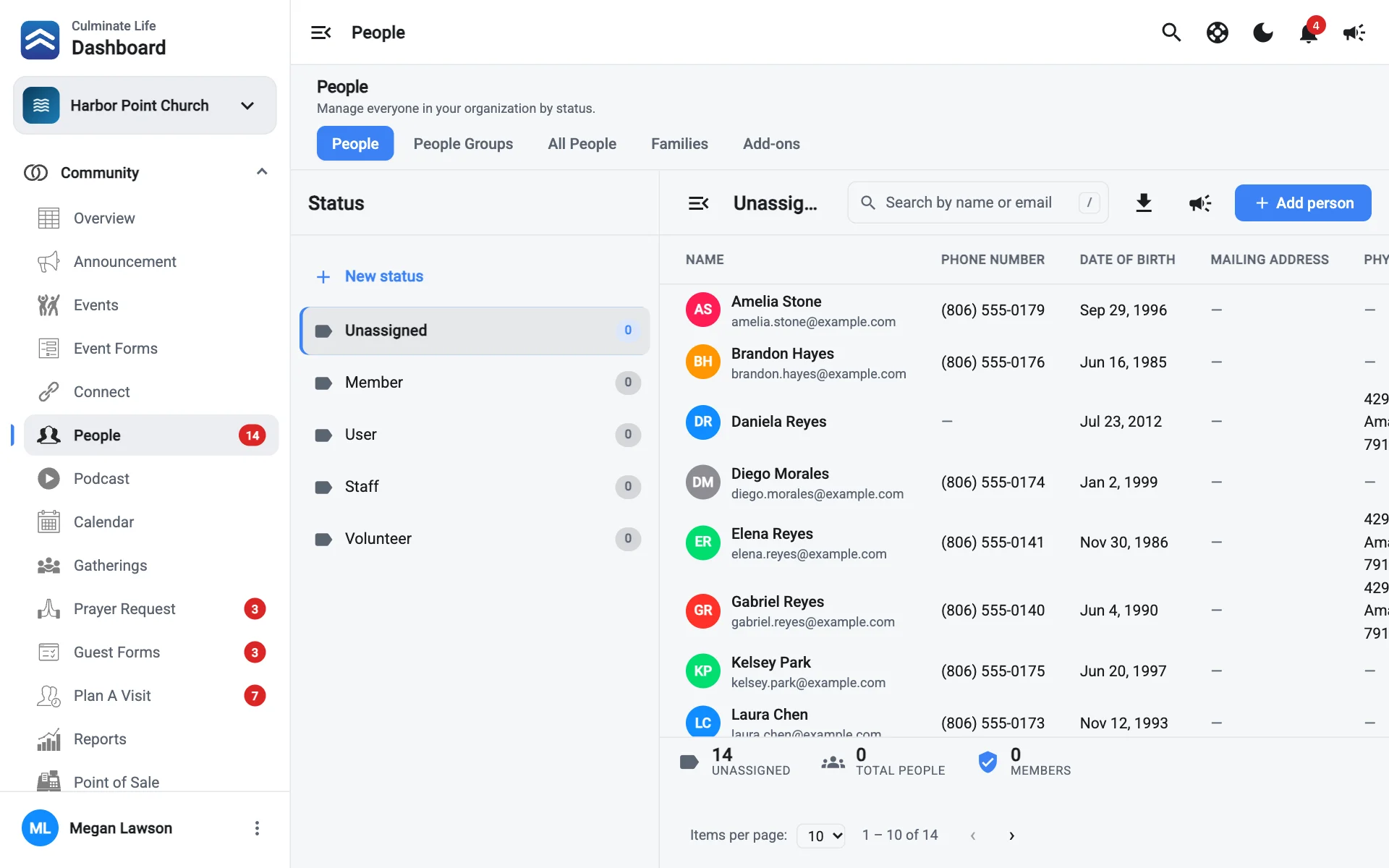
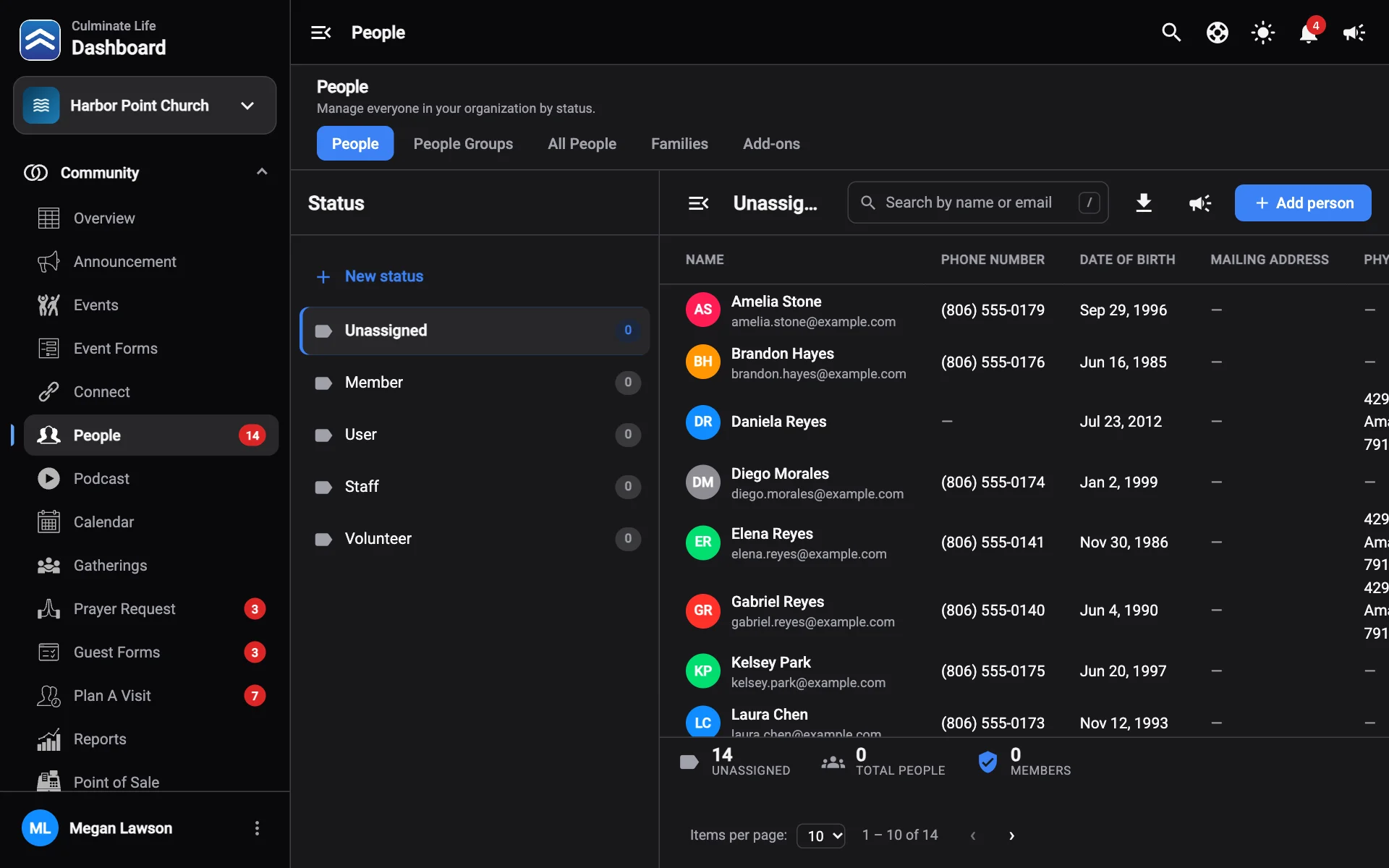
The People tabs
Open Community → People. The tabs switch between:
| Tab | What it’s for |
|---|---|
| People | People sorted by status, like Member or Volunteer. New people land in Unassigned. |
| People Groups | Your own lists of people, like “Greeters”. See People groups. |
| All People | Everyone in one list, where you can merge duplicates. See All people. |
| Families | Households and their parents and children. See Families. |
| Add-ons | Extra fields on every profile. See Add-ons. |
Statuses
Statuses are labels you choose, like Member, Staff, or Volunteer. Every person has one status. New people start in Unassigned, and the number next to People in the sidebar shows how many are waiting there.
- New status: add a status. Use a status’s menu to rename or delete it.
- Move to: use a person’s ⋮ menu to move them to another status.
The totals at the bottom show how many are in the status you picked, Total people, and Members.
Follow up with people
Use a person’s ⋮ menu and select Create follow-up… to add them to a workflow, like a guest follow-up board. To follow up with everyone on the page at once, select Create a follow-up for everyone on this page.
Add a person
Select Add person. See Add a person.
Search, download, and message
- Search by name or email.
- Download people saves the list as a CSV file.
- Send notification messages everyone in the status you’re viewing.
Select a person to open their profile.