
Background videos
A background video plays muted on a loop behind a Hero, a Section, or a landing page. The uploader checks your file first, so you’ll know it plays in every browser before it goes on your site.
Add a background video
Open the background settings
Select the Hero or Section on the canvas. In Content, find Video under Background.
Upload the video
Select Upload a background video, or drag a file onto it. MP4 and WebM files work.
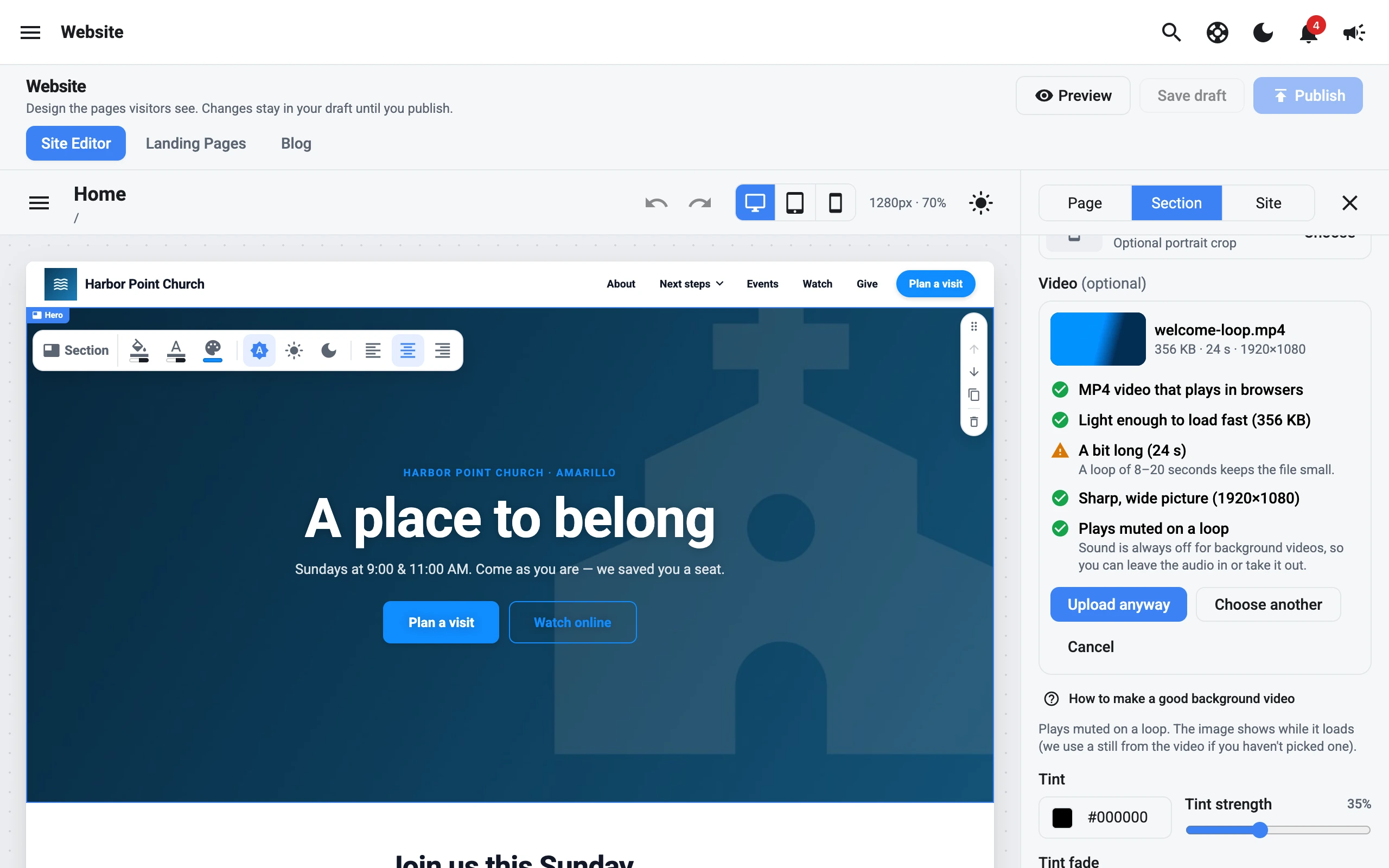
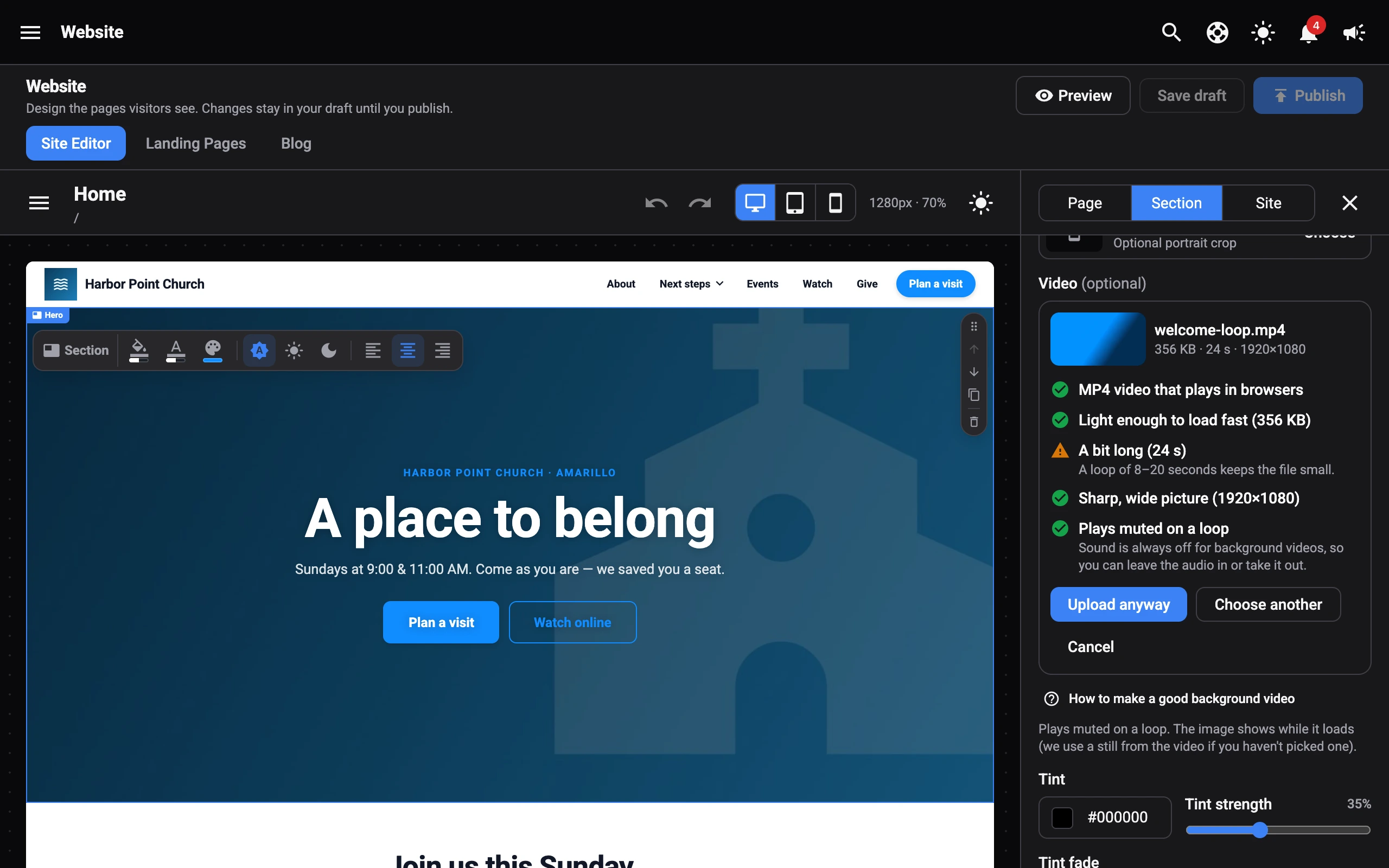
Review the checks
The uploader checks the file’s format, size, length, picture size, and quality. Each check shows a tick, a warning, or a problem:
- With no warnings, select Upload video.
- With only warnings, it will still work. Select Upload anyway, or Choose another.
- With a problem, you’ll need to fix the file first. The check tells you what to change.
Wait for the upload
The video uploads to Files. A still from the video is saved to your image library as its poster.
The poster shows while the video loads, and for visitors who’ve turned on “reduce motion” on their device. If the section has no background image, the poster fills it in.
Select Replace or Remove to change the video later. To use a video that’s hosted somewhere else, select Use a link instead and paste its address.
What works best
| Best | Limit | |
|---|---|---|
| Length | 8–20 seconds that loop smoothly | 4–30 seconds |
| File size | Under 8 MB | 15 MB |
| Picture | Landscape, 1920×1080 or 1280×720 | |
| Format | MP4 with H.264 video | MP4 or WebM |
- Start and end on similar shots so the loop is smooth.
- Wide screens crop the edges, so keep the subject in the middle.
- Calm, slow footage reads best behind text. Use the section’s tint to keep the headline readable.
- Sound is always off, so you can leave the audio in or take it out.
Videos from an iPhone
iPhones often record in HEVC (High Efficiency), which most browsers can’t play. QuickTime (.mov) files aren’t accepted.
- Before filming, set Settings › Camera › Formats to Most Compatible.
- Or convert the clip with HandBrake (free for Mac and Windows): open the clip, pick the Fast 1080p30 preset, set Video › Encoder to H.264 and Quality to RF 28–30, trim it with Range (seconds), remove the audio track, then select Start.
- Online compressors work too. Choose MP4 / H.264 output at 1080p or 720p.