
Donations
Open Giving → Donations to see every gift, newest first.
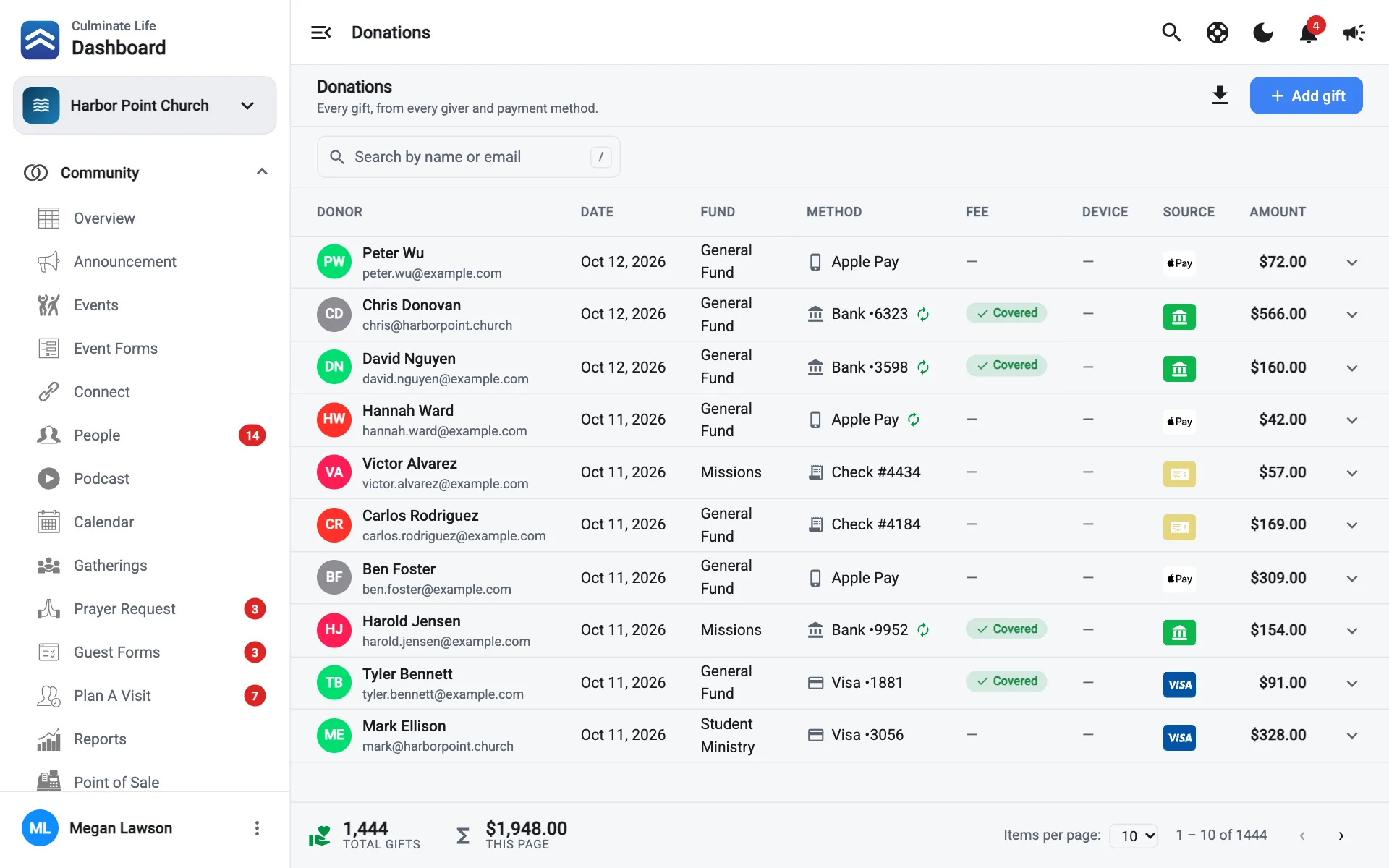
The donations table
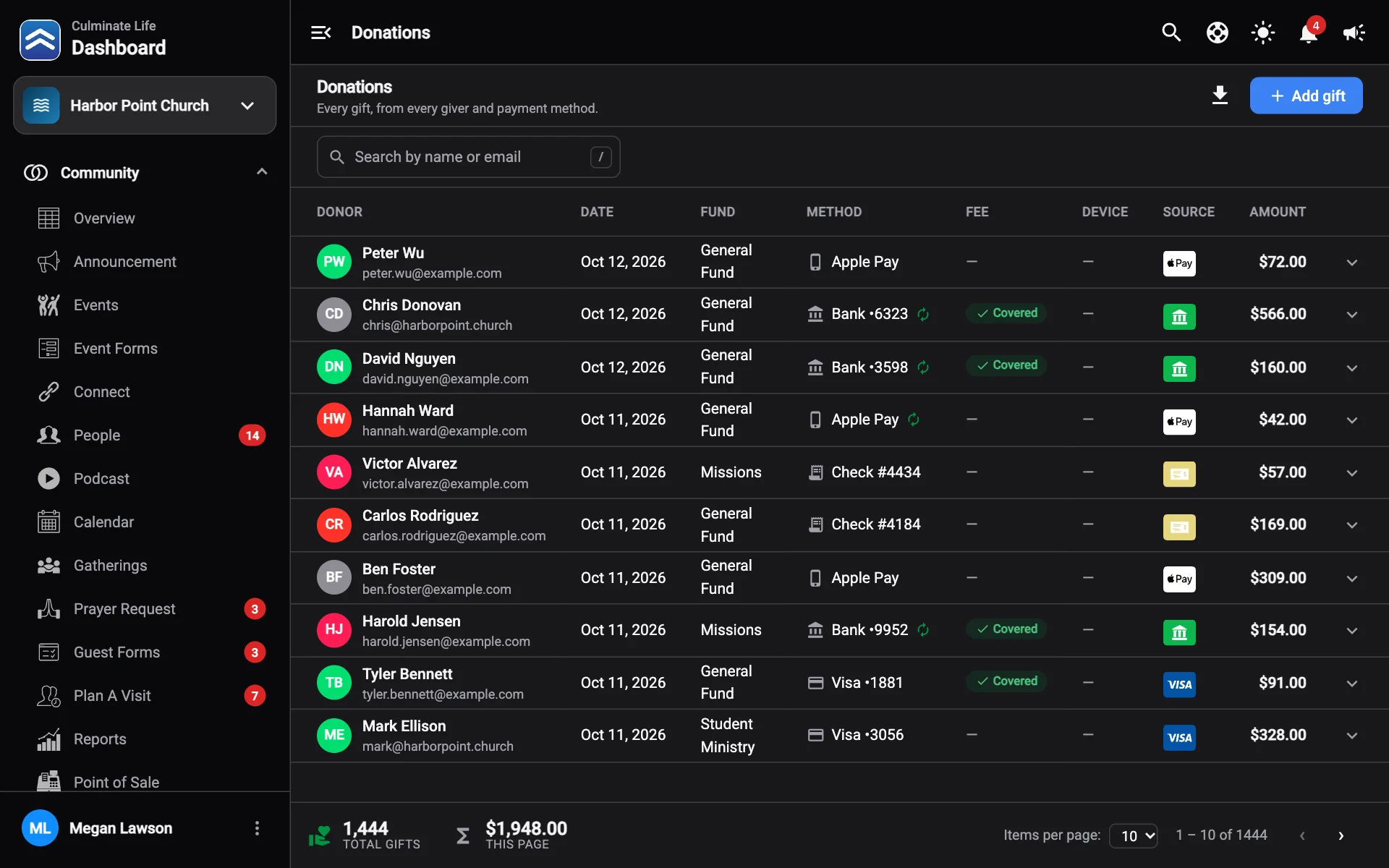
Each gift shows the Donor, Date, Fund, Method, Fee, whether the fee was Covered, the Device and Source, and the Amount. Labels mark Recurring gifts and gifts from Point of sale.
Select a gift to see more: the payment and account, whether it was imported, notes, and refund details.
The totals at the bottom add up the gifts on the page and any refunds.
- Search by name or email.
- Download donations: pick a Quick range or your own Dates and select Download CSV. It includes donor contact details, payment info, fund, fee coverage, and source for each gift.
Record a gift
Select Add gift, then choose the kind of gift.
Cash
- Choose who it’s Given by: a Person, a Business, or Loose change. Loose change is recorded without a giver, which is ideal for offering-plate cash. Use Add a new person or Add a new business if they’re new.
- Enter the Date received, the Amount, and the Fund.
- Add Notes if you like, then select Record gift.
Check
- Choose who it’s Given by.
- Enter the Date, Amount, Check number, and Fund, and an optional Memo.
- Save.
For a stack of checks from a scanner, use Import checks instead.
Non-cash
For gifts like stock, a car, or supplies:
- Choose who it’s Given by.
- Enter the Date, the Estimated value, and the Fund.
- Add a Description of what was given, then select Record gift.
Refund a gift
- Select the gift, then Refund.
- Enter a Refund amount, or select Refund all.
- Add a Reason and an optional Note.
- Confirm.
Card and bank refunds go back to the giver’s account and usually show up within 5–10 business days. Cash and check gifts are only recorded as refunded: no money is moved, so return it to the giver yourself.
If a gift was recorded by mistake, select it and choose Delete.