
Your website
The site editor builds your organization’s website. Sections like events, groups, sermons, giving, and the calendar pull straight from the dashboard, so your site is always up to date.
To turn your site on or off, change its culminate.life address, or use your own domain, see App & Web.
Open Organization → Website. The tabs switch between Site Editor, Landing Pages, and Blog.
The editor
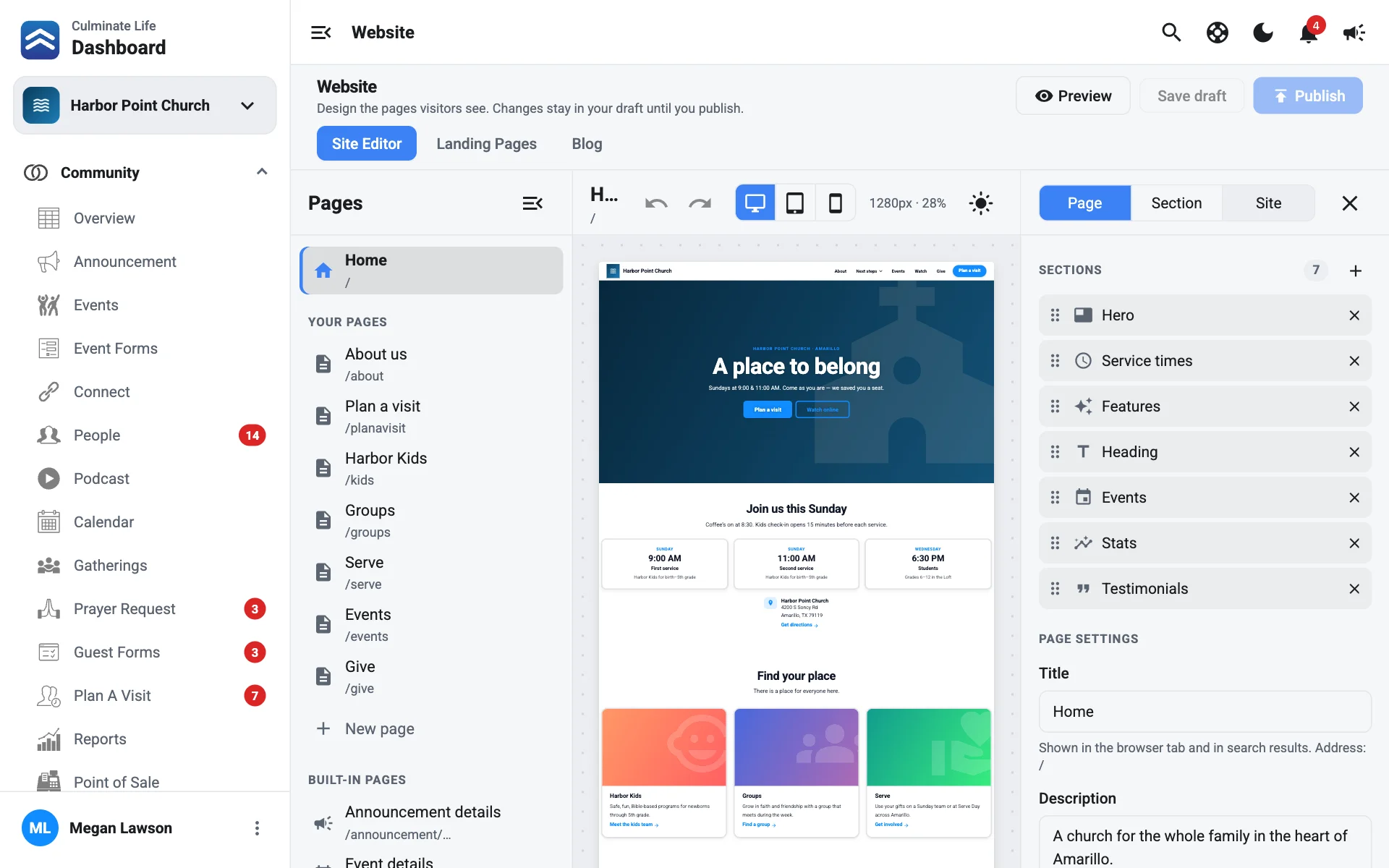
- Pages on the left: Your pages and Built-in pages. Select one to edit it.
- The canvas in the middle: your page as visitors see it. Click a section to select it, then type right on the page to change its text. A small style bar appears above the section for quick colour and layout changes. See Edit on the page.
- The panel on the right, with three tabs:
- Page: the page’s sections and its settings.
- Section: the selected section’s Content and Style.
- Site: the theme, motion, site style, menu, footer, and search settings for the whole site.
Hide panel gives you more room.
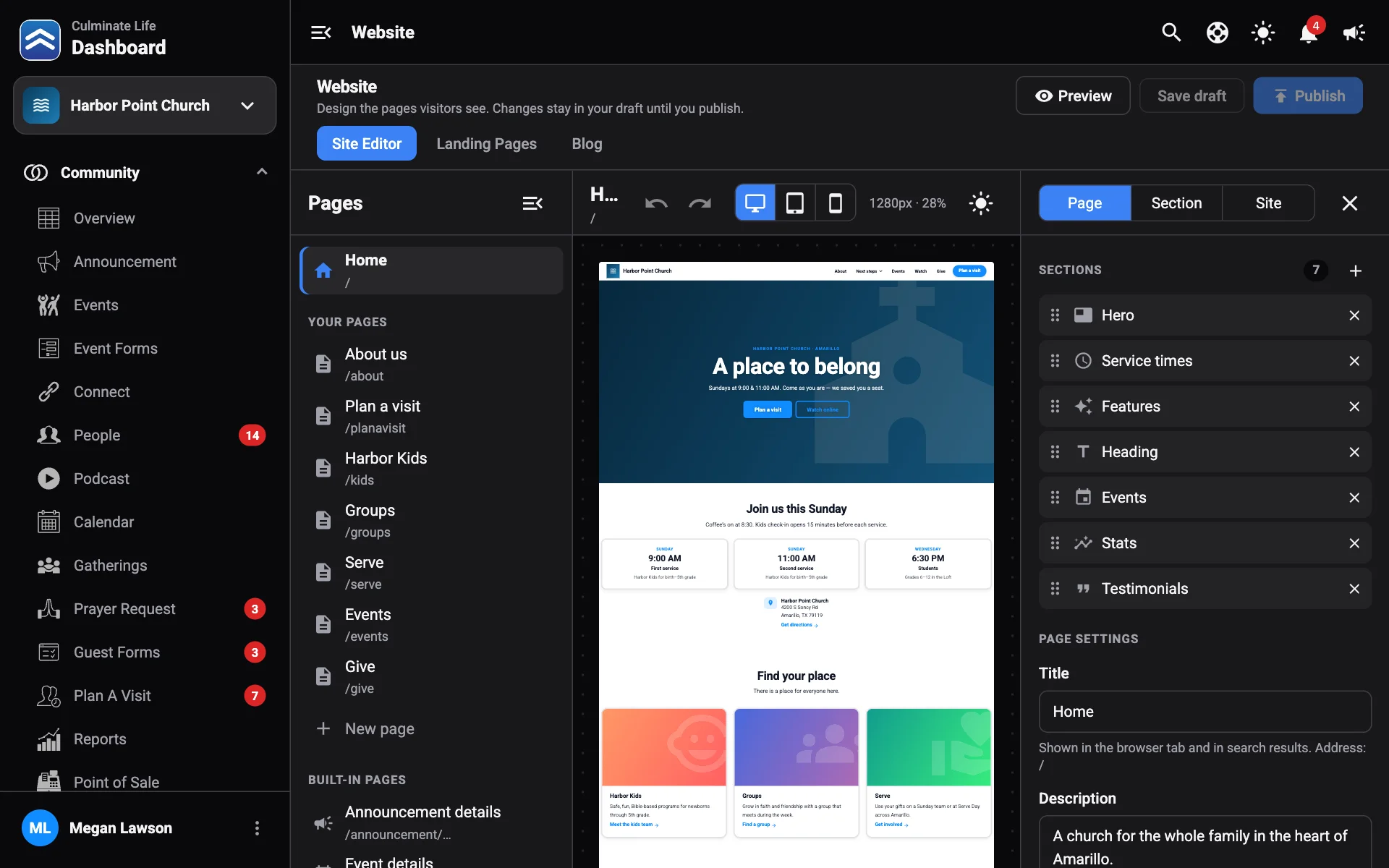
Along the top: Undo and Redo, Canvas width (desktop, tablet, or phone), switch the site between light and dark, and Preview.
Add a page
- Select New page under Pages.
- Enter a Page name. You’ll see its address, like
/about. - Select Create.
In the Page tab, Page settings has the Title (shown in the browser tab and search results) and the page’s Address. Under Search & sharing you set how the page shows up in search and shared links. See Search and sharing. Delete page is at the bottom.
Add and arrange sections
- Select Add a section where you want it, and pick from the list (or search). Sections are grouped into Text & layout, Media, Highlights, Services & live, Your content, Forms & giving, and Embeds. See every section.
- Click the section on the canvas. Type to change its text, or use the Section tab: Content changes what it shows; Style changes colours, spacing, and visibility. See Style a section.
- Drag a section by Drag to move to reorder it.
- Hide a section on desktop or mobile, or select Remove section.
Built-in pages
Built-in pages show your dashboard content automatically, like each event, group, connect, series, blog post, the calendar, videos, the store, and your live page. You can choose the page’s look and add sections above or below the built-in part. Those sections show on every page of that type.
Built-in pages follow your site style too: their cards, buttons, and icon tiles match the rest of your site.
The live page is always dark, so video stands out.
Site settings
Open the Site tab in the panel:
- Theme: Light or Dark, the Heading font and Body font, Shrink large text on phones, the Brand color, and the Page background.
- Motion: how sections come in as visitors scroll. See Motion.
- Site style: a ready-made look (Classic, Minimal, Bold, Soft, Elegant, or Editorial) and fine-tuning for corners, outlines, shadows, headings, and icons. See Site style.
- Menu bar and Footer: layout, logo, links, dropdowns, and an optional bar above the menu. See Menu and footer.
- Search & sharing: a search health check, Site name, Tagline, Description, Share image, Browser tab icon, church info for search, search engine verification, your Sitemap, Redirects, and site meta tags. See Search and sharing.
- Advanced: Facebook Pixel ID and Custom scripts.
Save and publish
Changes aren’t live until you publish.
- Save draft keeps your changes without publishing. You’ll see Draft not published.
- Preview shows the site as visitors will see it.
- Publish puts your changes live.
- Discard throws away unsaved changes.