
Giving reports and statements
Open Giving → Reports. It has two tabs: Reports and Statements.
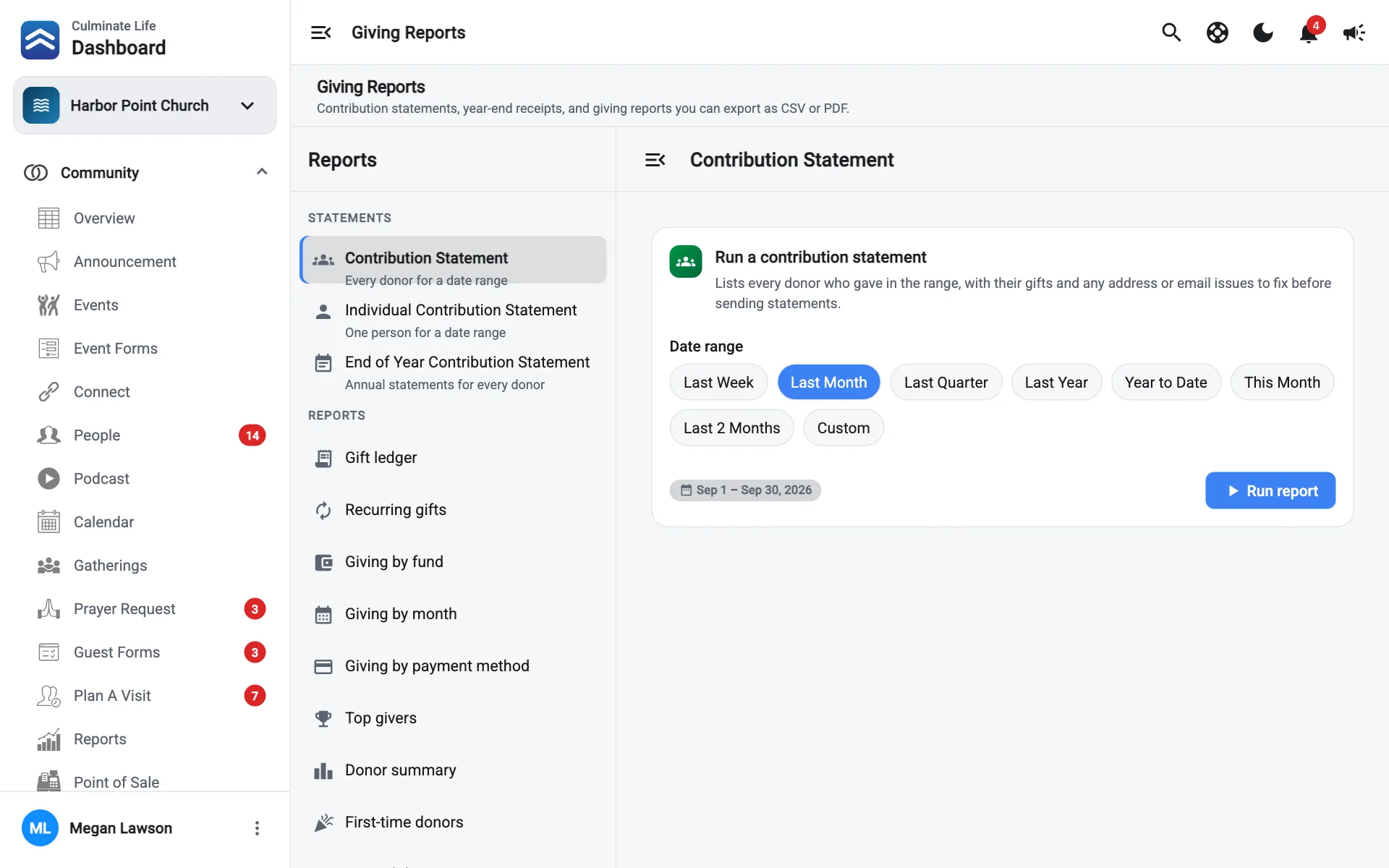
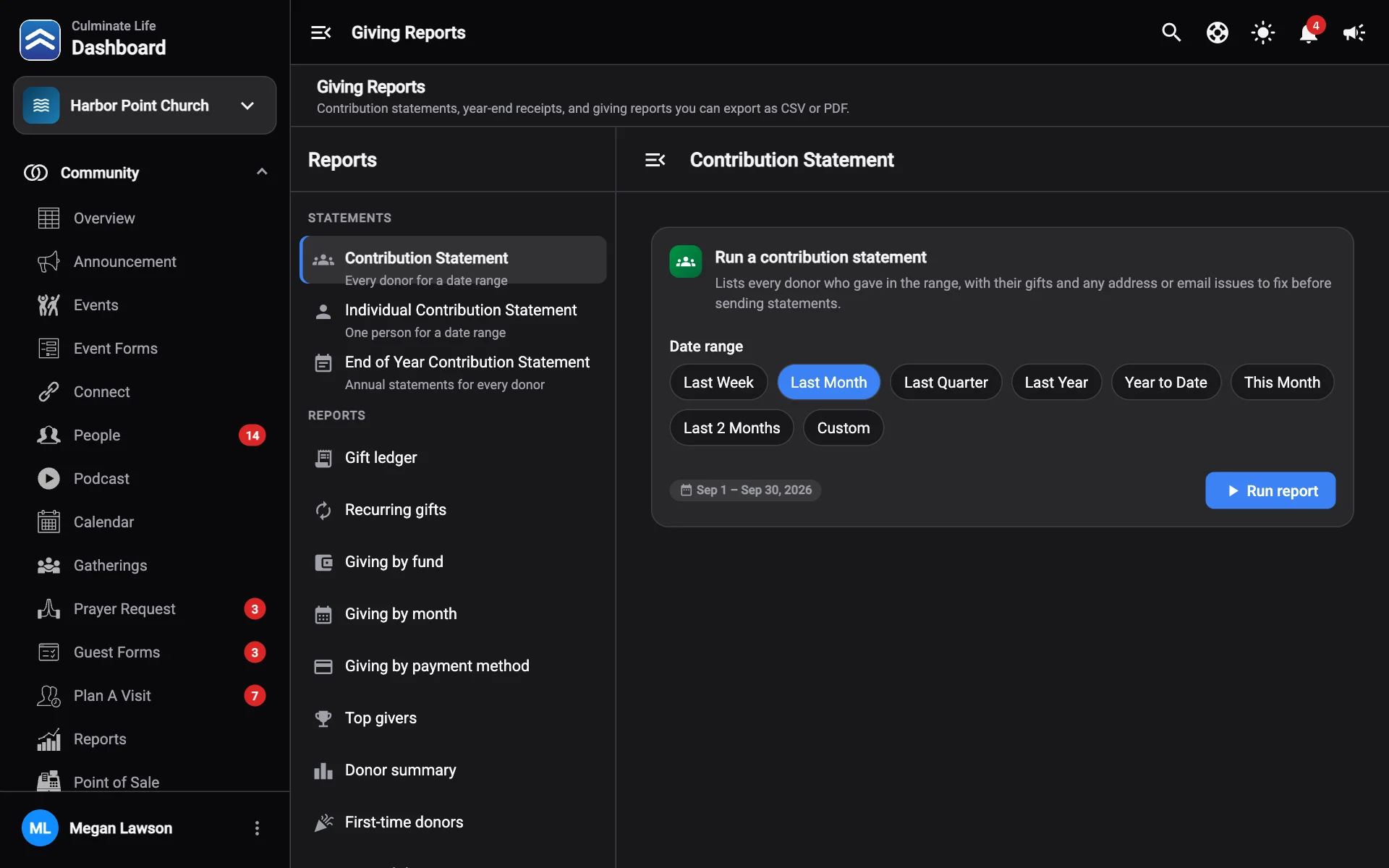
Reports
Pick a report, choose a date range, select Run report, and Export it as a CSV spreadsheet or PDF. See how reports work.
| Group | Report | What it shows |
|---|---|---|
| Donations | Gift ledger | Every gift with donor, fund, method, and refunds. The full picture for bookkeeping. |
| Donations | Recurring gifts | Every active recurring gift with its schedule and yearly value. |
| Summaries | Giving by fund | Totals, gifts, and donors for each fund. |
| Summaries | Giving by month | Month-by-month totals, donors, and how much came from recurring gifts. |
| Summaries | Giving by payment method | Card, bank, check, cash, and wallets, and where gifts came from. |
| Donors | Donor summary | Each donor’s total, number of gifts, funds, and last gift, largest first. |
| Donors | Top givers | Your top donors, ranked by total. Pick how many (top 10, 25, 50…). |
| Donors | First-time donors | People whose first gift ever came in the range. Perfect for thank-you notes. |
| Donors | Lapsed donors | People who gave in the period before this range but not in it. |
Contribution statements for a date range
Select New report and choose:
- Contribution Statement: every donor for a date range.
- Individual Contribution Statement: one person for a date range. Choose the Person.
Pick the Date range (choose Custom to pick your own Dates) and select Run report. You’ll see the Total given, Donors, and Gifts, and can download Gifts (CSV), Donor (CSV), or a statement PDF. All donors (CSV) downloads every donor’s contact details.
Year-end statements
Year-end statements are the annual contribution statements donors need for taxes.
Create the statement
Switch to the Statements tab and select Create statement for year (the +). Pick the year. A Draft statement is created with every contributor.
Fix missing details
Donors with a missing email or address are flagged Need attention. Select that tile to see only them. Each shows what’s Missing: email, address, or mailing address. Fix them on their profile (or the business), then select Refresh donors.
Combine spouses
Couples who give separately can share one statement. Suggested pairs from shared families are outlined.
- Select two people and choose Combine statements.
- For a suggested pair, confirm it or choose Keep separate.
- To undo a pair, select Separate these donors.
Select Save grouping when you’re done.
Generate PDFs
Choose a layout: Standard, Single window #10 envelope, or Double window #10 envelope, then select Generate PDF. Print and mail them, or keep them for your records.
Publish
Select Publish. Choose Publish and notify to let donors know their statement is ready, or Just publish. Published statements are available to donors.