
Your home page
The home page is the first thing you see after signing in. It pulls together what needs you today from every area your role can use, so you can start your day in one place. Select your organization’s name at the top of the sidebar to come back to it.
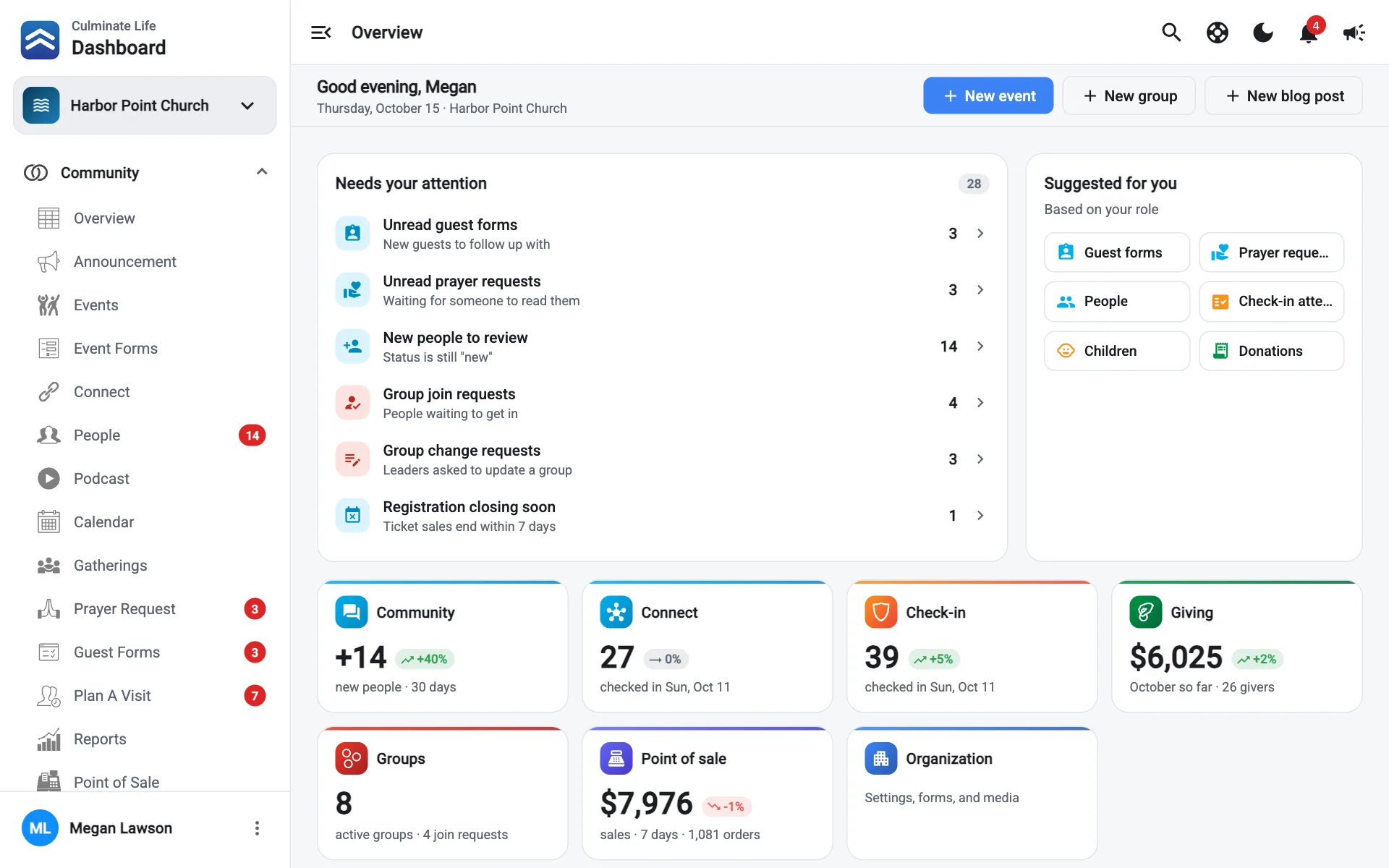
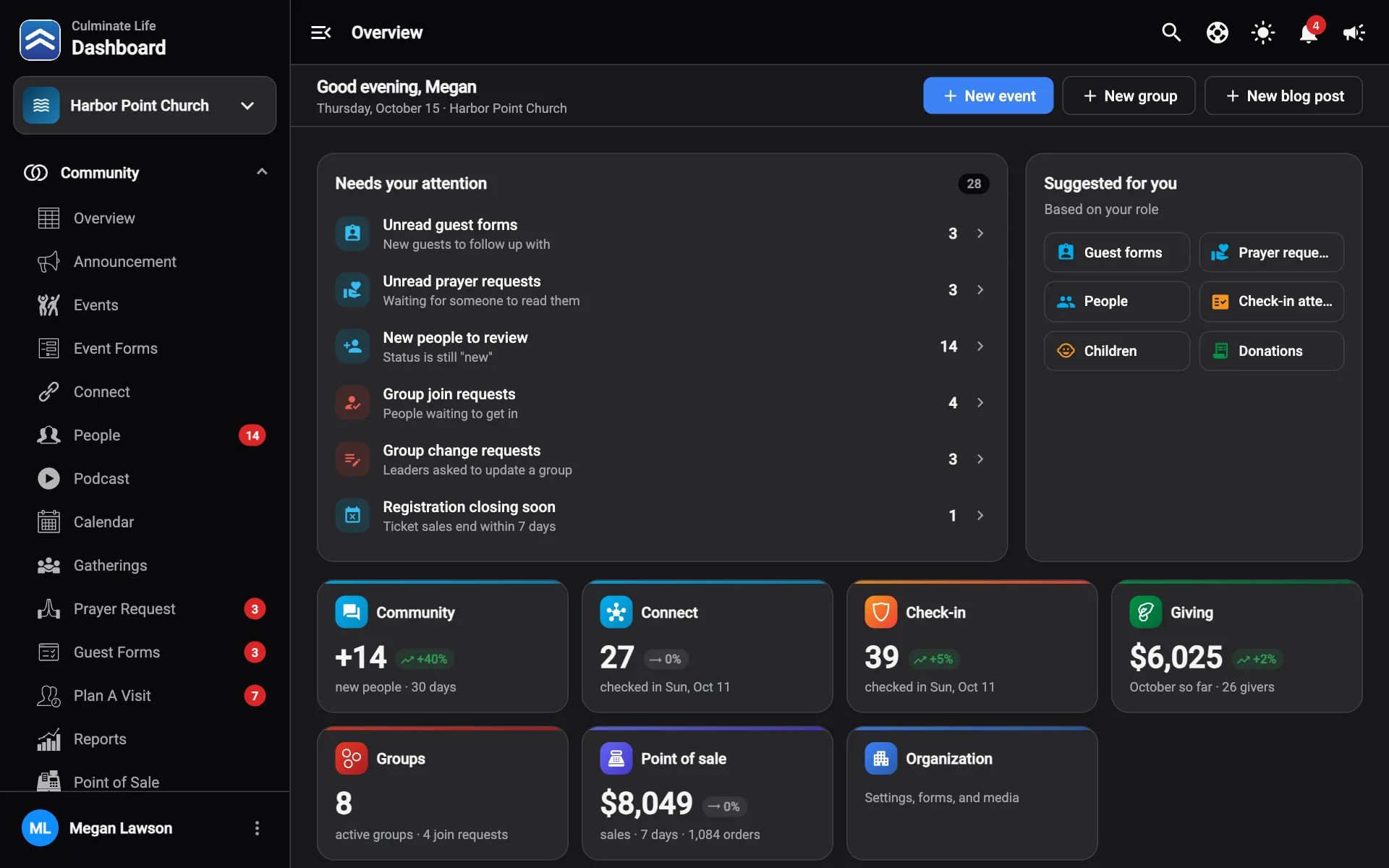
What’s on it
If you have a branded app and Apple or Google is holding back its updates until your developer account holder accepts new terms, an alert shows at the top of the page. Select it to see what to do, or see When Apple or Google has new terms.
Greeting
Today’s date and anything happening today, like a service or an event.
Needs your attention
Things waiting on you, each linked to the page where you deal with it:
- New people to review
- Unread guest forms and prayer requests
- Planned visits coming up
- Group join requests and group change requests
- Events whose registration closes soon
- Groups and connects with no recent attendance
- Your open Workflows items, docs to acknowledge, and room bookings to approve
When there’s nothing waiting, you’ll see All caught up.
Suggested for you
Quick numbers and shortcuts picked for your role, like registrations in the last 7 days, new people in the last 30, guest forms this week, or point of sale sales. Each shows how it compares with the period before. Shortcuts like New event, New group, New form, or New blog post take you straight to creating one.
This week
Everything on the calendar for the next 7 days. If nothing is scheduled you’ll see A quiet week and a New event button.
Attendance
The last 30 days of attendance for each area you can see: check-in, connects, and groups. Use the tabs to switch between them, and Open to go to that area’s full attendance page.
Recent activity
The latest changes across the areas you can see.
Why your home page looks different from a coworker’s
The home page only shows areas your role can use. At the bottom it lists them: Showing what your role can use. Select See your permissions to open your profile, where you can see everything your role includes.
If your role doesn’t include any areas yet, you’ll see Your role doesn’t include any areas yet. Ask an admin to update your permissions in Users & permissions.