
Users and permissions
Users are the people on your team who can sign in to the dashboard. Each user has their own permissions, so a children’s director can manage check-in without seeing giving.
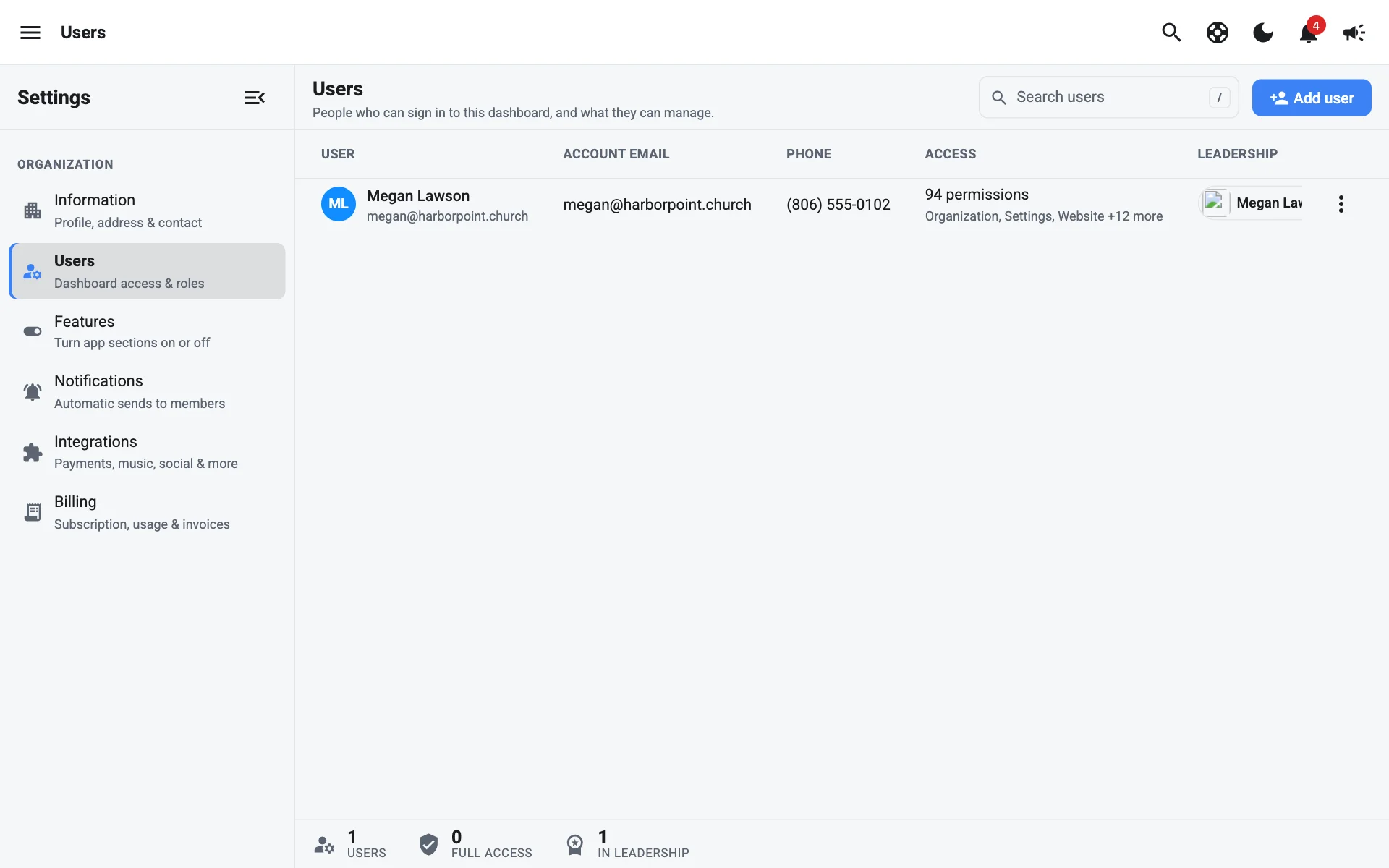
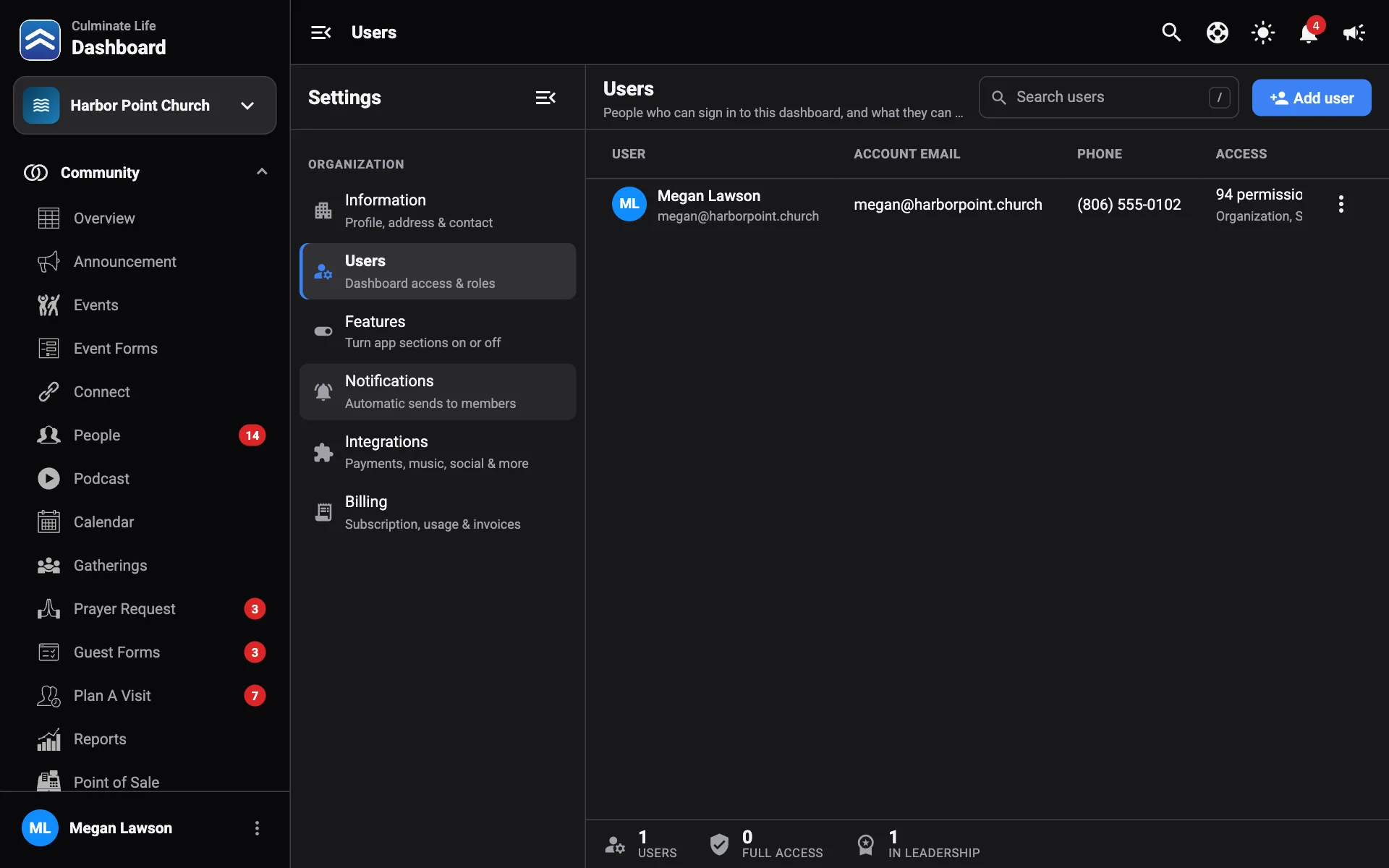
Open Organization → Settings, then Users. You need the Users & permissions permission.
Add or invite a user
You can add anyone, even if they don’t have a Culminate account yet. People with an account are added right away, and we email them to let them know. People without one get an email invite to create their account, and they have access as soon as they do.
Select Add user
Choose who to add
- From your people: search by name or email. You’ll see Has account or Will be invited. Someone who’s invited gets the email on their person record.
- Invite by email: for someone who isn’t in your people yet. Enter their First name, Last name, and Email.
Choose their permissions
If you have permission templates, pick one under Permission template, or leave it on No template · choose permissions yourself. Then select Choose, Edit, or Customize to pick exactly what they can do (see below). Anything you change from the template is just for this person.
Select Add user or Add or invite
Pending invites
People you’ve invited who haven’t created their account yet show under Invited · waiting for them to create an account, with when the invite expires. Invites last 14 days.
- Resend: sends a new invite and gives them another 14 days. The old link stops working.
- Cancel invite: the link stops working and they won’t get access.
What the person you invite sees
They get an email with a link to join your organization.
- New to Culminate: they enter their name and choose a password, then select Create account and join. The same account works in the Culminate Life app.
- Already have an account with that email: they sign in and select Sign in and join.
If the invite has expired, they’ll be asked to get a new one from you. If it was already used, they can just sign in.
The users list
Each user shows their Account email, Phone, and Access: Full access, No access, or how many permissions. Users who can only see some events are marked. If they started from a permission template, you’ll see its name, plus “· 2 changes” (for example) when their permissions differ from it. The Leadership column shows the leader card they’re linked to.
Select a user, or use their More options menu, to Edit permissions or View profile.
Edit permissions
Permissions are grouped by area. Turn on a whole group with All … permissions, or pick individual ones. Use Find a permission to search, and Select all or Clear to start over. Some permissions turn on others they depend on; they’re marked needed by another permission.
The Permission template card at the top shows which template the user started from. Pick a different one to replace their permissions with it. When a user has their own changes, the card counts them (like “Their own changes: 2 added, 1 removed”), each changed permission is marked added or removed, and Reset to template puts them back to exactly the template. No templates yet? Select Create a template.
| Group | Permissions |
|---|---|
| Organization | Analytics, See who (people in analytics), Rewards, App & Web, Leadership, Forms, Create forms, Devices, Files, Manage docs, Facilities, Manage facilities, Audit log & history, Undo changes |
| Workflows | Workflows, Manage workflows |
| Text conversations | Text conversations (assigned to them), Manage all text conversations |
| Settings | Information & integrations, Users & permissions, Features, Billing, Notification settings, Email templates |
| Website | Website, Landing pages, Blog |
| Announcements & alerts | Announcements, Send push notifications, Send warnings |
| Events | Events, Payments, Tickets, People going, Seating, Event forms, Create event forms |
| Connect | Connects, Members, Attendance, Payments |
| People | People, All people, Members, Families, Add-ons, People groups, Account management |
| Community | Calendar, Gatherings, Prayer requests, Plan a visit, Guest forms, Create guest forms, Guest form locations |
| Podcast | Details, Episodes, Series, Worship, Live stream |
| Videos | Videos, Sermon videos, Event videos, Live stream, Video settings |
| Check-in | Overview, Attendance, Children, Child details, Campaigns, Settings |
| Giving | Giving, Overview, Activity, Donations, Recurring, Businesses, Import checks, Settings |
| Groups | Groups, Overview, Members, Admins, Attendance, Messaging, Join requests, Change requests, Settings |
| Point of Sale | Items, Attributes, Orders, Inventory, Terminals, Stats, Settings |
| Reports | Community reports, Check-in reports, Giving reports, Group reports |
Limit event access
Under Event access, choose All events or Only specific events and pick them. The user then only sees those events across Events, payments, tickets, and forms. With no events picked, they can still see all events.
Select Remove user to take away their dashboard access.
Link a user to leadership
Linking a user to a leader card means their prayer replies and messages show their leader name and photo. In the Leadership column, select Add (create a leadership team first), or select their leader card to pick another one or Remove from leadership.
Permission templates
A permission template is a saved set of permissions you hand out often, like “Kids check-in volunteer”. Pick one when you add a user, then change anything just for them. Open Settings → Permission templates, or select Templates on the Users page. You need the Users & permissions permission.
Each template shows its permissions, how many users have it, and how many of them have their own changes.
Create a template
Select New template
Name it
Fill in Name and, if you like, Description (who it’s for).
Choose the permissions
Pick them the same way you edit a user’s permissions. Select all and Clear help you start fast.
Select Create template
Change a template
Select a template, change it, and select Save. If people use it and you changed its permissions, you’re asked Update people using this template?:
- Update everyone using it: everyone gets exactly the new template. Changes made for individual people are replaced.
- Only people without their own changes: people whose permissions were changed individually keep what they have.
- Just save the template: nobody’s permissions change now. The new version is used for people you add from now on.
The list below shows each person and whether they match the template or have changes of their own. If you use the template and it doesn’t include Users & permissions, your own permissions aren’t changed, so you don’t lock yourself out.
To put everyone back to exactly the template, use its More options menu and select Reset everyone to this template. To remove a template, open it and select Delete template. People who used it keep their current permissions.
Access requests
When someone opens a page their role doesn’t include, they can select Request access to ask for that one permission (see What you see depends on your role). The request goes to everyone who has Users & permissions, as a card in Messages.
The card shows who’s asking, the permission, their note, and the page they were on. Select Approve, or Decline and tell them why (optional), then Decline request. Approving adds only that one permission to that person. Nobody else changes.
The first admin to answer decides. Everyone’s copy then shows who approved or declined it, with Undo if you need to change the answer. The person gets a message when it’s answered, and once it’s approved they can open the page right away, without signing in again.