
Announcements
Create an announcement
Write an announcement, add an image, and link events, groups, forms, and videos.
Open the editor
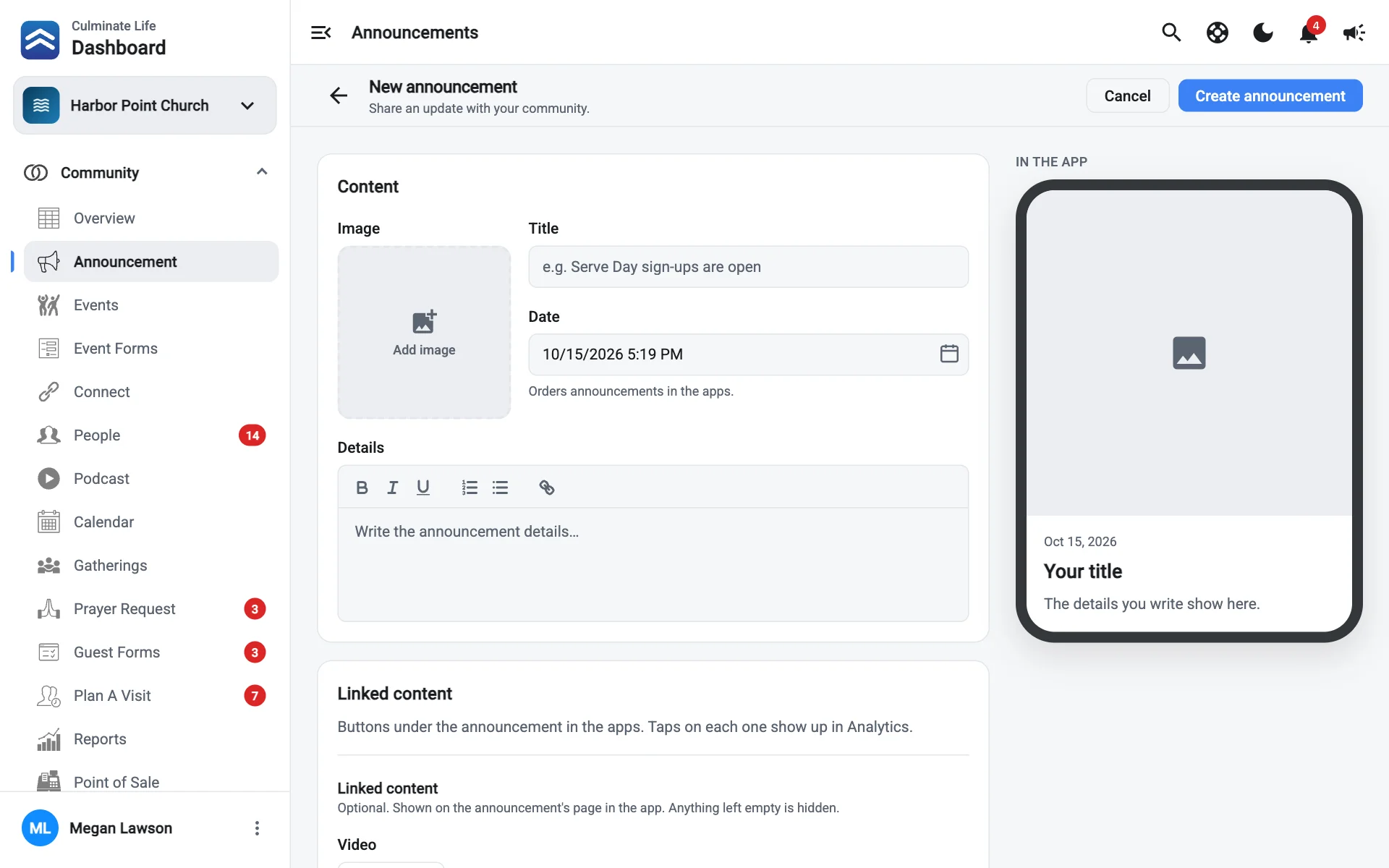
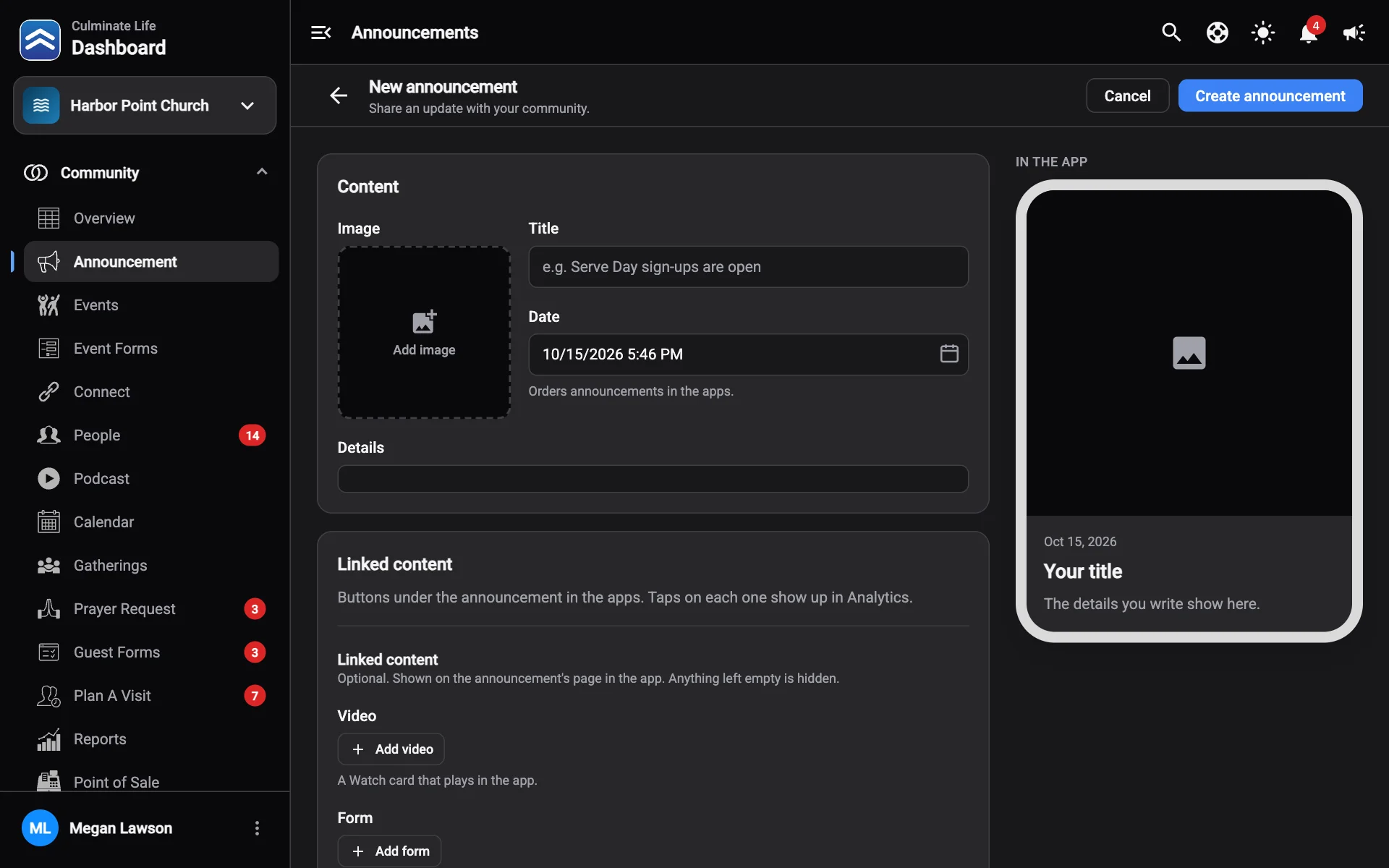
Go to Community → Announcement and select New announcement.
Add an image
Select Add image. Use Change or Remove image to swap it out.
Write the title, date, and details
The Details field supports bold, lists, and links. The In the app preview on the right updates as you type.
Add linked content (optional)
Linked content shows as buttons under the announcement in the app. Anything you leave empty is hidden. Taps on each one show up in Analytics.
| Link | What it does |
|---|---|
| Video | A Watch card that plays in the app. |
| Form | An organization form people fill out from the announcement. Responses show under Responses and on the form. |
| Button title and Button URL | A button that opens any link, like Learn More. |
| Events, Groups, Connect | Open those pages in the app. |
| Podcast episodes and Series | Open an episode or series. |
Select Create announcement
Your announcement goes live in the app right away, and its page opens so you can send a notification or check analytics.
To let people know, send a notification right after you post. Open the announcement and select Send notification.