
Find your way around
Every page in the dashboard shares the same layout: the sidebar on the left, the top bar across the top, and the page itself in the middle.
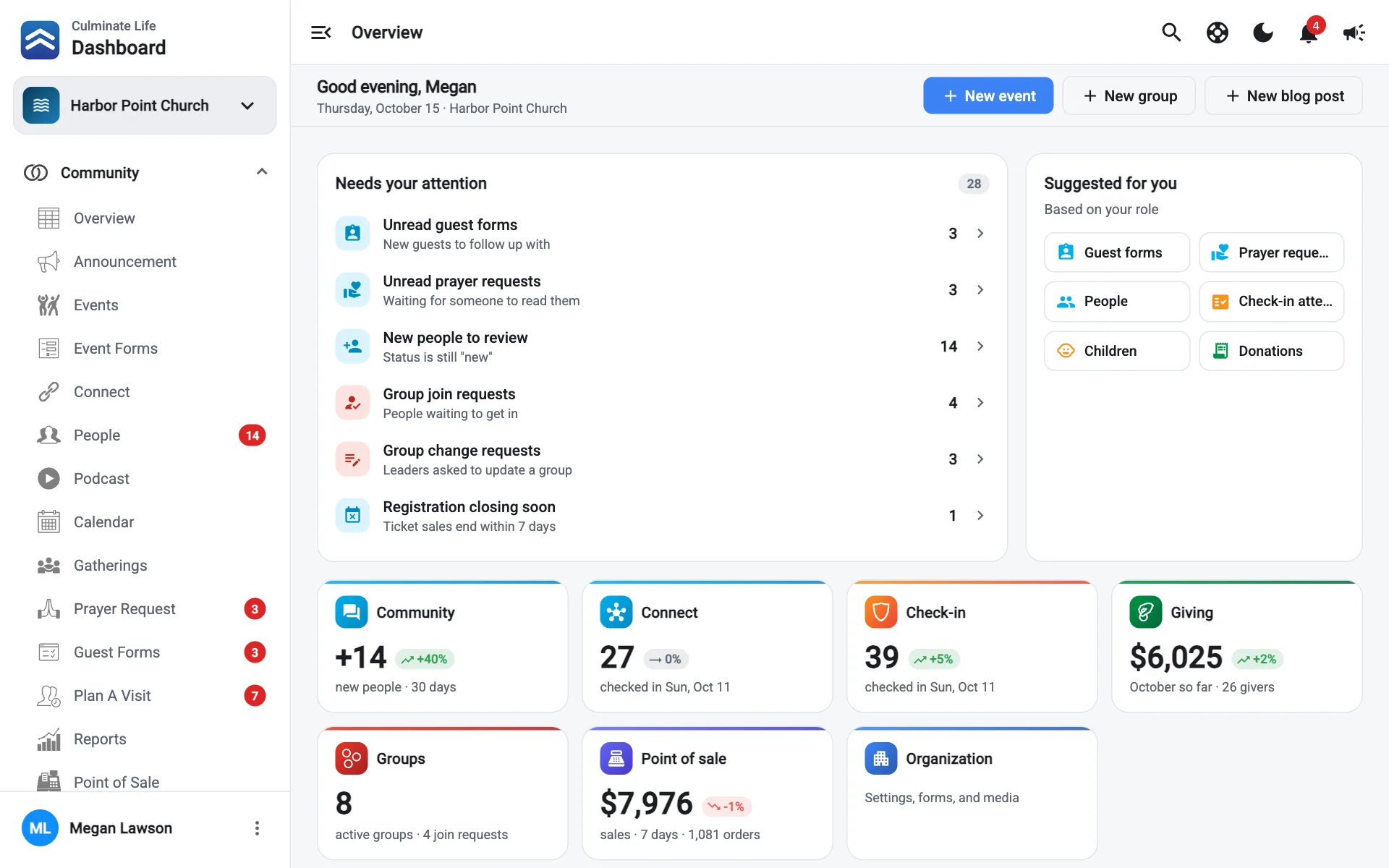
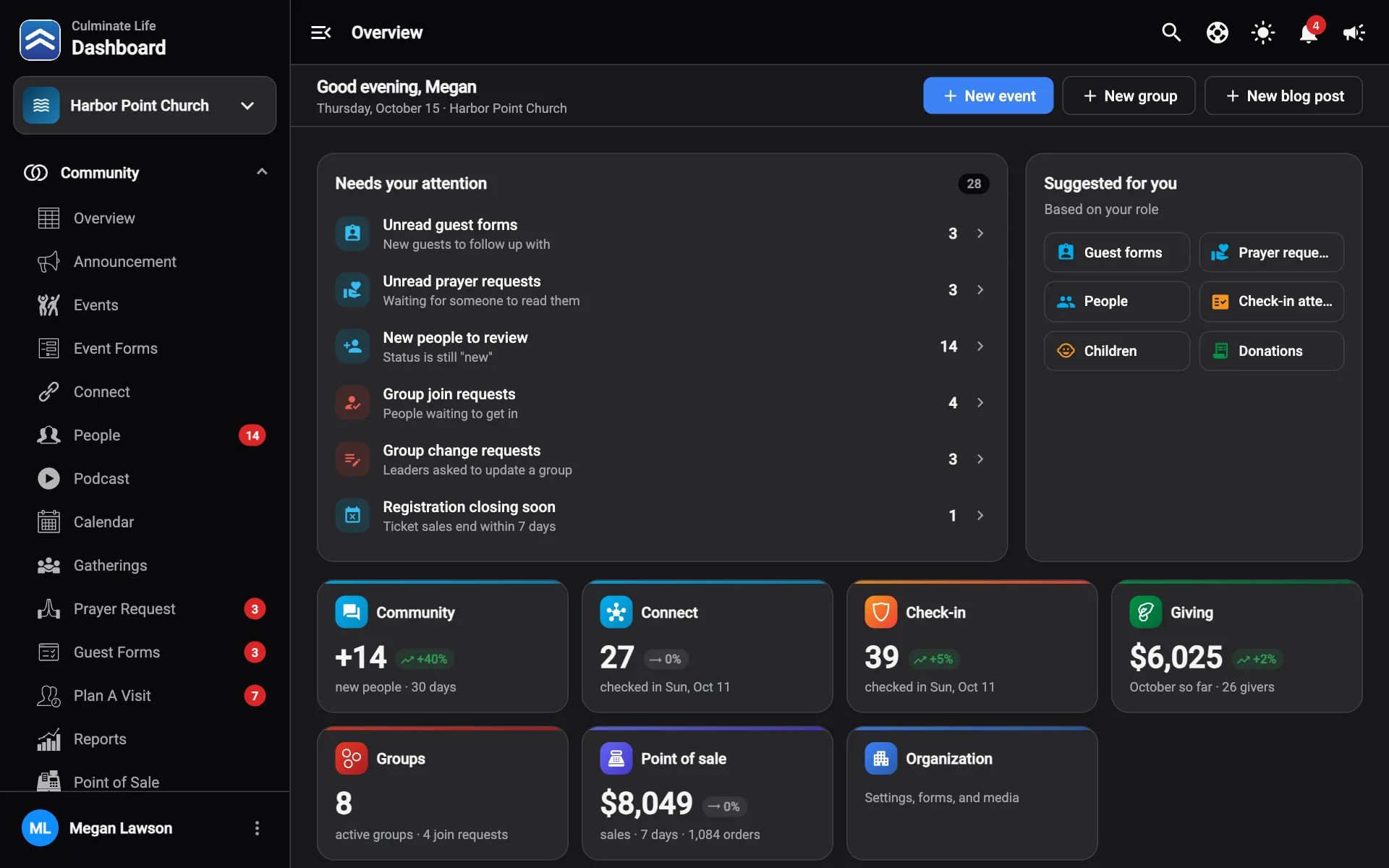
The sidebar
The sidebar holds every section of the dashboard. Select a section name, like Community or Giving, to open or close its pages.
| Section | What’s in it |
|---|---|
| Workflows | Your task list (My work), every board, and any boards you’ve starred. |
| Community | Overview, announcements, events, event forms, connects, people, podcast, calendar, gatherings, prayer requests, guest forms, plan a visit, reports, and point of sale. |
| Check-in | Overview, attendance, children, campaigns, reports, and settings. |
| Giving | Overview, donations, recurring, businesses, reports, and settings. |
| Groups | Overview, groups, messaging, attendance, reports, and settings. |
| Organization | Overview, analytics, rewards, videos, website, app & web, leadership, forms, facilities, docs, email templates, devices, audit log, files, and settings. |
A number next to a page, like People 14, means something new is waiting there: new people, unread prayer requests, guest forms, or planned visits.
You only see the sections and pages your role includes. If something’s missing, see What you see depends on your role.
At the top of the sidebar, your organization’s name opens the organization switcher.
At the bottom, your name opens a menu with My profile, Notification settings, and Log out. When a new version of the dashboard is ready, an Update available banner appears here too. Select it to reload.
To make more room, select Hide menu in the top bar or press ⌘Ctrl H.
The top bar
From left to right:
| Button | What it does |
|---|---|
| Hide menu / Show menu | Collapses or opens the sidebar. |
| Page title | The page you’re on. |
| Search | Opens universal search. |
| Help (the question mark) | Opens the Help panel with guides for the page you’re on. |
| Light / dark mode | Switches the dashboard’s theme. |
| Messages | Opens Messages: chats with your team, texts, prayer requests, and support. A red number shows your unread messages. |
| Notifications (the bell) | Opens your notifications. |
| Send notification or warning | Sends a push notification, email, or app warning to your people. See Send a notification. |
| My work | Opens your Workflows task list, with a count of unread updates. |
| Upload | Shows videos and files still uploading. It turns into a cloud icon if you go offline. |
Page tabs
Many pages have tabs under the title that switch between related pages. For example, Events has Events, Payments, Tickets, People Going, and Seating. The tabs match the pages in the sidebar, so use whichever is closer.
Tables
Lists of people, payments, gifts, and tickets share the same tools:
- Sort: select a column heading. Select it again to reverse the order.
- Search: type in the search box above the table. Most searches look at names, emails, and phone numbers. Press / to jump to the search box from anywhere on the page.
- Filter: select the filter button to narrow the list, like showing only refunded payments.
- Open a row: select a row to see its details underneath, with actions like Refund or Check in.
- Download: select the download button to save the list as a CSV file you can open in Excel, Numbers, or Google Sheets.
- Send notification: on lists of people, the megaphone button messages everyone in the list.
- Pages: at the bottom, choose how many rows to show and move between pages.
Dates and times
Pick a date
Click anywhere in a date box to open the calendar. To jump to another month or year, select the month or year at the top of the calendar, so a date years away is only two clicks. Today picks today, and Clear empties the box.
You can also type a date, like Mar 4, 2027. The calendar moves as you type, and the date is saved when you press Enter or Tab, or click away. Press Esc to put back the date that was there.
Pick a date and time
Where you need both, like when a live stream starts, the calendar has Hour, Min, and AM/PM columns beside it. The bottom shows what you picked, like “Sunday, Mar 7, 2027 at 10:30 AM”. Select Done to save it, or Cancel to leave it as it was.
Pick a time
Click a time box to choose from Hour, Min, and AM/PM columns, then select Done. Now picks the current time.
Opening hours, like store hours, show a list of times every 15 minutes instead; select one to pick it. The end time’s list starts after the start time and shows how long each choice would be, like 1 hr 30 min.
Pick a date range
Overviews, reports, and download windows use one Dates box for the start and end of a range. Click it to see two months side by side.
- Select a preset: Today, Yesterday, Last 7 days, Last 30 days, This month, Last month, This quarter, This year, or Last year.
- Or select the first day, then the last day. After the first click, the days in between light up as you move the pointer. The bottom shows the range and how many days it covers.
Select Apply to use the range. Clicking outside the calendar also applies it once both days are picked. Cancel or Esc keeps the range you had.
You can type a range too, like Jan 1 – Mar 31, 2027 or Jan 1 to Mar 31. The range includes every day from the start to the end, both days included.
Help
Select Help in the top bar, or press ?, to open these guides beside the page you’re working on.
- For this page lists the guides for the page you’re on, then more from the same section.
- Type in Search guides to search every guide, including words inside a guide. A match inside a guide opens it at that part.
- Select a guide to read it right in the panel. Links to dashboard pages take you there with the guide still open, so you can follow along. Select the back arrow for the list, or the open-in-new-tab button to read it here in the Knowledge Hub.
- Guides also show up in universal search under Guides.
- Contact support is at the bottom of the panel. It starts a conversation with Culminate support in Messages.
Help stays where you left it: close it and open it again to pick up in the same guide.
Keyboard shortcuts
On a Mac use ⌘Ctrl; on Windows use ⌃Ctrl.
| Shortcut | What it does |
|---|---|
| ⌘Ctrl K | Open universal search |
| / | Jump to the search box on the current page |
| ⌘Ctrl J | Open notifications |
| ⌘Ctrl ⇧ M | Open or close Messages |
| ⌘Ctrl ⇧ Y | Send a notification or warning |
| ⌘Ctrl H | Hide or show the sidebar |
| ? | Open or close Help |
| Esc | Close search, notifications, Help, or a dialog |
Light and dark mode
Select the sun or moon in the top bar to switch. The dashboard starts out matching your computer’s setting.