
Import checks
If you scan checks for deposit, you can import the whole deposit at once instead of typing each check. Culminate Life matches each check to a giver using their bank routing and account number, and remembers the match for next time.
Export the deposit from your scanner
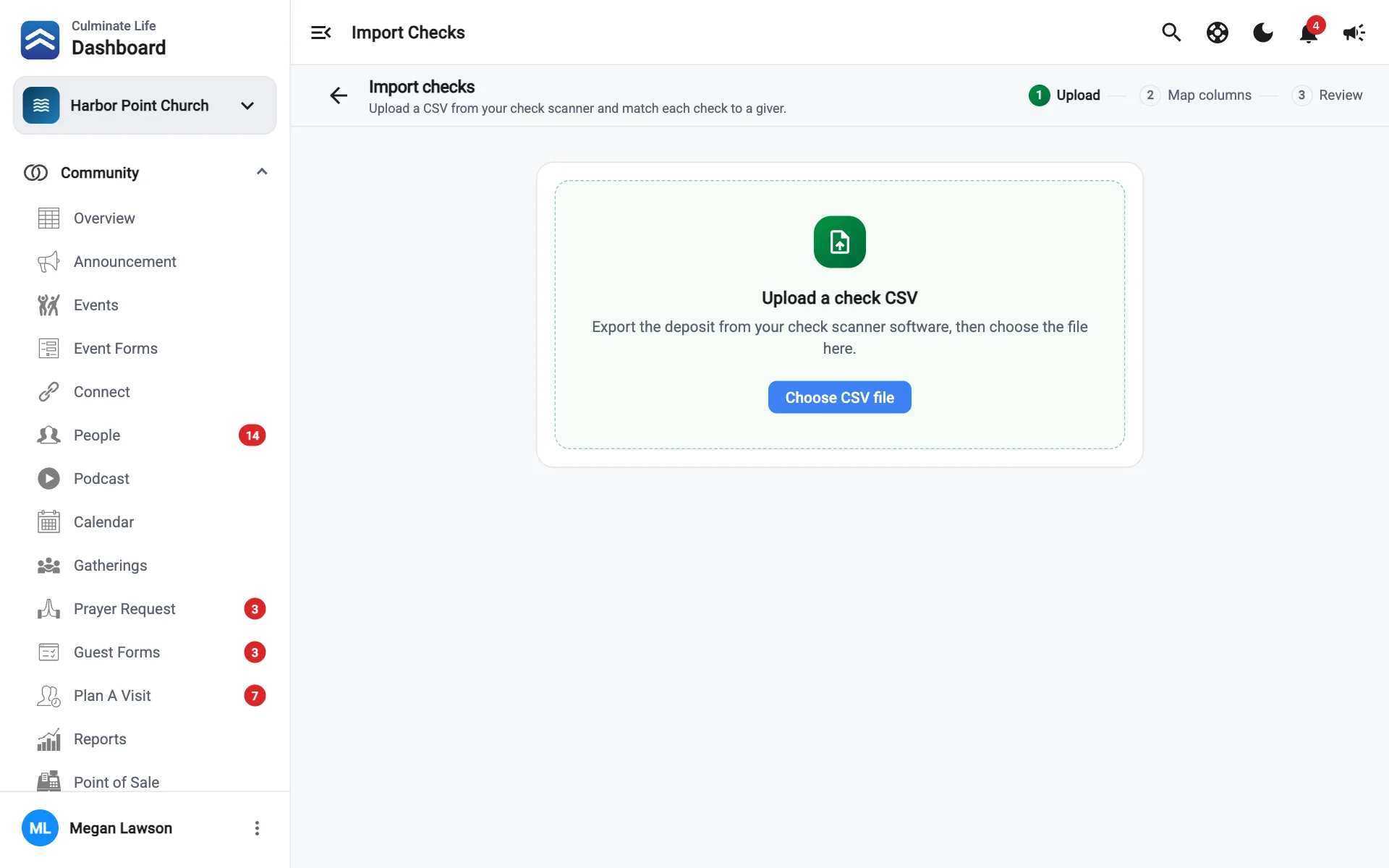
Export the deposit as a CSV file from your check scanner’s software.
Upload it
Go to Giving → Donations, select Add gift, then Import checks (CSV). Select Choose CSV file.
Map your columns
Tell us which column holds each value: Amount, Check number, Routing number, and Account number. We remember this mapping, so next time it’s used automatically. Select Change mapping if your scanner’s file changes. Then select Continue.
Review the checks
Each check shows the Giver, Date, Routing, Account, Check #, and amount.
- Checks marked Matched already have a giver.
- Checks that Need a giver: select Assign giver, then pick a Person or Business (or add a new one). Next time, checks from that account are matched automatically.
- Missing check #: the scanner didn’t read it. Type it in the Check # column.
- Possible duplicates: the same check appears more than once in the file. Remove the extra with Remove from import.
Use Date for all and Fund for all to set every check at once, or set the fund per check. Filter to All or Needs giver.
Import
The totals show how many Checks and the Deposit total. When every check has a giver (you’ll see Every check has a giver), select Import.
Start over clears everything if you picked the wrong file.