
Forms
Organization forms are for anything that isn’t an event registration or a guest card: contact forms, volunteer sign-ups, baptism requests, benevolence requests, and more. People can fill them out from a link, from an announcement, from your website, or by texting a code.
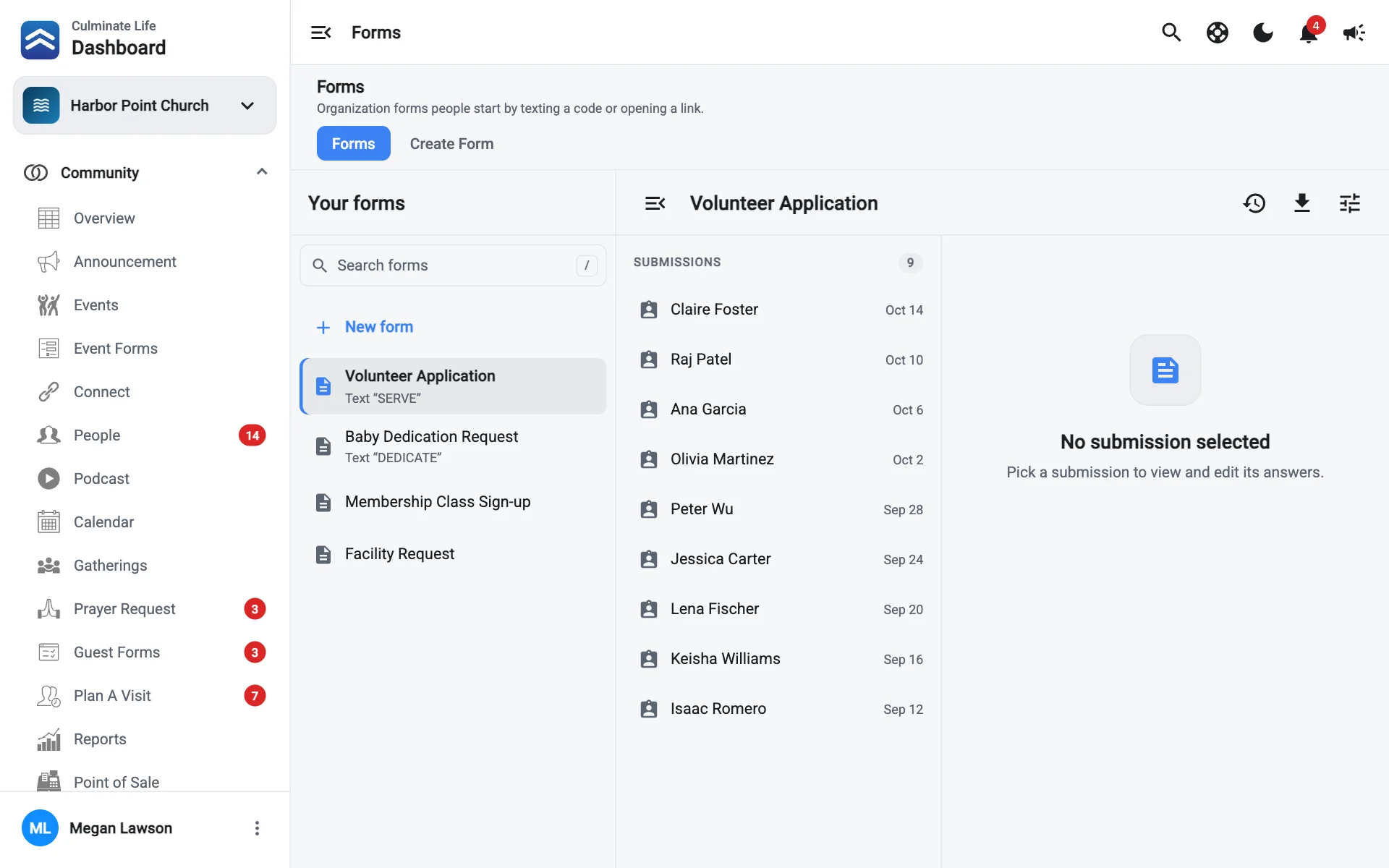
Open Organization → Forms. The tabs switch between Forms and Create Form.
Build a form
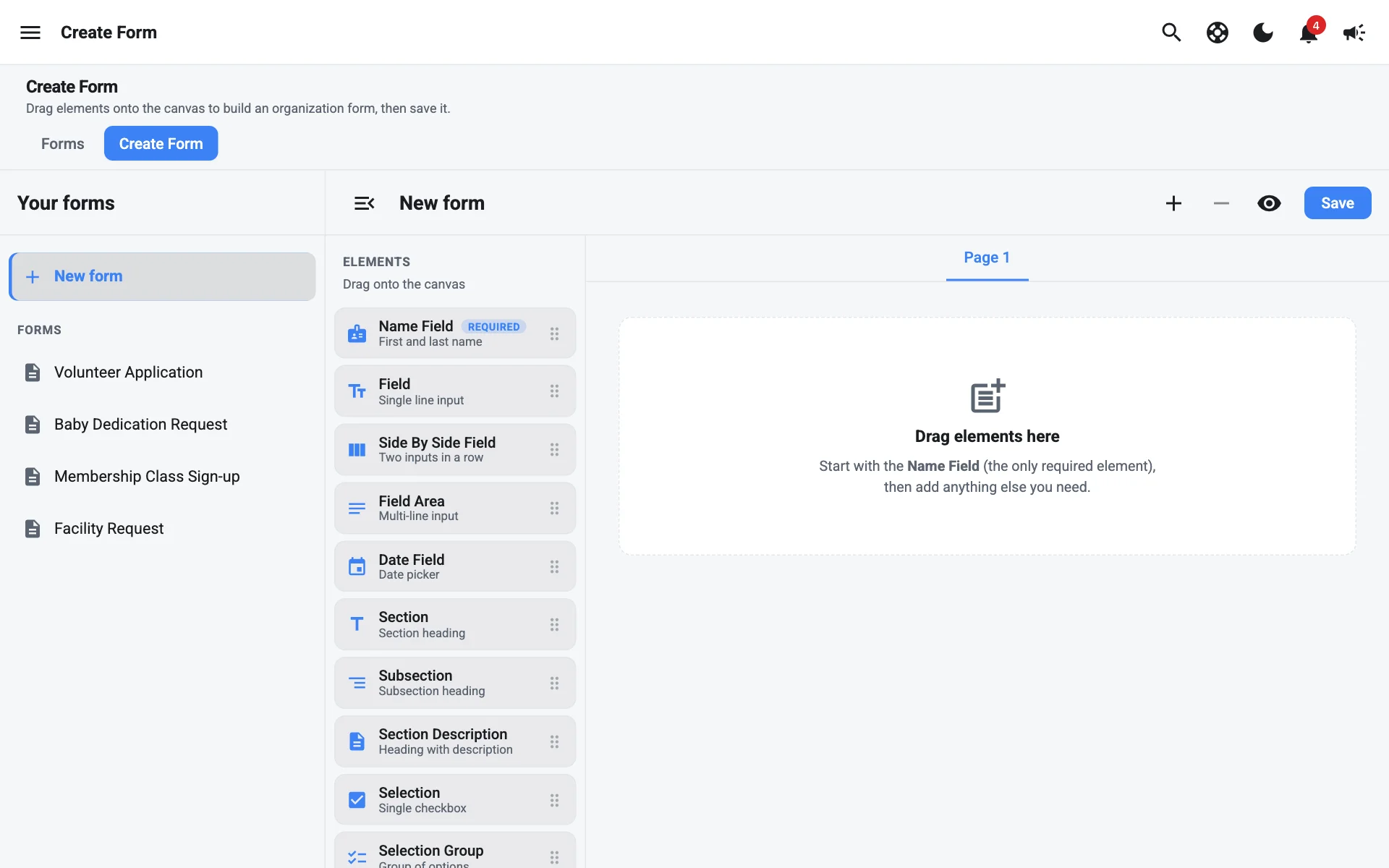
- Select the Create Form tab, then New form.
- Drag elements onto the page, starting with the Name Field. The elements are the same as the event form builder.
- Add pages, select Preview form, then Save. Use Update to save changes later.
Once a form has submissions, you can still rename, reorder, and add fields and options, but you can’t remove existing ones.
Share a form
On the Forms tab, select a form and open Form settings:
- Form link: select Copy form link to share it anywhere.
- Notify when submitted: search Add a dashboard user to pick who hears about new submissions. With no one assigned, everyone with Forms access who has form notifications on is notified. Once you add people, only they are. Someone without Forms access gets the notification but can’t open the submission, so the list flags them.
- Title people see.
- Text code: people text this code to your number to start the form.
- Completion message: sent when someone finishes.
- Reply with a link: text back a link to fill out the form instead of answering by text. Enter the Link URL.
- Available hours: when the text code works. Pick each start and end time from a list of times every 15 minutes. Turn on Use after-hours message to send an After-hours message outside those hours.
Select Save settings.
You can also attach a form to an announcement, or add it to your website with the Form section.
Fill out a form for someone
Took a request over the phone or at the front desk? Select the form, then Fill out at the top (or Fill out form when it has no submissions yet).
- Optionally, under Who is this for?, select Choose to link the submission to someone in your people.
- Answer the questions, then select Submit.
The submission is saved like any other and opens right away. In the submissions list, a computer icon marks ones Filled out in the dashboard.
Read submissions
Select a form, then a submission. You can edit answers and select Save changes, select Link person to connect it to someone in your people, and Print form or Download form. Download all submissions saves every submission as a CSV file.