
People
All people
Everyone in one list, plus how to remove, delete, and merge duplicate people.
Open Community → People and select the All People tab to see everyone in your organization, whatever their status.
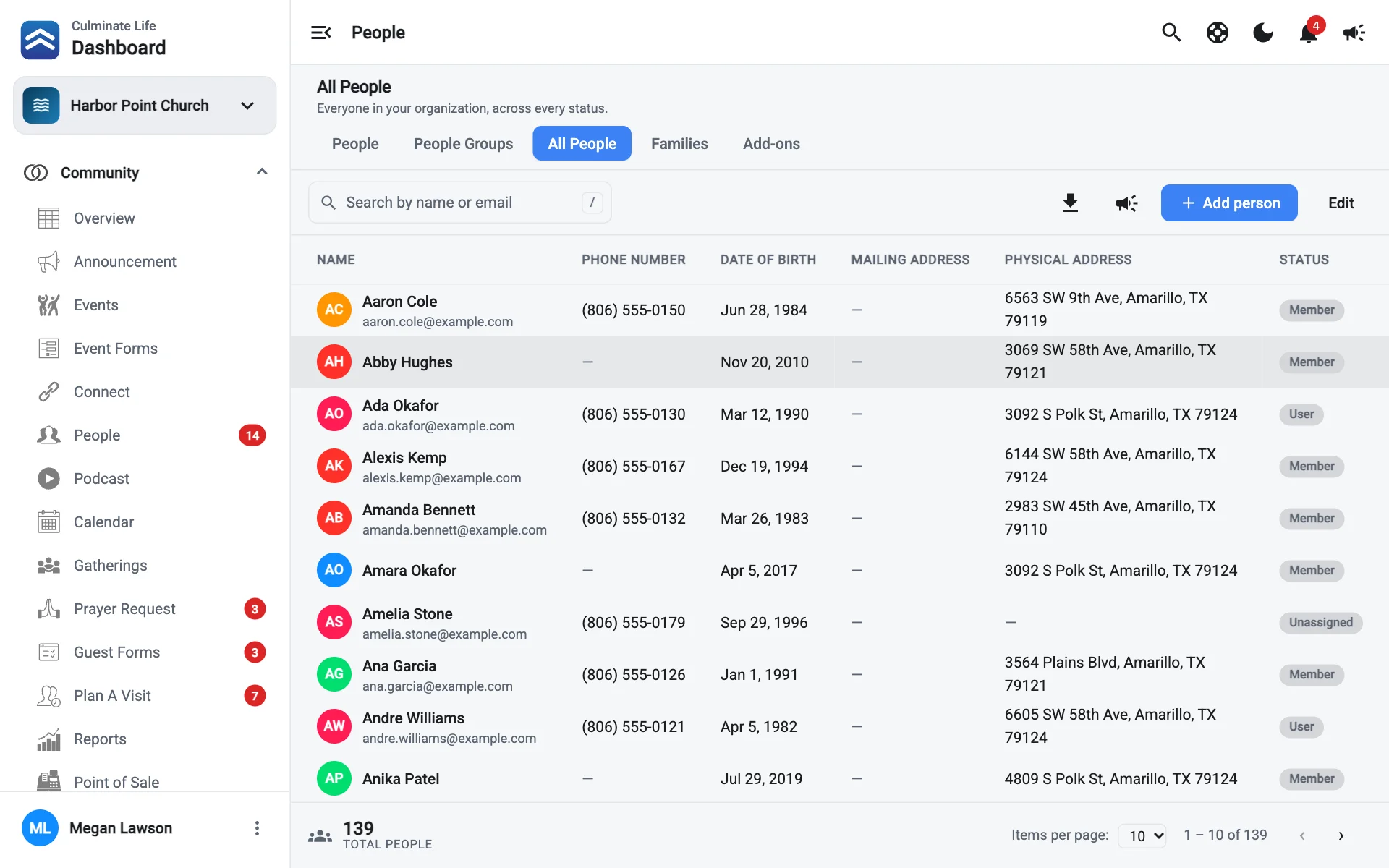
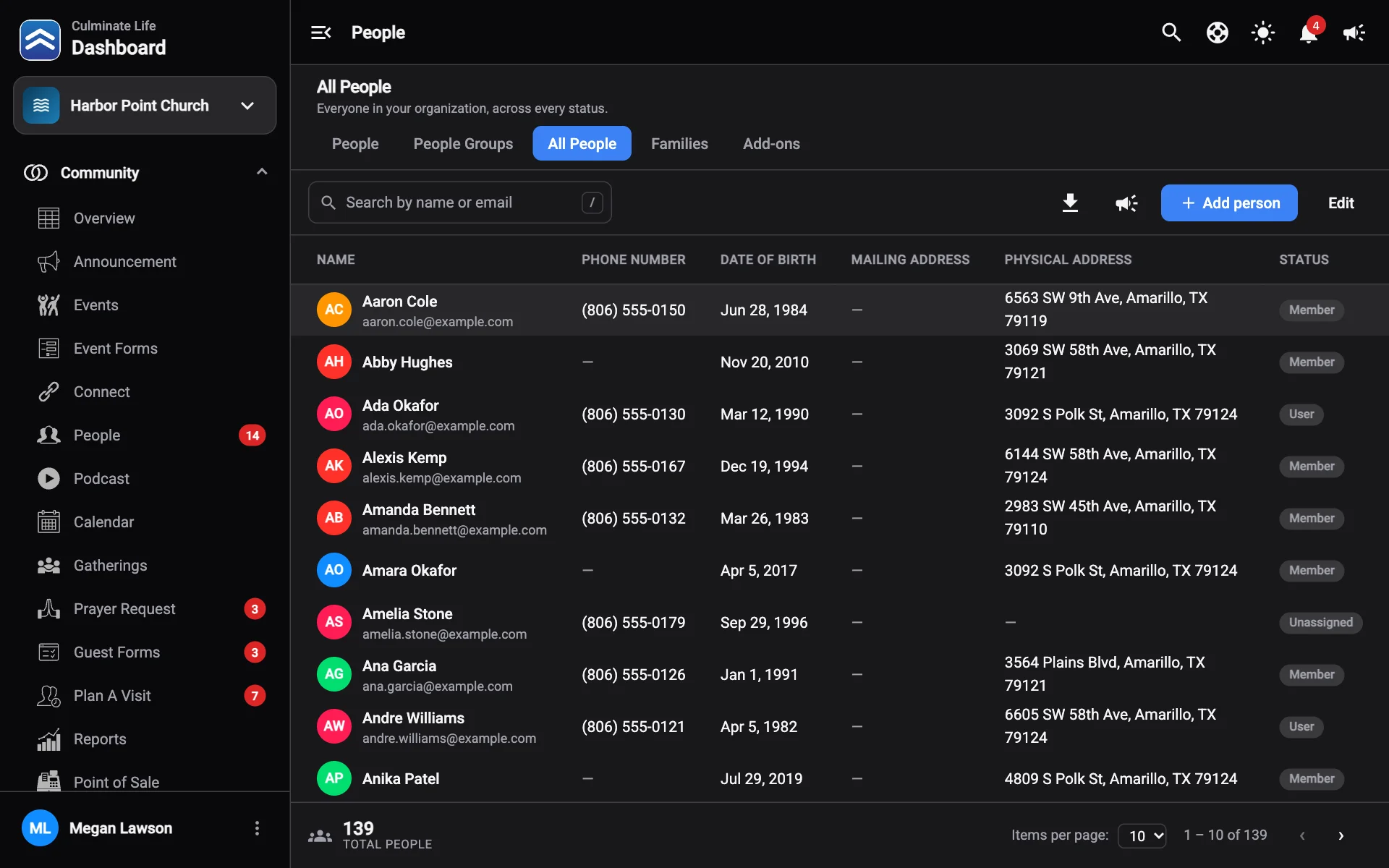
Each person shows their Name, Phone Number, Date Of Birth, Mailing Address, Physical Address, and Status. Search by name or email, sort by last name, and select a person to open their profile.
- Add person: see Add a person.
- Download people: save everyone as a CSV file.
- Send notification: message everyone.
Remove, delete, or merge
Select Edit, then select up to two people.
| Action | What it does |
|---|---|
| Remove | Takes the person out of your organization. |
| Delete | Deletes the person’s record. |
| Merge | Combines two records for the same person into one. |
Select Done when you’re finished.
Merge two people
Duplicates happen, for example when someone fills out a guest form with a different email than their app account.
Select the two records
Select Edit, choose both people, then select Merge.
Pick what to keep
Record A is the primary record and is kept. For each field (photo, first name, last name, email, phone), select the value to keep. The highlighted card wins.
Select Complete merge
All of Record B’s data across the system (giving, events, groups, forms, attendance, and everything else) moves onto Record A. Record B is then removed, and if Record B had a user account, that account is deleted. You can’t undo a merge from this page. Someone with the Undo changes permission can reverse it from the audit log: records changed since the merge, or tied to a deleted login, stay as they are.