
About Point of Sale
Point of Sale is the Community Portal’s register. Use it at your café counter, bookstore, or merch table to ring up orders, take cards, cash, and gift cards, and keep up with orders people place ahead in your app.
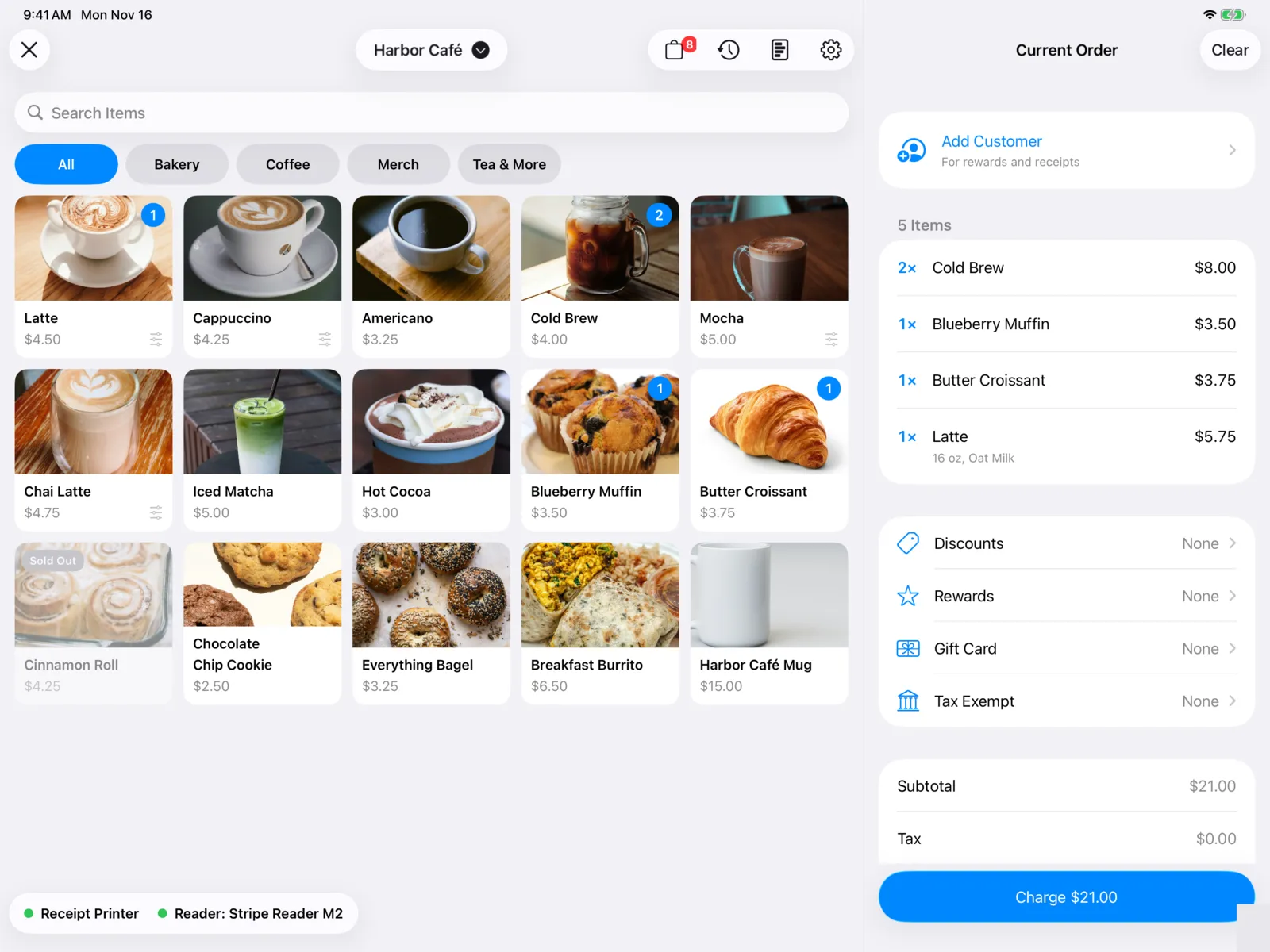
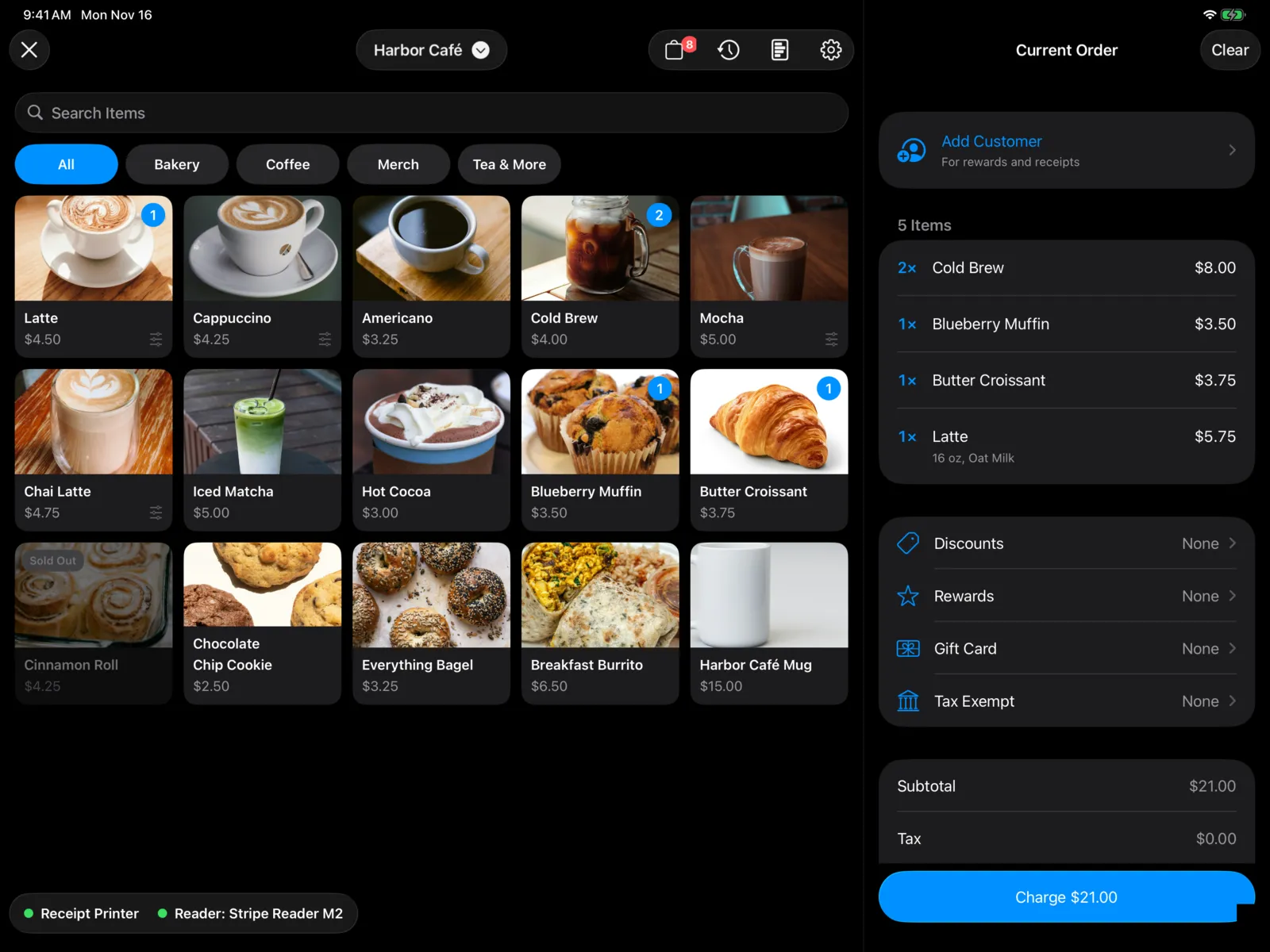
Open it from the Point of Sale tile on the home screen. The tile shows how many online orders are open.
Set up in the dashboard first
Point of Sale sells what you set up in the dashboard. Before your first sale, make sure you have:
| What | Where |
|---|---|
| A store, like “Café” or “Bookstore” | Point of sale settings → Stores |
| Items, with sizes, prices, and pictures | Point of sale items |
| Attributes, like milk or syrups | Attributes |
| Sales tax, if you charge it | Point of sale settings |
| Discount codes, tax-exempt businesses, and gift cards (optional) | Point of sale settings |
| Rewards (optional) | Rewards |
| Online ordering (optional) | Point of sale settings → Order Online |
| Stripe, to take cards | Integrations |
Then, on the device:
- A card reader, or Tap to Pay on iPhone, to take cards. See Card readers.
- An Epson receipt printer (iPad only, optional) for receipts. A cash drawer plugs into the printer. See Printers.
- Tips, if you want to ask for them. See Settings.
How a sale works
Count the drawer
The first time anyone opens Point of Sale each day, it asks for the Starting Cash in the drawer. See Starting cash.
Ring up the order
Select items to add them. Pick a size and options when an item has them. See The register.
Add discounts or a gift card (optional)
Apply a discount code, scan a reward, use a gift card, or make the order tax exempt. See Discounts and gift cards.
Charge
Select Charge, add a tip if the guest wants one, and pick how they’re paying. See Charge.
Hand over the receipt
Sale Complete shows the change due for cash. The receipt prints and the cash drawer opens, if you have a printer. Select New Sale for the next guest.
The order then shows up on the orders board for whoever is making it, in Past Orders, and in Today’s summary. Every sale is also in the dashboard’s Orders.
iPad and iPhone
Point of Sale works on both.
| iPad | iPhone | |
|---|---|---|
| The order | Beside the items, always in view. | Select View Order at the bottom. |
| Orders, Past Orders, Today’s Summary, Settings | Buttons at the top right. | The orders bag stays at the top; the rest are in the ⋯ menu. |
| Tap to Pay on iPhone | Not available. | Available, once it’s set up and approved. |
| Receipt printer and cash drawer | Available. | Not available. |