
Plan a Visit
When someone uses Plan a visit on your website, they tell you when they’re coming and whether they’re bringing kids. Plan a Visit on the Community Portal puts those visits at your welcome desk, so your team can greet people by name and mark them as arrived.
Select Plan a Visit on the home screen. Its tile shows how many visits are planned this week.
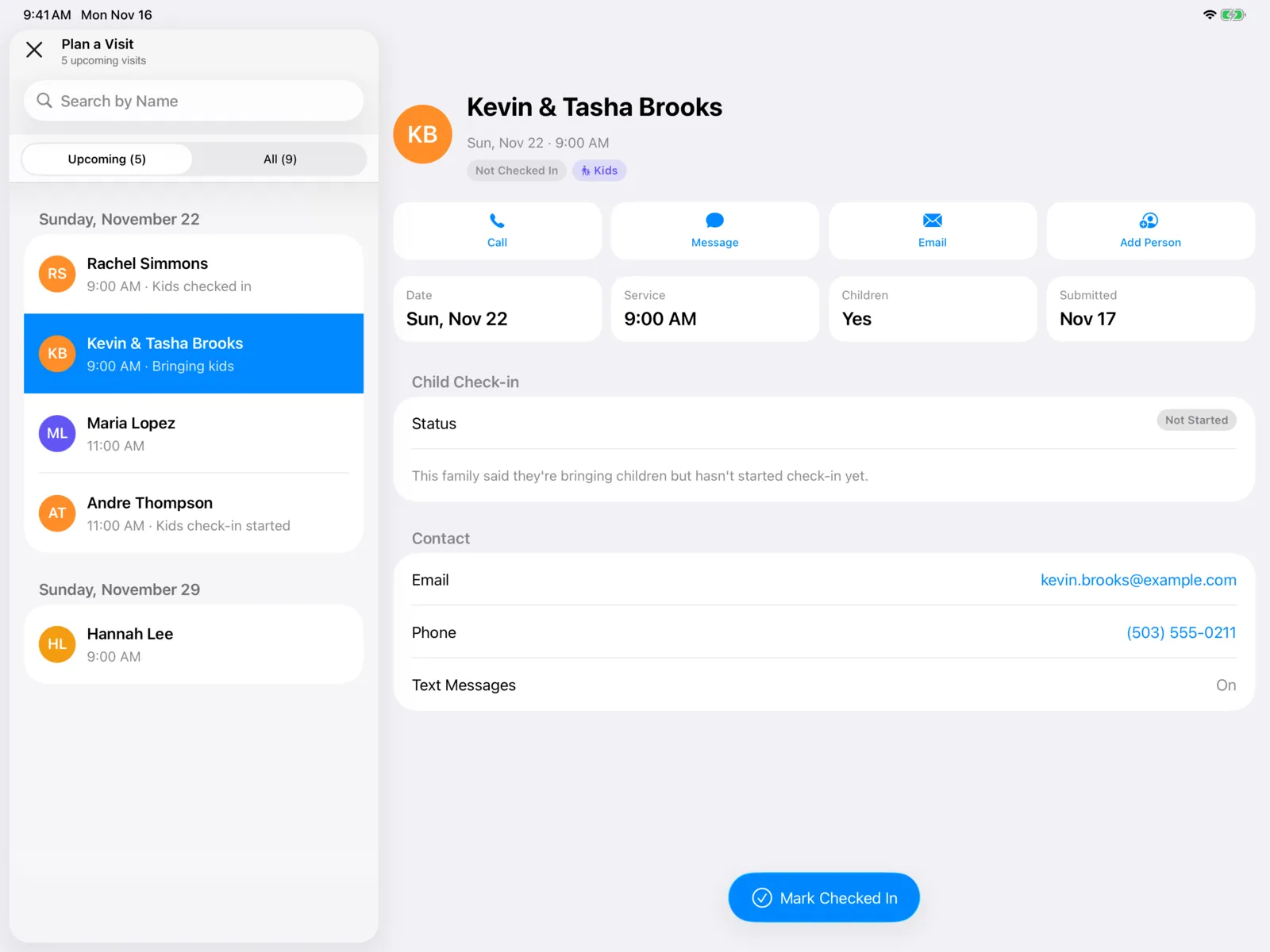
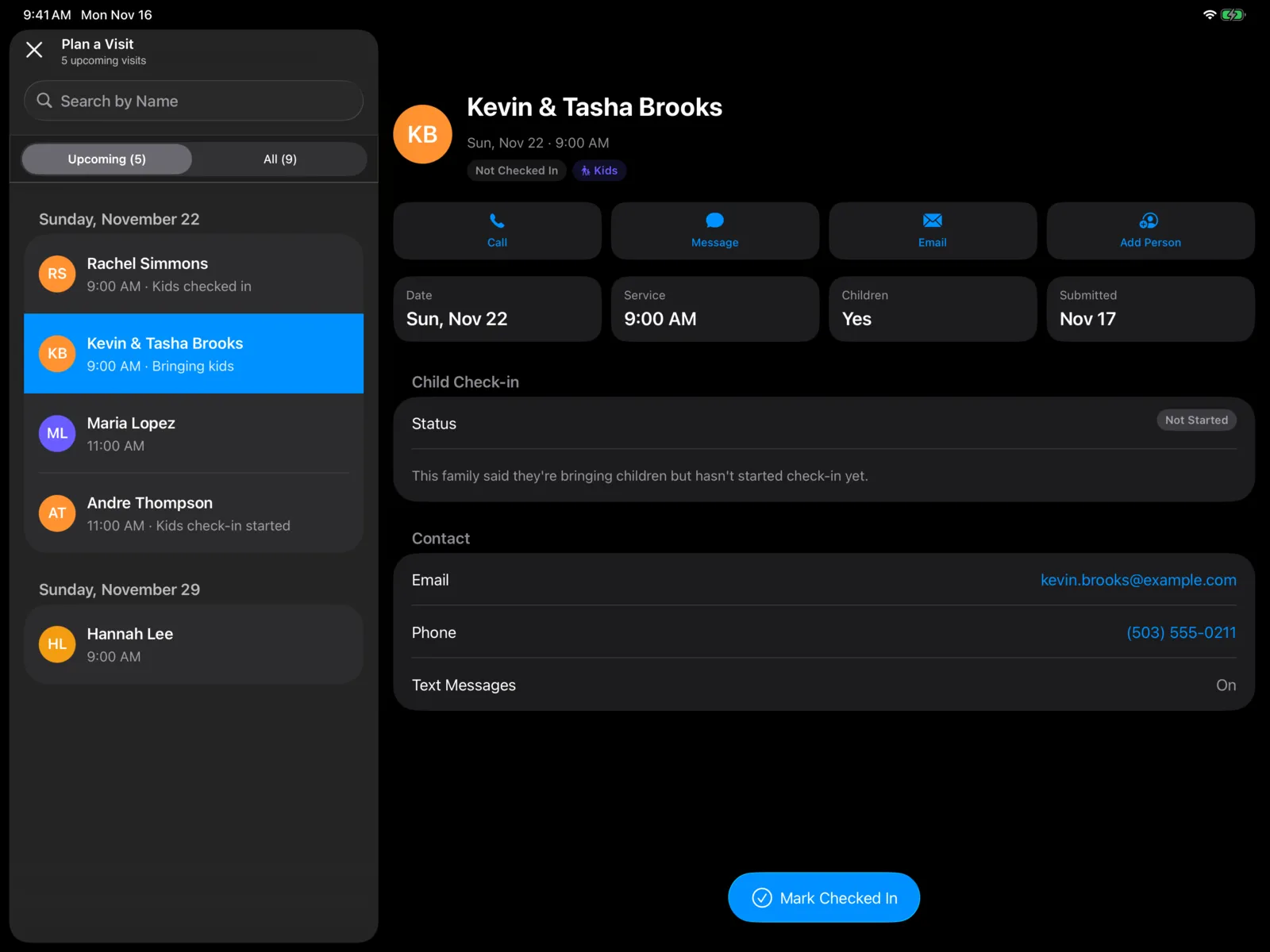
On an iPad, the list is on the left and the visit you select opens beside it. On an iPhone (or an iPad in Split View), the list fills the screen and a visit opens on its own page; go back to return to the list.
The list
Switch between the two tabs at the top. Each shows how many visits it has, like Upcoming (5) and All (42).
| Tab | What it shows |
|---|---|
| Upcoming | Visits from today on, soonest first, grouped by day, like Today · Sunday, November 15 or Tomorrow · Monday, November 16. |
| All | Every visit, newest first, by when it was planned. Each row also shows the date of the visit. |
Under the title, you’ll see how many visits are coming up, like 5 upcoming visits.
Each row shows:
- The visitor’s initials (or their photo, once the visit is linked to someone in your people) and name.
- The service time they picked.
- Where their kids’ check-in stands, if they’re bringing kids:
| It says | What it means |
|---|---|
| Bringing kids | They said they’re bringing children but haven’t started check-in. |
| Kids check-in started | Check-in was started but not finished. |
| Kids checked in | Their kids’ check-in is complete. |
| Kids check-in error | Check-in couldn’t be completed. |
| Kids link expired | The check-in link expired before they used it. |
| Kids check-in cancelled | The check-in was cancelled. |
A green Checked In pill shows once they’ve arrived.
Use Search by Name to find someone. Pull down to refresh.
On an iPhone, the shield button at the top shows the Admin Access code, used to leave the guest kiosk on an iPad.
A visit’s page
Select a visit to open it.
The top
The visitor’s name, the date and time of their visit (like Sun, Nov 15 · 9:00 AM), and pills:
- Not Checked In, or Checked In with the time they arrived.
- Kids, when they’re bringing children.
Under that are quick buttons:
| Button | What it does |
|---|---|
| Call | Calls the phone number they gave. |
| Message | Starts a text message to that number. |
| Starts an email to them. | |
| Add Person | Links the visit to someone in your people. It shows only until the visit is linked. See Link the visit to a person. |
A button is dimmed when the visitor didn’t give that detail.
Then four tiles: Date, Service, Children (how many children were checked in, Yes if they’re bringing kids, or None), and Submitted (when they planned the visit). On an iPhone, the tiles show two across.
Person
Once the visit is linked to someone in your people, they show here.
Child Check-in
Shows when they’re bringing kids. Status is one of Not Started, In Progress, Completed, Error, Expired, or Cancelled, with a line explaining it. These match the statuses in the dashboard.
When check-in is Completed, you’ll also see the family’s Passcode, who it was Checked In By, and when it was Completed.
Children
When check-in is complete, each child is listed with their grade and gender.
Contact
Their Email, Phone, and whether they want Text Messages (On or Off). Select the email or phone number to email or call them.
Pull down to refresh the page, for example to see if the family has finished their kids’ check-in.
Mark them checked in
When the visitor arrives, select Mark Checked In at the bottom of their page. The button says Checking In… while it saves, then goes away. The page now shows Checked In with the time, and the row in the list gets a green Checked In pill.
Link the visit to a person
Linking a visit to someone in your people keeps what they told you with the right person. Visits from someone who was signed in are already linked.
Select Add Person
Choose Person opens with the visitor’s name already searched.
Pick the right person
Results show people in your organization first, then Other Culminate People (their contact details are hidden). You can also search by email or phone number.
Or add them
If they’re not there, select Add New Person. Enter their First Name, Last Name, Email, and Phone (a 10-digit number), then select Add.
The person now shows under Person on the visit, and Add Person goes away. To change or remove a link later, use Plan a visit in the dashboard.