
Orders board
The orders board is for whoever makes the orders, at the counter or in the kitchen. It shows today’s orders that aren’t finished yet, in three columns: Placed, Preparing, and Ready.
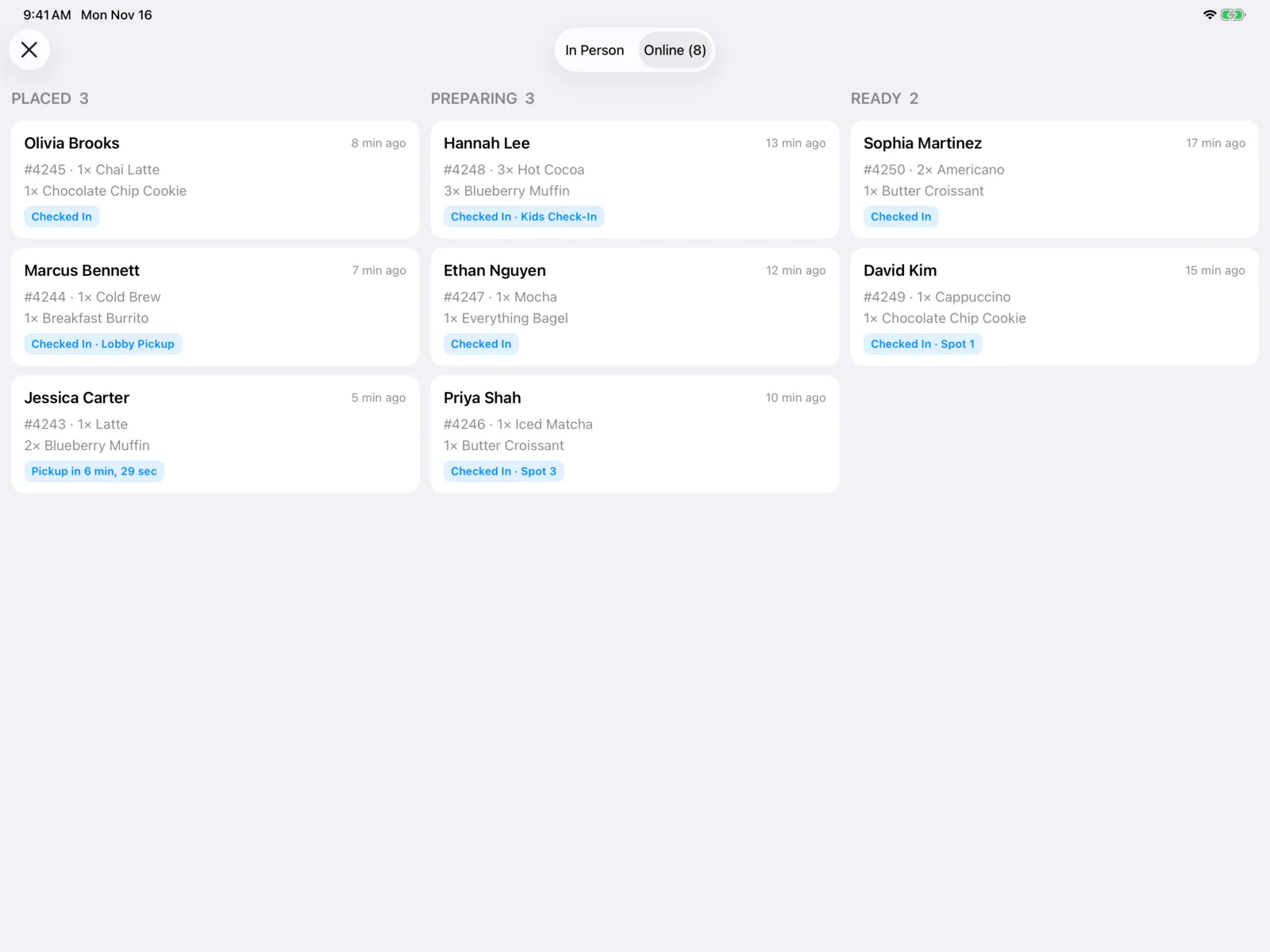
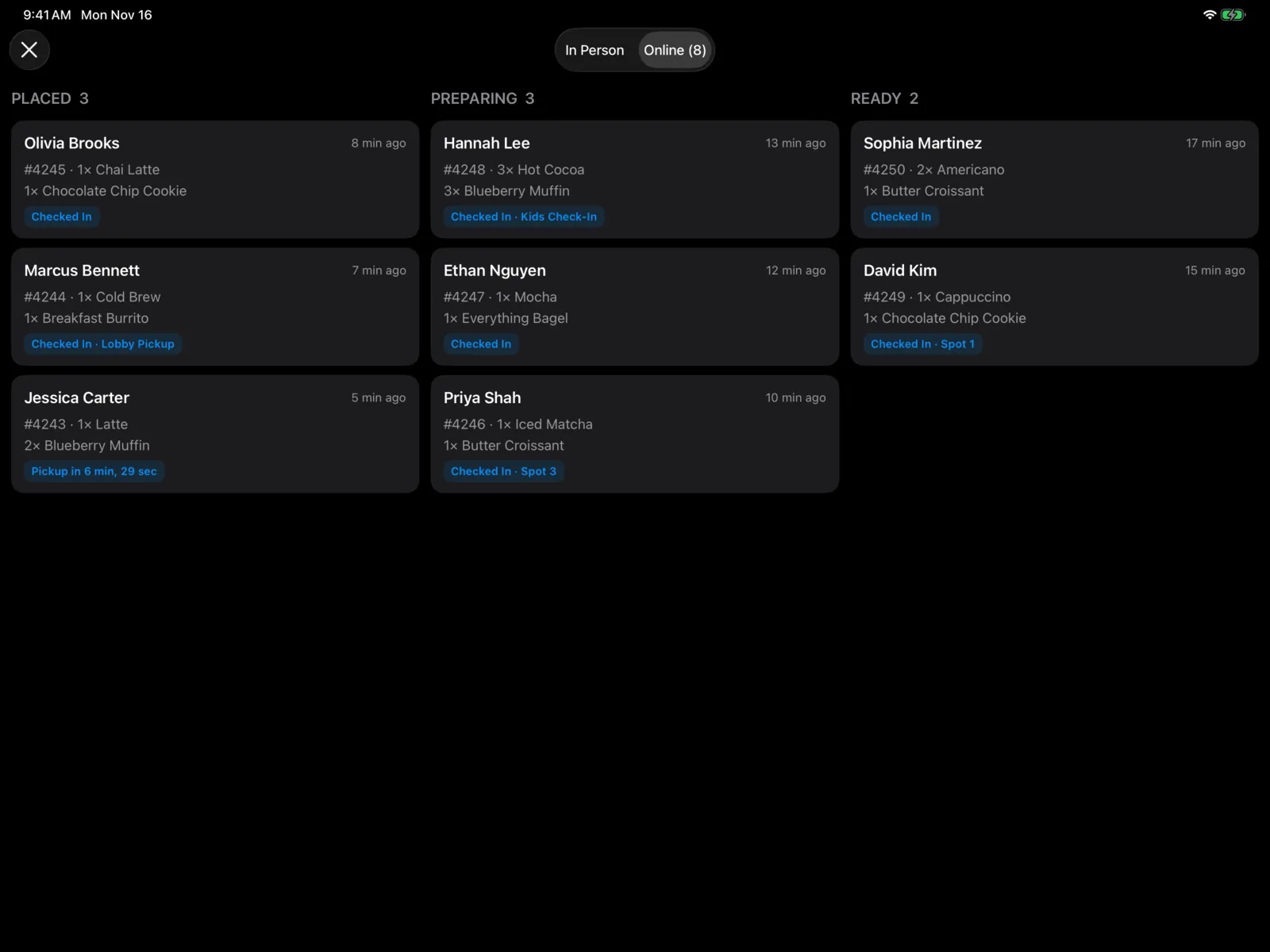
Select the bag at the top of the register to open it. A red badge on the bag counts the online orders waiting. The board opens on Online when there are online orders, and on In Person when there aren’t.
In person and online
Switch at the top:
- In Person: orders rung up at the register today.
- Online: orders people placed ahead in your app. The tab shows how many are open, like Online (3).
Online ordering is turned on in the dashboard, in Point of sale settings → Order Online.
The board updates by itself as orders come in and move along, on every device. When a new online order arrives, you hear a sound and New Online Order slides in at the top of the register with the person’s name. Select it to open the order.
iPad and iPhone
- iPad: the three columns sit side by side, each with its count.
- iPhone: one column at a time. Switch with Placed, Preparing, and Ready at the top. Each shows its count, like Placed (2).
Read an order card
Each card shows:
- The person’s name, or Guest.
- How long ago it was placed, like Just now or 6 min ago.
- The last six digits of the order number, and up to four items, like 2× Latte. Longer orders end with +2 more.
- For online orders, when and how it’s picked up:
| Label | What it means |
|---|---|
| Pickup in 8 min | When the person expects to pick it up. |
| Pickup Now | Their pickup time has come. |
| Checked In | They’ve said they’re here. |
| Checked In · Table 4 | They’re here, and where to find them. |
| Delivery | It’s being delivered. Open the order to see where. |
Move an order along
When you start making an order, and again when it’s ready, move it to the next column:
- Drag the card to a later column. Orders only move forward.
- Or touch and hold the card and select Mark as Preparing, Mark as Ready, or Mark as Completed.
When you mark an order Completed, it leaves the board. You can still find it in Past Orders.
Open an order
Select a card to see everything about the order:
- Customer: their Name and Email.
- Online Order or In-Person Order: the Order number, when it was Placed, its Status, Pickup (or Fulfillment for a delivery), where to Deliver To, and what it was Paid With.
- Items, with each one’s options.
- Notes from the order.
- Totals: Subtotal, Discount, Tax, Tip, and Total.
Select the button at the bottom, like Mark as Ready, to move it to the next step. Select Done to close it.