
Collect a balance at check-in
When someone paid a deposit or is on a payment plan, you can collect what they owe right at the door, while you check them in. The payment goes on their existing event payment, just like collecting a balance in the dashboard.
Find Collect Balance
Open the check-in sheet
In Event Check-in, scan the person’s ticket or select their row.
Look under Payment
A ticket with money still owed shows a Balance Due pill, and the Payment section shows what’s been paid and the Balance Due.
Select Collect Balance
For a payment plan, it also shows what’s due today, like $10.00 due now.
If the buyer has more than one payment with a balance for this event, there’s a button for each one, like Collect $40.00 Balance.
On iPhone, the sheet grows to full height so there’s room for the payment.
Choose the amount
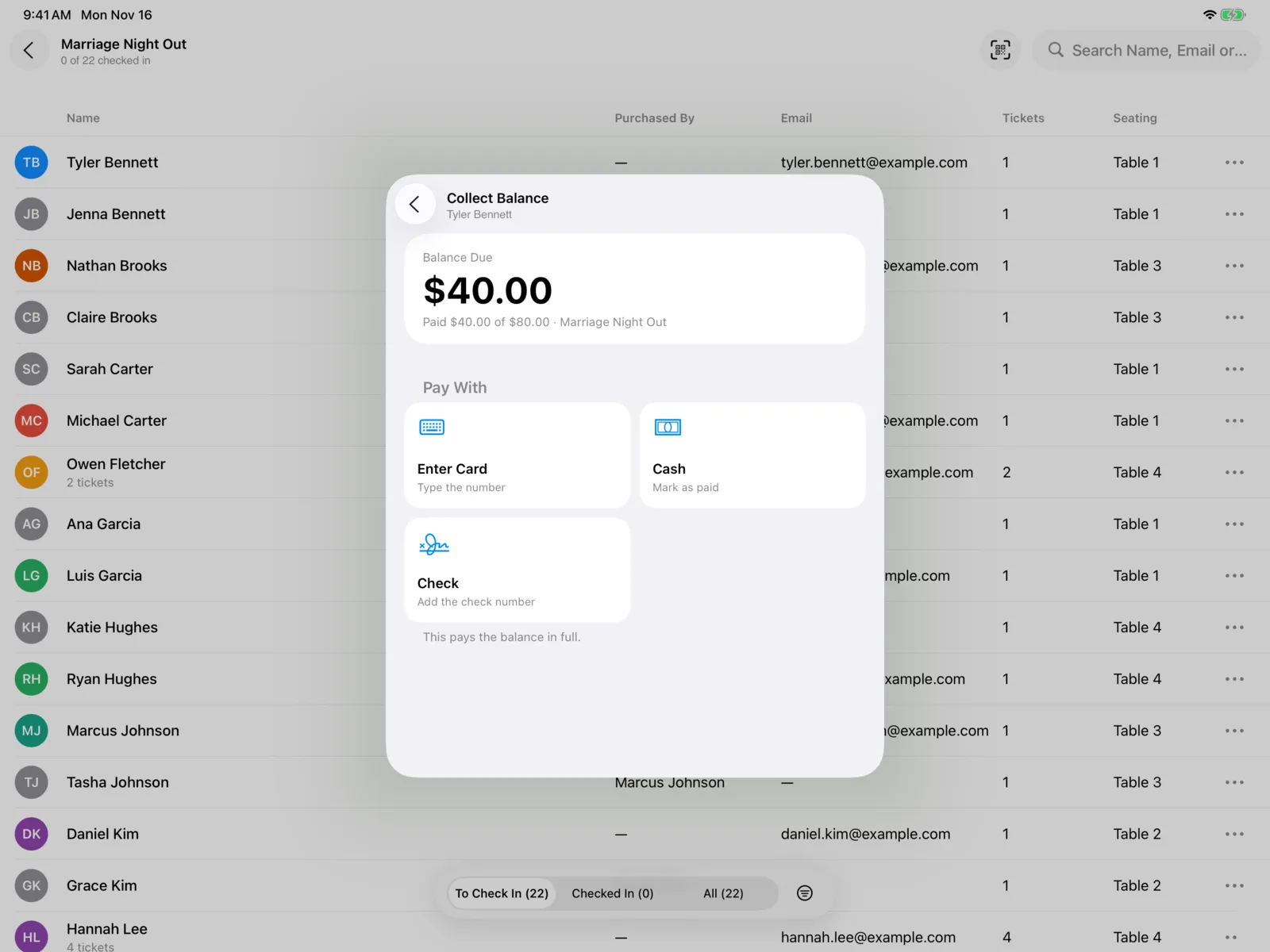
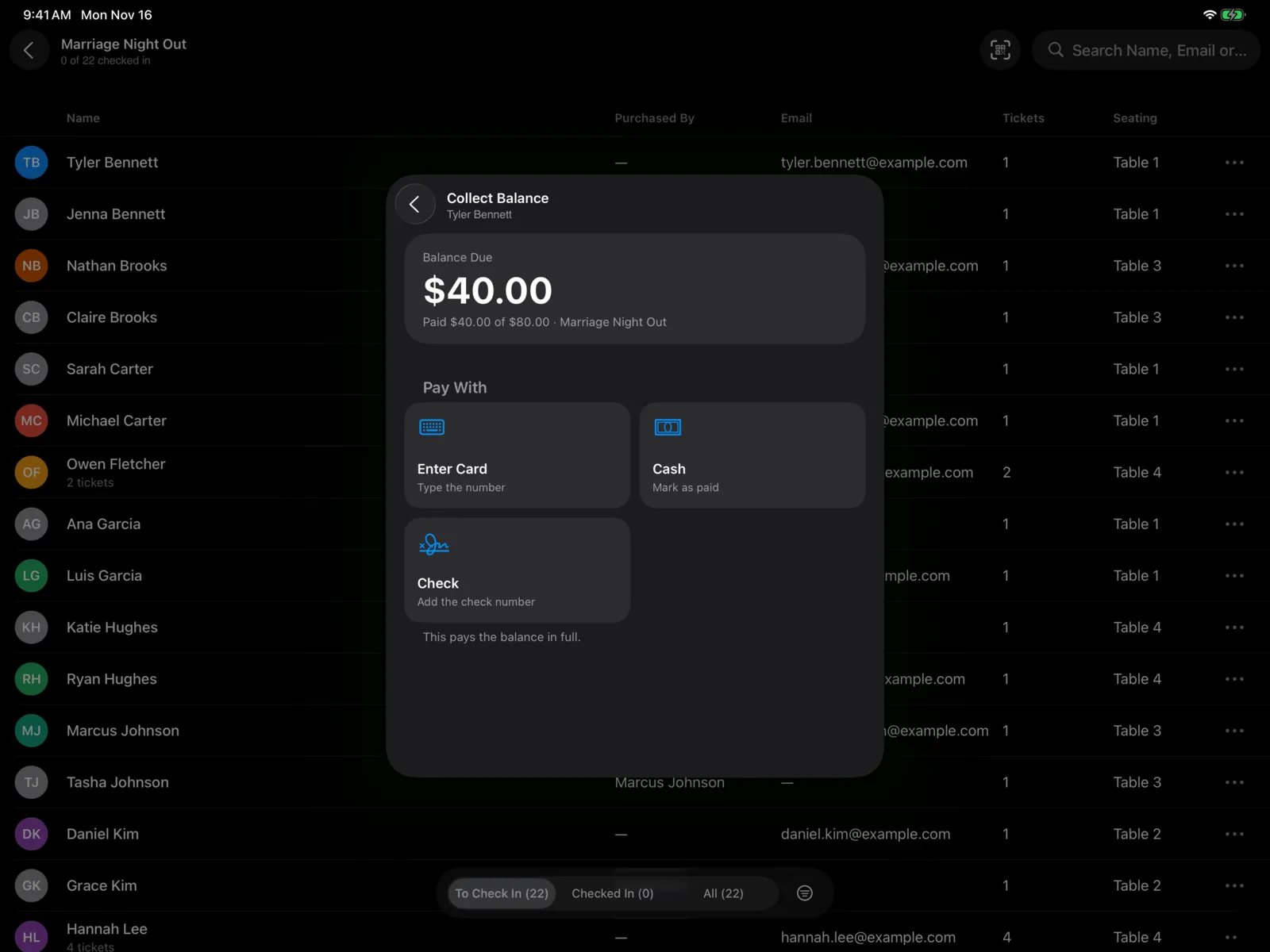
The top of the screen shows the amount you’re collecting and what they’ve paid so far, like Paid $40.00 of $80.00, with the event’s name.
- A deposit: you collect the whole balance. There’s nothing to choose.
- A payment plan: under Amount, choose what to collect:
| Choice | What it collects |
|---|---|
| Due Now | The installments due by today that haven’t been paid. |
| Through and a date, like Through Dec 1 (or Next Installment) | Pays ahead, through the next installment. |
| Pay It Off | Everything that’s left. |
You only see the choices that apply. If two would charge the same amount, you’ll see just one of them.
Under the payment tiles, you’ll see how much will still be left after this payment, or This pays the balance in full.
Choose how they pay
Under Pay With, select a tile:
| Tile | How it works |
|---|---|
| Tap to Pay on iPhone | iPhone only. They tap their card, phone, or watch on the top of your iPhone. |
| Card Reader | Shows when this device has a card reader, and names it. They tap, insert, or swipe their card on the reader. |
| Enter Card | Type the card number, name on card, and ZIP code. |
| Cash | Take the cash, then select Mark as Paid. |
| Check | Take the check, add the Check Number if you like (it’s optional), then select Mark as Paid. |
Tap to Pay on iPhone
Your iPhone shows Hold the card, phone or watch near the top of this iPhone. Apple’s payment screen appears while the card is read.
Tap to Pay needs to be set up on the iPhone first, and approved for it in the dashboard under Devices. Until then the tile is dimmed and says Set up in Settings or Needs approval. Selecting it tells you what’s missing. If an admin has just approved it, select Check Again and the payment carries on. See Card readers.
Card Reader
The payment goes to the reader, and the sheet says what to do, like Tap, insert or swipe the card on Front Desk. Select Cancel if the person changes their mind.
If the reader can’t take the card, the sheet says why, with Try Again and Use Another Reader. See If the card reader has a problem.
Enter Card
Fill in Name on Card, the card number, and ZIP Code, then select Pay and the amount. The card is charged once and isn’t saved.
After the payment
You go back to the check-in sheet, which updates straight away. It shows Paid in Full, or the smaller balance, with a line like “Collected $40.00 in cash.” Then select Check In as usual.
The payment shows on the person’s event payment in the dashboard, under Event payments.
If something goes wrong
| What you see | What to do |
|---|---|
| Couldn’t Collect the Balance | The payment didn’t go through. The message says why, like a declined card. Try another card or way to pay. |
| “This card needs to be verified by its bank, which can’t be done here.” | Some cards ask for an extra check from the bank when typed in. Use Tap to Pay on iPhone, the Card Reader, or another card. The card isn’t charged. |
| “The card was read, but the payment is still being recorded.” | Wait a minute, then open the sheet again to check before you take another payment. |
| No Collect Balance button, but a Balance Due | The app couldn’t reach the server to work out what’s owed. Check the connection and open the sheet again, or collect it from the dashboard. |