
Past Orders
Past Orders lists the store’s orders, so you can answer “did that go through?” or print another receipt.
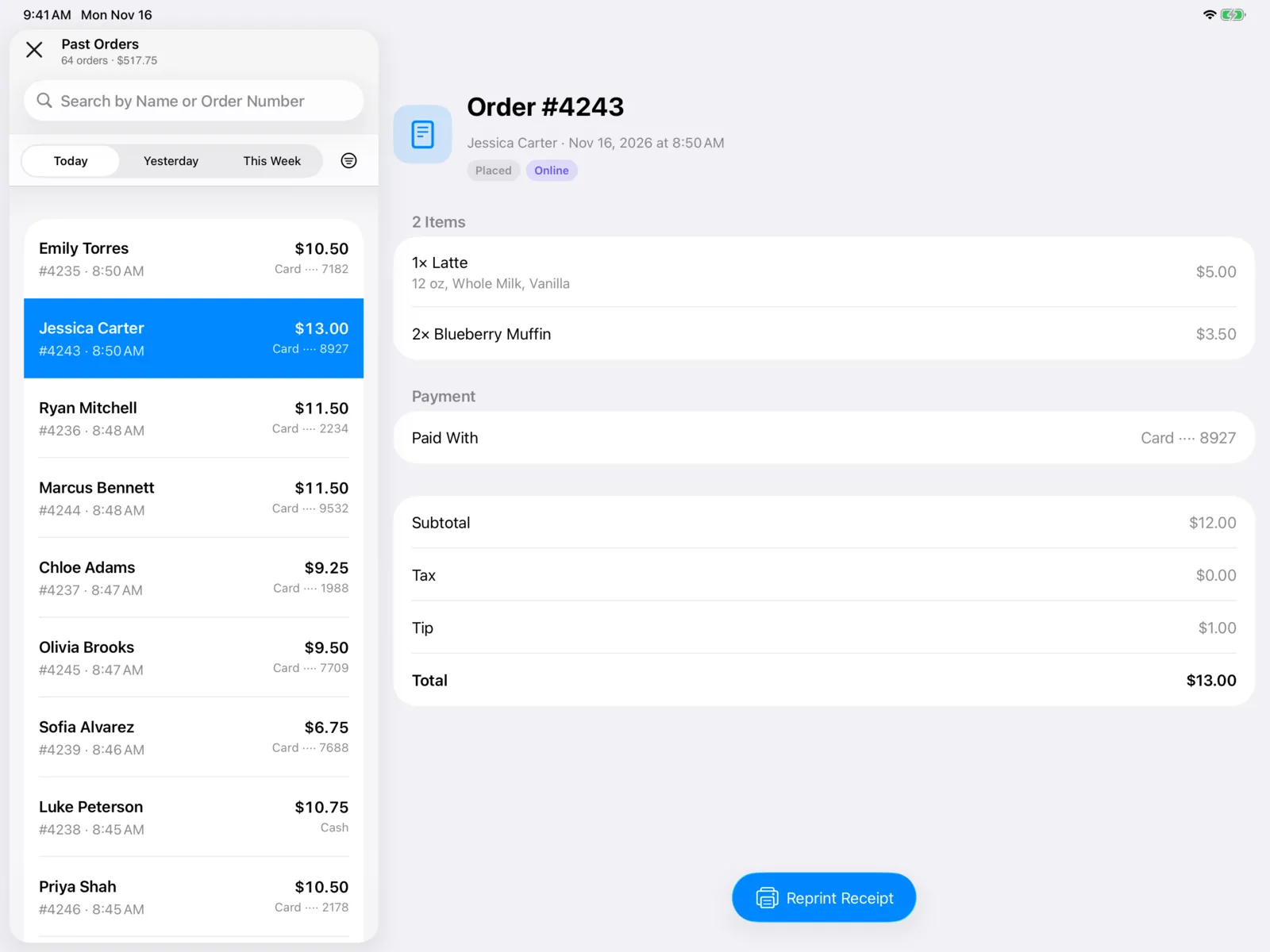
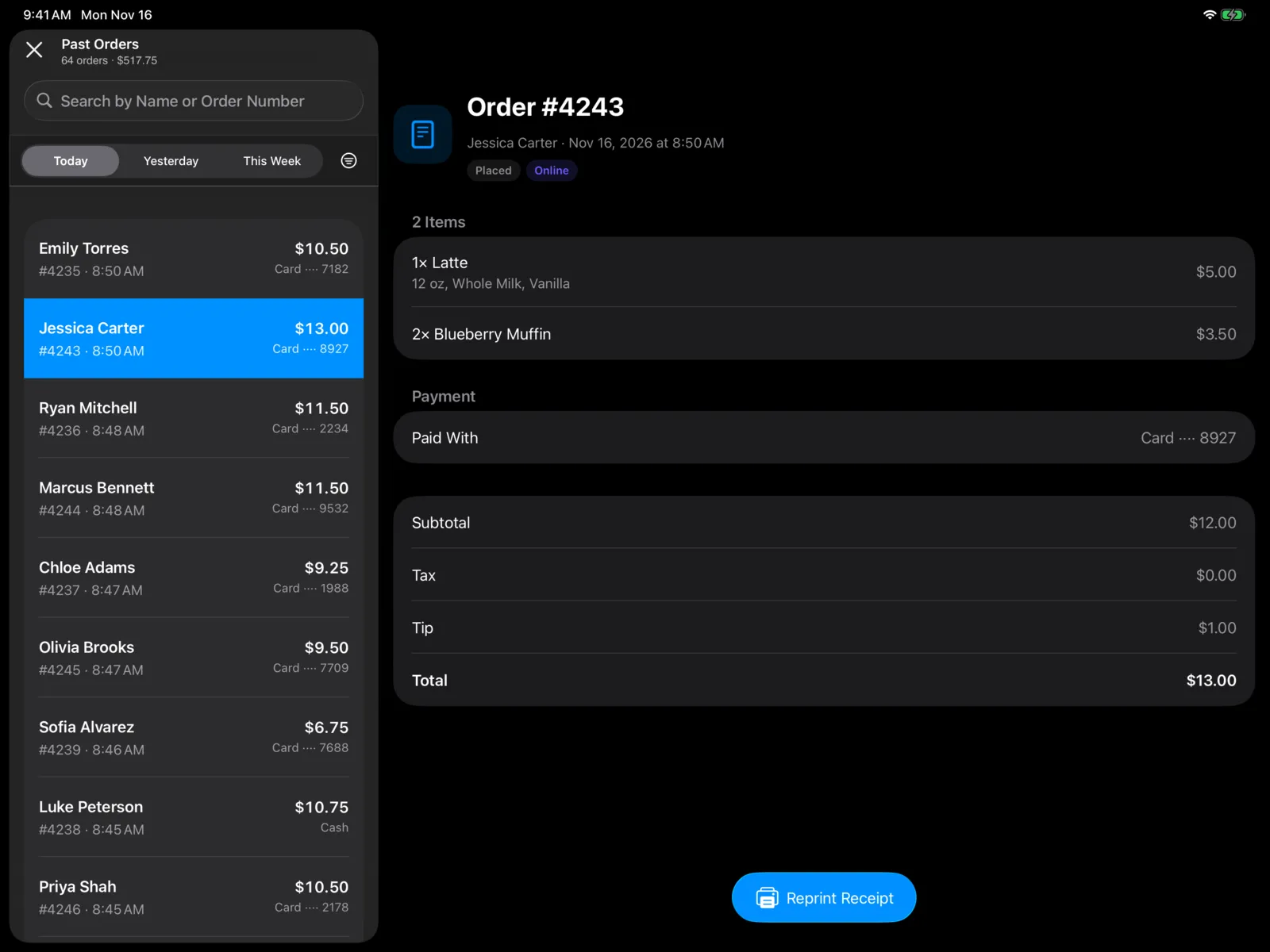
On the register, select Past Orders (the clock button). On iPhone, it’s in the ⋯ menu.
On iPad, the list is on the left and the order you pick opens beside it. On iPhone, the order opens on its own screen.
Find an order
- Pick Today, Yesterday, or This Week (the last seven days).
- Select the filter button for Paid With: All Payments, Card, Cash, or one of your other payment types, like Campus Cash.
- Search by name or order number in Search by Name or Order Number.
- Pull down to refresh.
The title shows how many orders match and their total, like 64 orders · $517.75.
Each row shows who it was for (or Walk-in), the order number and time, the amount, and how it was paid, like Card ···· 4242.
An order’s page
Select an order to see:
- Order # with who it was for and when, and labels for its status (Placed, Preparing, Ready, or Completed) and whether it was In Person or Online.
- The items, with each one’s options and price.
- Payment: what it was Paid With (the card’s last four digits, Cash, or the payment type’s name). For cash, the Cash Given and Change. The Receipt Email, if one was entered.
- The Subtotal, any Discount, Tax, any Tip, and the Total.
- Notes, if there were any.
Reprint a receipt
On iPad with a receipt printer, open the order and select Reprint Receipt. You’ll see Receipt Printed when it’s done.
The receipt is marked REPRINT, with the order’s original date. Reprinting never opens the cash drawer.
If there’s no printer set up, you’ll see No Receipt Printer. If it doesn’t print, check that the printer is on and has paper, then try again.