
Forms
Forms has your organization’s forms: contact forms, sign-ups, requests, and anything else you’ve built in the dashboard. On the Community Portal, your team can fill a form out for someone at the desk, show its QR code so people can fill it out on their own phone, and read the submissions.
Select Forms on the home screen. Forms are built and changed in the dashboard. See Build a form.
The list
Every form, in alphabetical order, with how many there are under the title, like 4 forms. Each row shows the form’s title, its text code if it has one, and how many submissions it has, like Text “CONNECT” · 5 submissions.
Use Search Forms to find one. Pull down to refresh.
On an iPhone, the shield button at the top shows the Admin Access code, used to leave the guest kiosk on an iPad.
On an iPad, the form you select opens beside the list. On an iPhone (or an iPad in Split View), it opens on its own page.
A form’s page
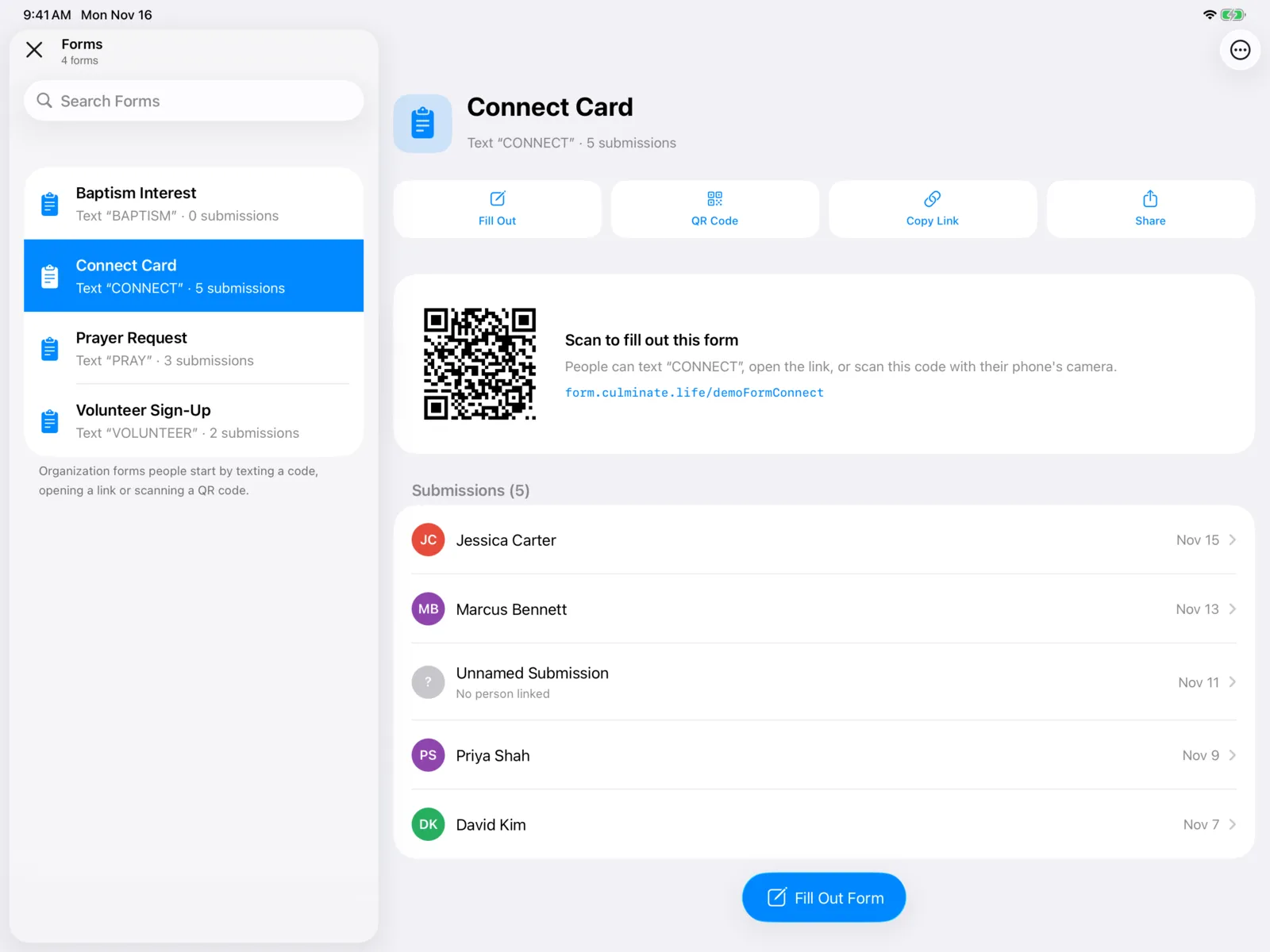
The top shows the form’s title, its text code, and how many submissions it has. Under that are quick buttons:
| Button | What it does |
|---|---|
| Fill Out | Opens the form full screen, to fill it out for someone. See Fill out a form for someone. |
| QR Code | Shows the form’s QR code big, for someone to scan with their phone. See Show the QR code. |
| Copy Link | Copies the form’s link (Link Copied). |
| Share | Sends the link by text, email, AirDrop, and more. |
How people start the form
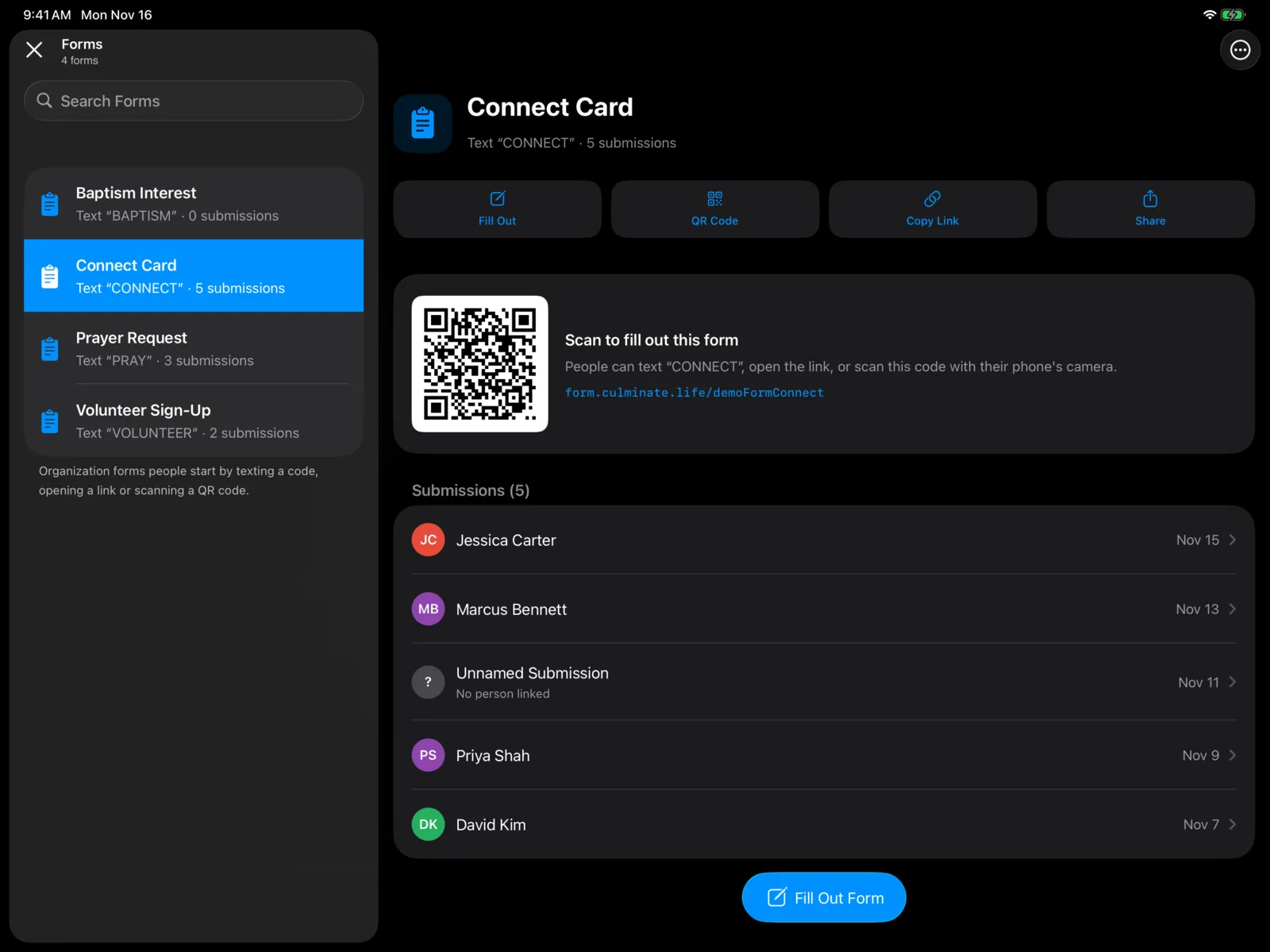
On an iPad, a card shows the form’s QR code, Scan to fill out this form, how people can start it (like “People can text “CONNECT”, open the link, or scan this code with their phone’s camera.”), and the link. The code is on a white tile, so it scans even in dark mode.
On an iPhone, you’ll see a Form Link row instead. Select it to copy the link, or touch and hold it for Copy Link and Share Link.
Submissions
Everyone who’s filled out the form, newest first, with the date. Submissions that aren’t linked to anyone in your people say No person linked. Select one to read it. See Read and edit a submission.
Fill Out Form at the bottom of the page starts a new one.
More options
Select ⋯ at the top for:
- Form Settings: how the form is set up (below).
- Export Submissions as CSV: every submission as a spreadsheet file to save, email, or AirDrop. It’s dimmed until the form has a submission.
Form settings
Form Settings shows the form’s settings from the dashboard. You can’t change them here: use Share a form in the dashboard.
| Setting | What it is |
|---|---|
| Form Link | The form’s link. Select it to copy it. The QR code opens this link. |
| Title People See | Shown at the top of the form. |
| Text Code | People text this code to your number to start the form. |
| Completion Message | Sent when someone finishes the form. |
| Reply with a Link | When it’s On, people who text the code get a link back to fill out the form, instead of answering by text. |
| Available Hours | When the text code works, for each day of the week. All day means any time. |
| Use After-Hours Message | When it’s On, the after-hours message is sent outside those hours. |
Show the QR code
Select QR Code. The form’s title (the one people see), a large QR code, Scan with your phone’s camera to fill out this form., and the link fill the sheet. Turn the screen toward the person, and they scan it with their phone’s camera.
Copy Link copies the link, and Share sends the link and the QR code picture, for example to print or post. Select Done to close it.
Fill out a form for someone
Took a request over the phone, or helping someone at the desk? Select Fill Out (or Fill Out Form at the bottom). The form opens full screen.
Pick who it’s for
At the top of the first page, select Filling Out for Someone? and pick them in Choose Person. Search by name, email, or phone, or select Add New Person to add them.
What your organization already knows about them is filled in, like their name, email, and phone, and anything else they’ve told you on other forms. You’ll see Looking up what’s known… for a moment, then Filling out for and their name.
This step is optional. Skip it to fill out the form without linking it to anyone.
Check what’s filled in
A banner says how many answers were filled in, like “4 answers are filled in from what Harbor Point knows about Marcus. Check them, and change anything that’s different.”
Each filled-in text question has a Known pill, with where the answer came from under it, like From their profile. Checkboxes are filled in too. Change anything that’s different: once you edit an answer, it’s yours and the pill goes away. Only empty questions are filled in, so nothing you’ve already typed is replaced.
- Clear All takes back every filled-in answer.
- Change picks someone else. The last person’s answers are taken back, and the new person’s are filled in.
Answer the rest
Go through the questions. On a form with more than one page, select Next (or use the arrows at the bottom, with Page 1 of 3 between them). If a required question is missed, Check Your Answers says which one.
Select Submit
Form Submitted shows with their name. The submission is at the top of the form’s list, linked to the person you picked.
To stop without saving, select Cancel. If you’ve typed anything, select Discard Answers (or Keep Editing to go back).
Questions you’ll see
The form looks like a list, one page at a time. It has every kind of question the form builder makes:
| Question | How you answer |
|---|---|
| Text and paragraph | Type the answer. Required ones say Required. |
| Choices | Select an option to check it, and again to uncheck it. A dropdown with more than 10 options has a Search box above them. |
| Yes or no | Turn the switch on or off. |
| Ratings and scales | Select a star or a number. |
| Date and time | Select Choose, then pick the date or time. |
| Birthday | Pick the Month, Day, and Year. |
| Number stepper | Type a number, or use − and +. |
| Signature | Type a full name (Type your full name). It shows as a signature with today’s date. |
| Address | Start typing the street, then select a suggestion to fill in the city, state, and zip. |
| Repeat for each person | Each person gets a card (Person 1, Person 2) with their name and their own answers. Select Add a person or Remove this person. |
Questions set to Show only if appear as soon as the answer they depend on is picked.
Uploads and fillable PDFs
Some questions ask for a file. Each shows what it takes, like Photo, PDF, or PDF, Word, Excel or text.
Attach a file
Select Choose file, then Photo library, Take photo, or Choose file (from Files), depending on what the question takes. You’ll see Uploading…, then the file’s name and size. Select the file to open it, or use Replace or Remove.
Files can be up to 10 MB.
Fill out a PDF
A Download & Return question has a PDF to fill out and send back, like a waiver. Its button has the name your team gave it, or Complete the form.
Open the PDF
Select the button. The PDF opens full screen.
Fill it in
Select the PDF’s boxes and type. To sign or draw, select the pencil button at the top and draw with your finger or Apple Pencil. Select it again to go back to typing.
Select Done
The filled-in PDF is attached to the question.
To carry on later, select the button again: it opens the copy you filled in, not a blank one. If you already have a filled-in copy, select Upload a filled PDF and pick it from Files.
If you select Cancel after making changes, you’ll be asked Discard Your Changes?
Read and edit a submission
Select a submission on a form’s page. It opens with every answer, ready to edit.
- Person: who the submission is linked to. If it isn’t linked, select Link Person and pick them in Choose Person.
- Edit an answer: change it, then select Save (it’s at the top of every page). Changes Saved shows when it’s done.
- Keep a copy: select the share button at the top and pick Print or Export as CSV.
To change or remove a link, or to create a person and their family, use Submitted for in the dashboard.