
Check people in at an event
Event Check-in is for the door of an event. Scan tickets as people arrive, or look them up by name, and see at a glance who’s here and who’s still to come. It works for any event with tickets.
Choose the event
Select Event Check-in on the home screen. You’ll see every event with tickets, in three groups:
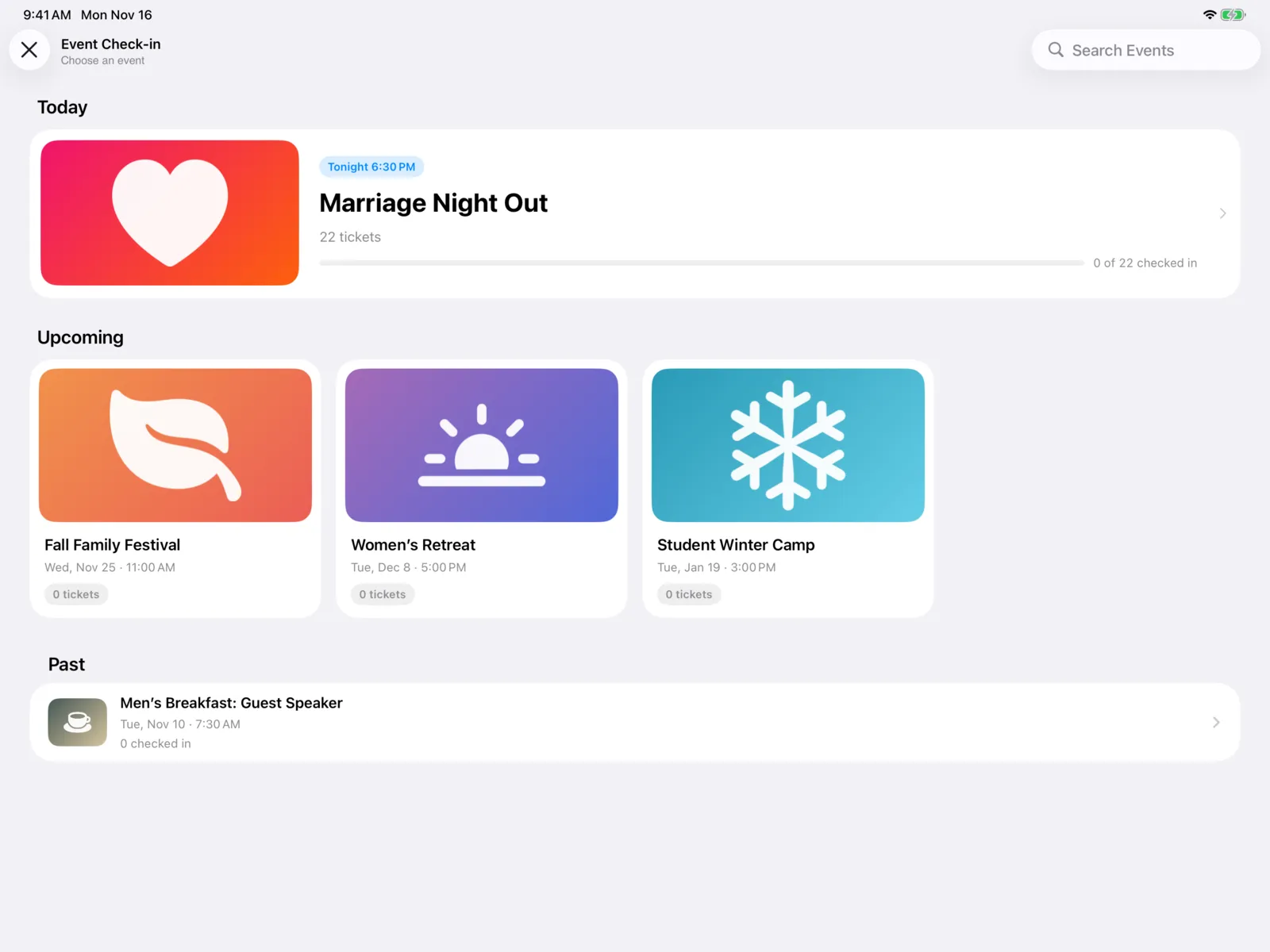
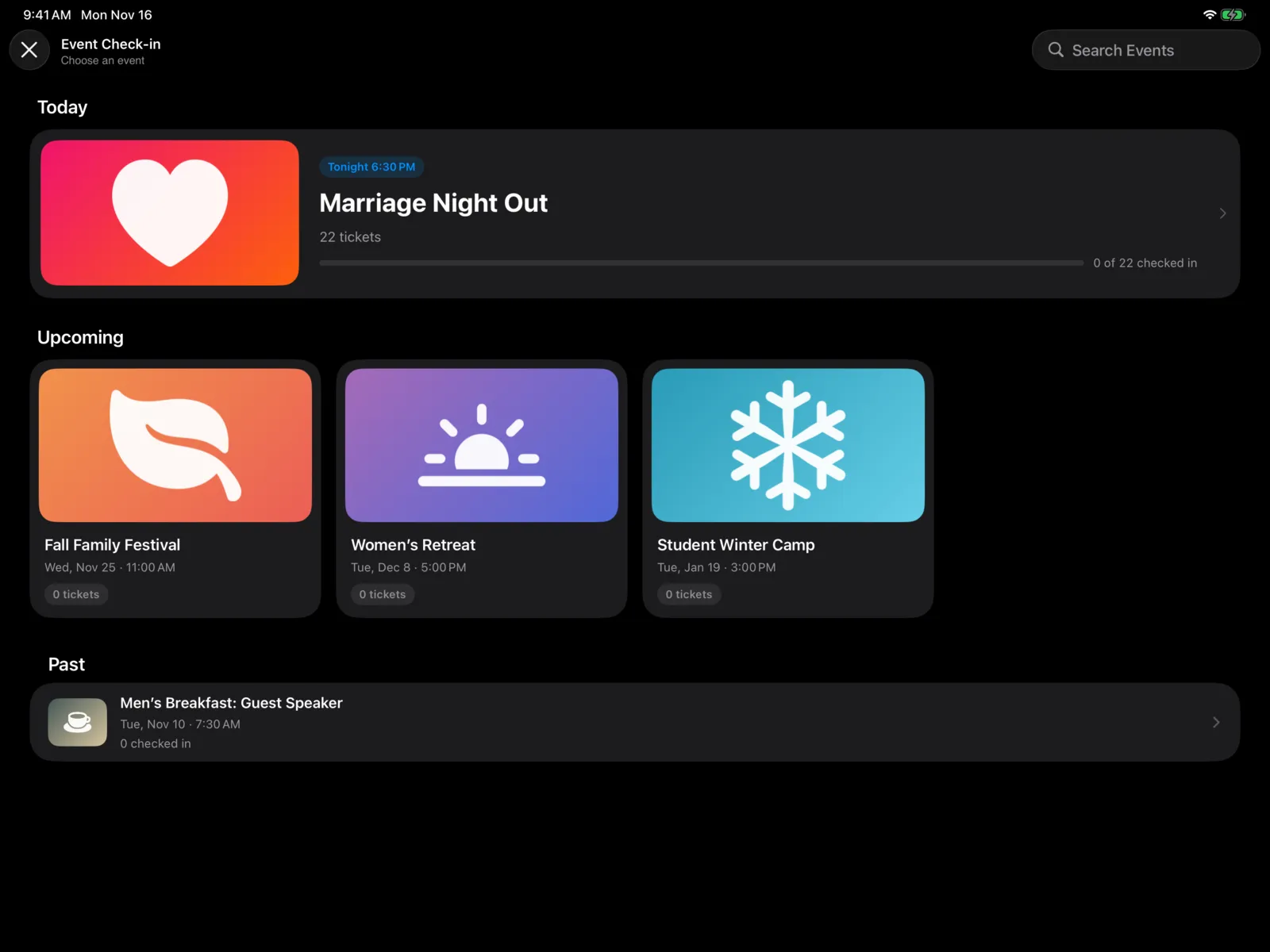
| Group | What it shows |
|---|---|
| Today | A wide card for each of today’s events, with when it starts (like Tonight 6:30 PM), how many tickets there are, and a progress bar, like 7 of 38 checked in. |
| Upcoming | Events after today, soonest first, with how many tickets have been sold. On iPad they’re cards; on iPhone, a list. |
| Past | Earlier events, most recent first, with how many people checked in. |
Use Search Events to find one by name. On iPhone, the search field is at the bottom of the screen. Pull down to refresh the list.
Select an event to open its check-in list.
If the event you want isn’t here, make sure it has a ticket in the dashboard. Events without tickets don’t show up.
The check-in list
The list shows every ticket for the event. The top of the screen shows the event’s name and how many people are in, like 7 of 38 checked in.
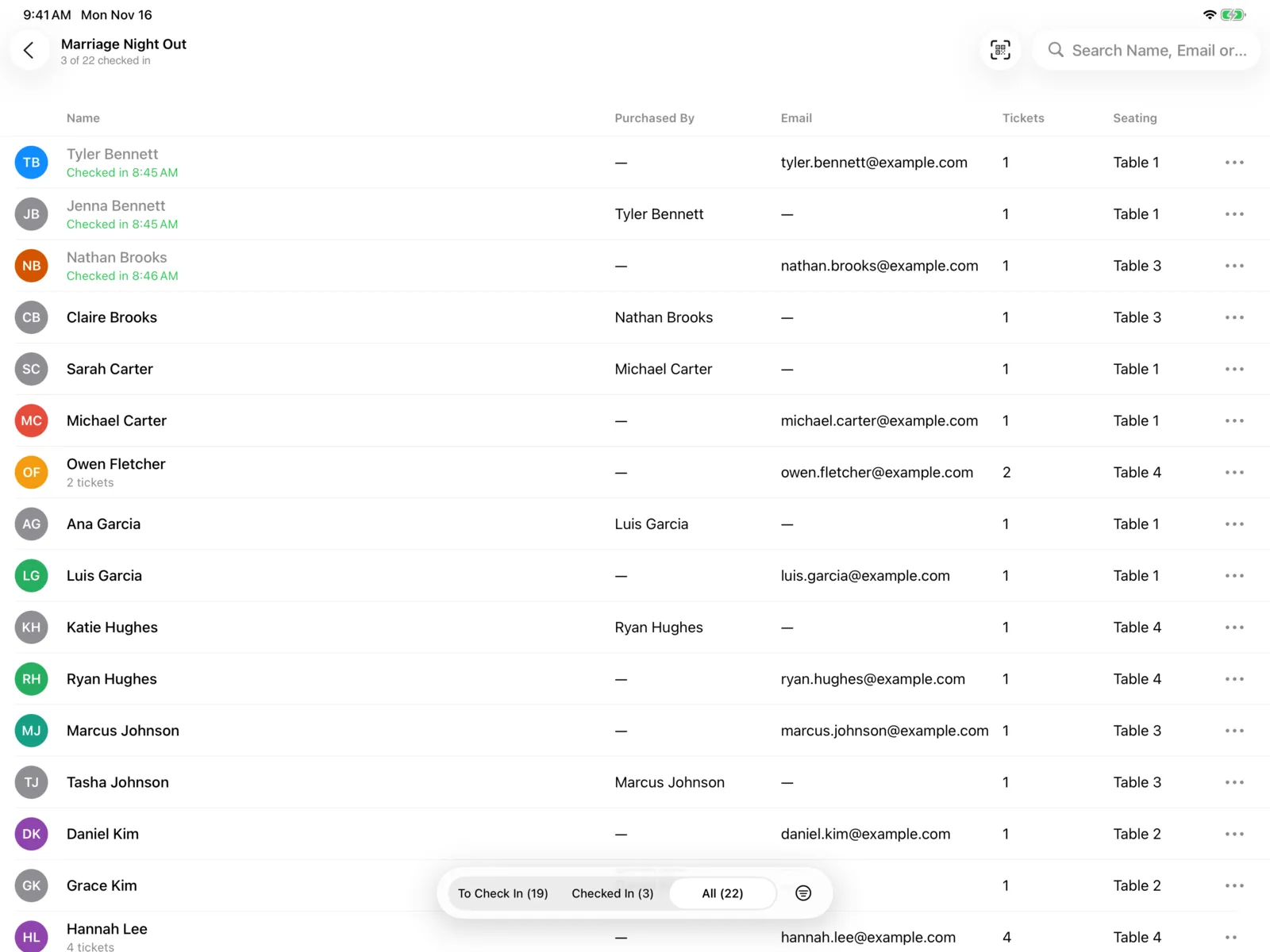
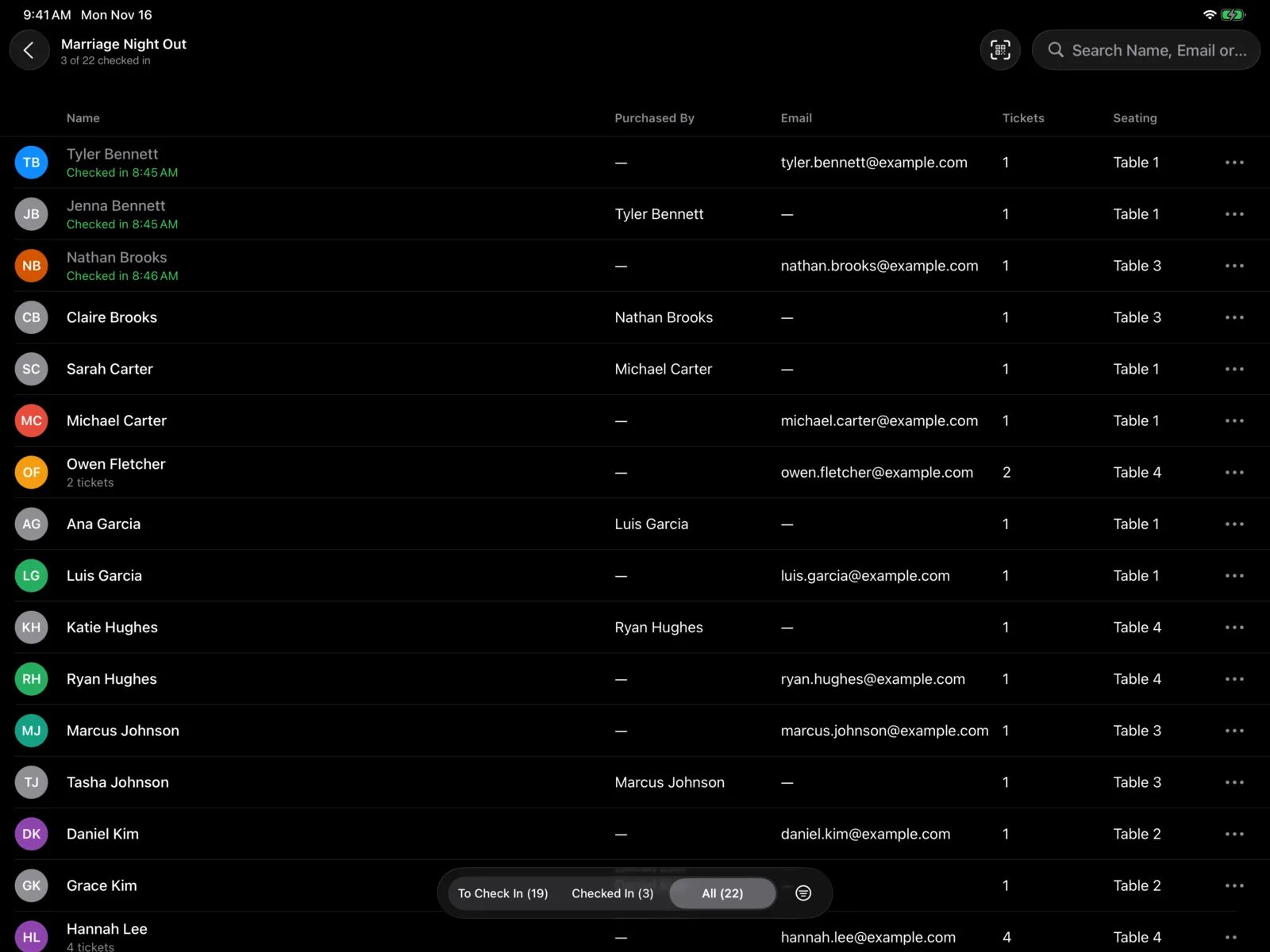
Use the filter bar to switch between:
| Filter | Who’s in it |
|---|---|
| To Check In | People who haven’t checked in yet. On iPhone, this is called Not Yet. |
| Checked In | People who are here, with the time they checked in. |
| All | Every ticket. |
Each filter shows a live count, like To Check In (31). On iPad the filter bar floats at the bottom of the screen; on iPhone it sits at the top, under the event’s name.
Use the sort button in the filter bar to sort by Last Name or First Name. If the event has seating, you can also sort by Seating.
What each row shows
- On iPad: the Name, who it was Purchased By (when someone bought it for another person), their Email, how many Tickets it covers, and their Seating, like Table 4. Some columns hide when the screen is narrow, like in Split View.
- On iPhone: the name, with the email, group size, and table underneath.
Once someone’s in, their row says Checked in 6:12 PM in green.
Search
Search by name, email, or ticket code. You can search for the buyer’s name too, to find everyone they bought tickets for.
If you type a ticket code that doesn’t match anyone in the list, press Return to look it up as a ticket. That’s handy for a ticket bought a moment ago, or when someone reads their code out to you.
Check someone in
There are a few ways. Use whichever is quickest at your door.
Scan their ticket
On iPad, select the scan button at the top right. On iPhone, select Scan Tickets at the bottom of the screen. Point the camera at the QR code on their ticket. The scanner stays open, so you can scan one ticket after another.
Or use a barcode scanner
With a Bluetooth barcode scanner paired, just scan. You don’t need to select anything first: the list picks up the code as long as it’s on screen. See Scanners.
Or find them in the list
Select their row to open the check-in sheet. To skip the sheet, swipe left on the row and select Check In. On iPad you can also use the row’s … button, and on iPhone you can touch and hold the row.
Confirm
The check-in sheet shows who the ticket is for. Select Check In at the top right.
The person moves to Checked In straight away. The row’s menu also has Show Details, which opens the sheet without checking anyone in.
The check-in sheet
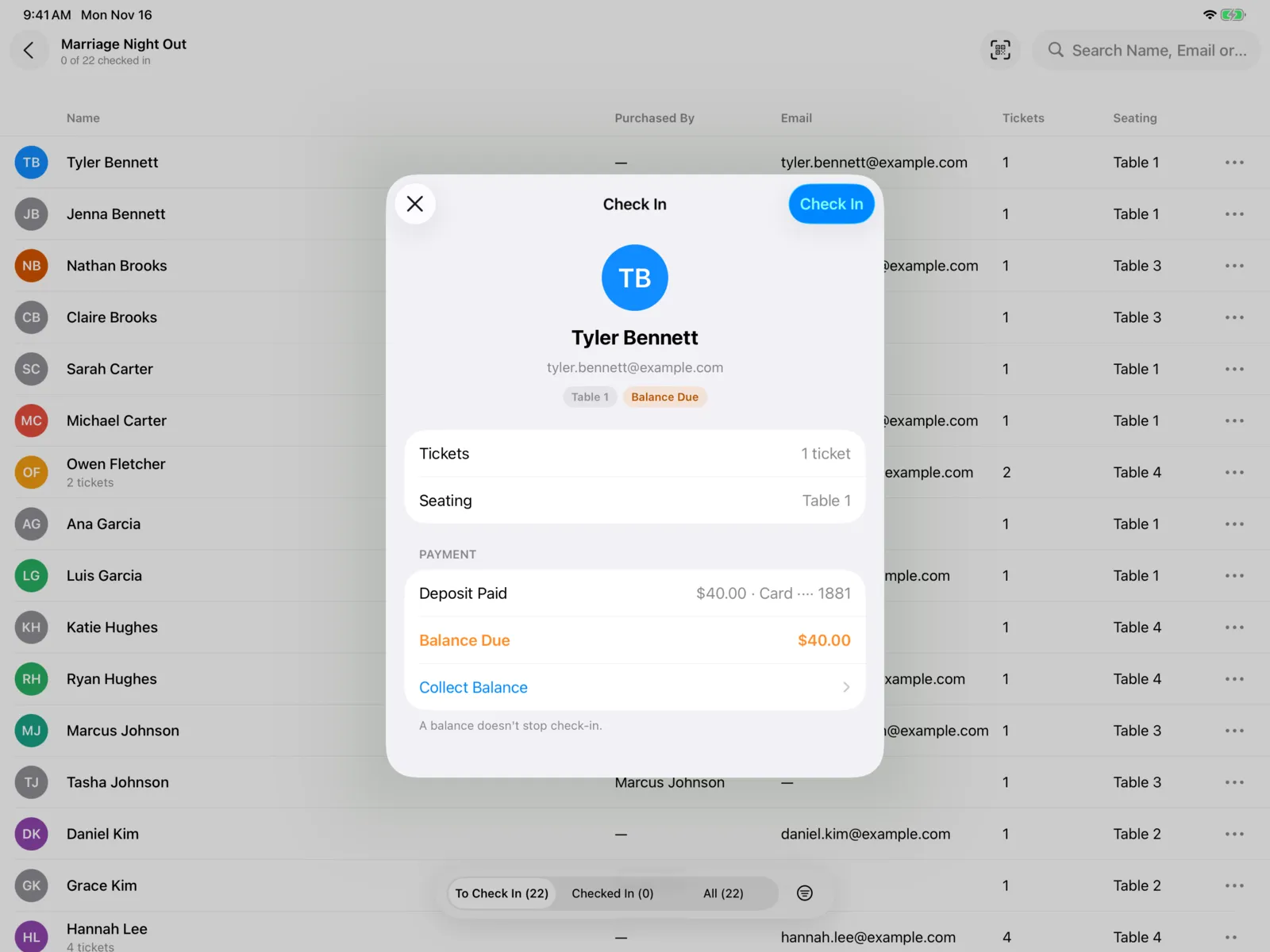
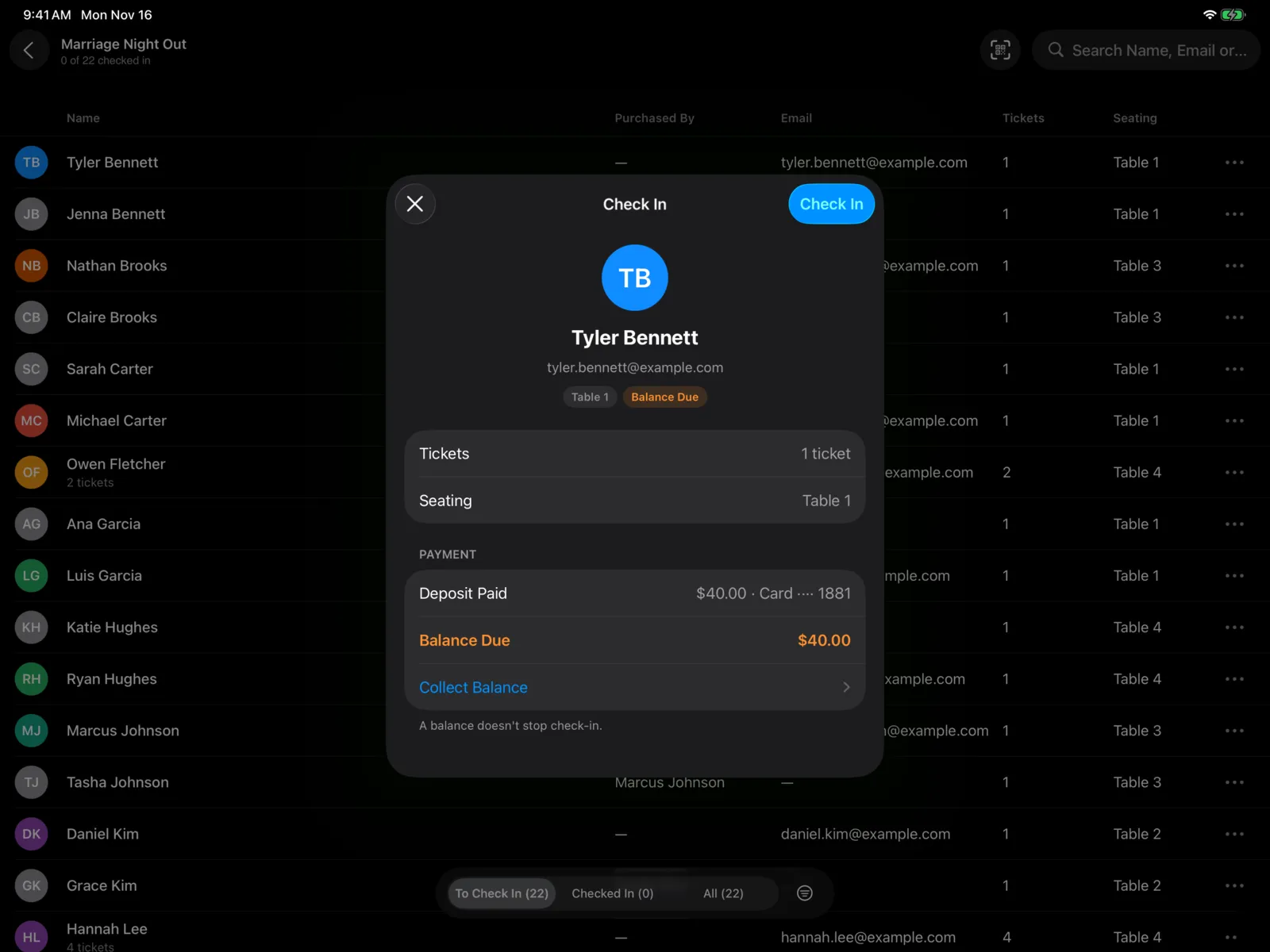
The sheet shows the person’s name and email, with pills for what you need to know:
- Checked In and the time, if they’re already in.
- The group size, like Group of 4.
- Their table, like Table 4.
- Their payment: Paid in Full or Balance Due.
For one person, you’ll also see how many Tickets the ticket covers and their Seating.
Select Close (the X) to go back without checking anyone in.
Groups
When one ticket covers a group with a name for each person, the sheet lists everyone under Tickets, with their table and ticket code. Everyone who hasn’t checked in yet is selected.
If someone isn’t here yet, select them to uncheck them. The button counts who you’re checking in, like Check In (3). The others can check in later, from the list or by scanning their own ticket.
People who are already in show Checked in and the time, and can’t be selected again. When the whole group is in, the button says Checked In.
Already checked in
If you scan a ticket and everyone on it is already in, you’ll see Already Checked In with the time, like “Sam Lee was checked in at 6:12 PM.” Nobody is checked in twice.
Payment status
If the ticket was paid for, the sheet shows the buyer’s payment under Payment:
| What you see | What it means |
|---|---|
| Paid in Full (green) | Nothing is owed. You’ll see how much was paid and how, like Card ···· 4242 or Cash. |
| Balance Due (orange) | They paid a deposit or are on a payment plan. You’ll see what they’ve paid (Deposit Paid or Paid So Far) and the Balance Due. |
If the ticket was bought by someone else, like a parent registering a child, Purchased By shows who.
A balance never stops someone from checking in. You can check them in and collect it now or later. To take the payment right there, select Collect Balance. See Collect a balance at check-in.
Free tickets don’t show a payment section.
Check-ins from other devices
You can run several devices at the same door. Check-ins show up on every device straight away, wherever they happen: another iPad or iPhone, or the dashboard. The counts update too.
If a check-in is removed somewhere else, the list reloads so that person shows up to check in again. Pull down on the list to refresh it any time.
When a ticket doesn’t work
| Message | What it means |
|---|---|
| Ticket Not Found | No ticket matches the code. Check that it’s a ticket for an event, or search for the person by name. |
| Different Event | The ticket is for another event. Check which event they’re here for. |
| Already Checked In | Everyone on the ticket is already in. The message says when. |
| Couldn’t Check In | Something went wrong, usually the connection. Try again. |
| Couldn’t Load Tickets | The list couldn’t load. Check the connection, then pull down to try again. |