
The register
The register is where you ring up an order. Your store’s items fill the screen as large tiles, and the order builds up as you select them.
Layout on iPad and iPhone
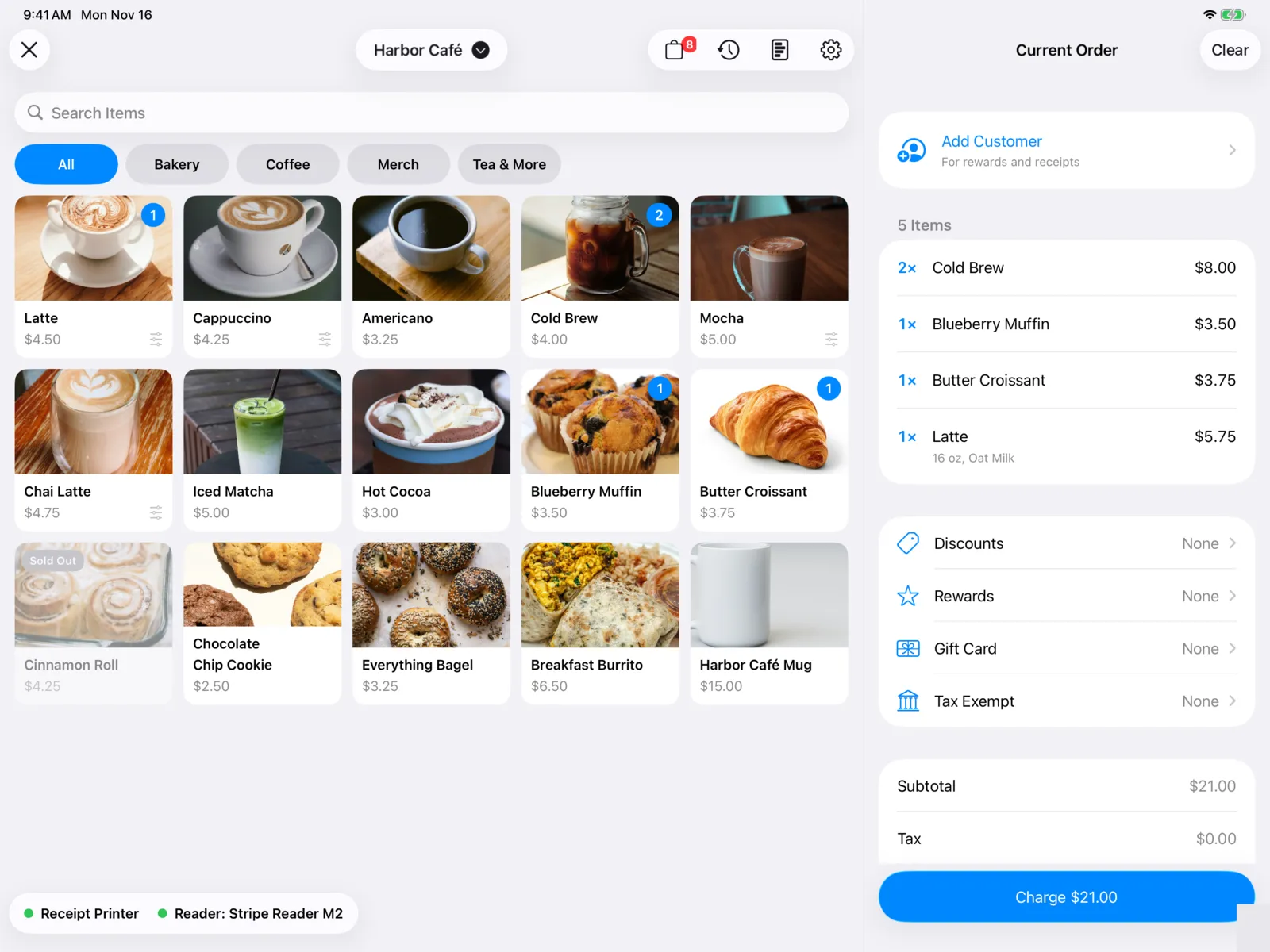
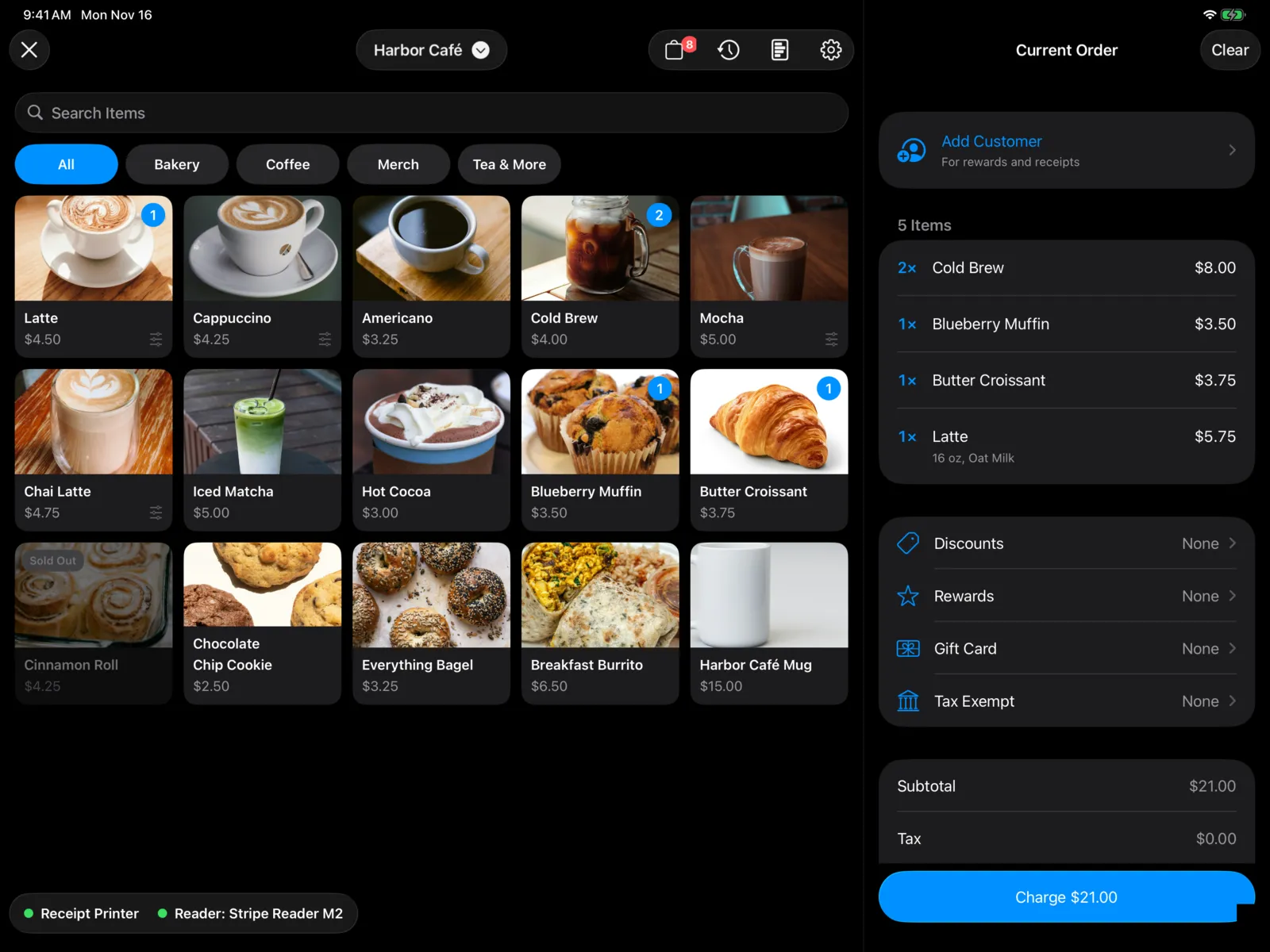
- iPad: the items are on the left and the Current Order is on the right, with Charge at the bottom. Along the bottom of the items, a colored dot shows whether the receipt printer and card reader are ready: green is ready, orange is turned off, and red is not connected.
- iPhone: the items fill the screen. Once something is in the order, a button at the bottom shows the count and total, like View Order · 3 Items · $14.25. Select it to see the order and Charge.
The buttons at the top:
| Button | What it does |
|---|---|
| Close (X) | Leaves Point of Sale. If an order is in progress, you’re asked first, because it will be cleared. |
| The store name | Switches store, when your organization has more than one. Switching clears the current order. |
| The bag | The orders board. A red badge counts open online orders. |
| Past Orders | Look up an order or reprint a receipt. |
| Today’s Summary | Today’s sales and the cash drawer. |
| Settings | The device’s settings, like the card reader, printer, and tips. |
On iPhone, Past Orders, Today’s Summary, and Settings are in the ⋯ menu.
Find an item
- Select a category at the top, like Drinks or Pastries, to show only those items. You can select more than one. All shows everything.
- Or type in Search Items. It matches the item’s name and short label.
Each tile shows the item’s picture (or its first letter), name, and starting price. A small sliders icon means it has options to choose. Items marked sold out or unavailable in the dashboard, or out of stock, are dimmed with Sold Out and can’t be added.
Add an item
Select an item’s tile.
- Nothing to choose? It goes straight into the order. This includes items with only one size, or whose options are already picked for you (marked Preselected in the dashboard).
- Something to choose? Its options open, like size and milk.
A number on the tile counts how many are in the order. Adding the same item with the same options again adds one more to that line.
To change the options before adding an item that would go straight in, touch and hold its tile and select Choose Options….
Choose options
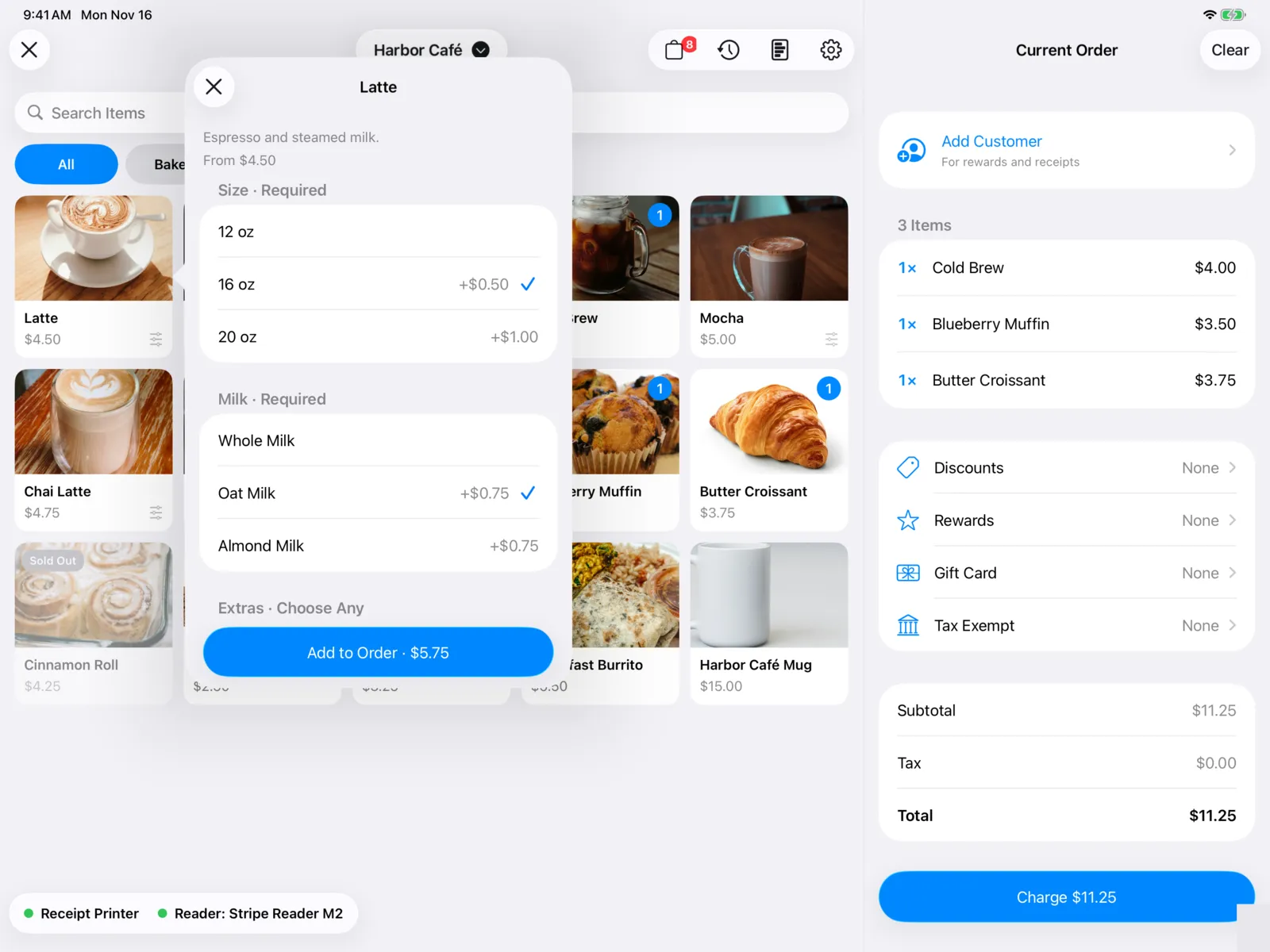
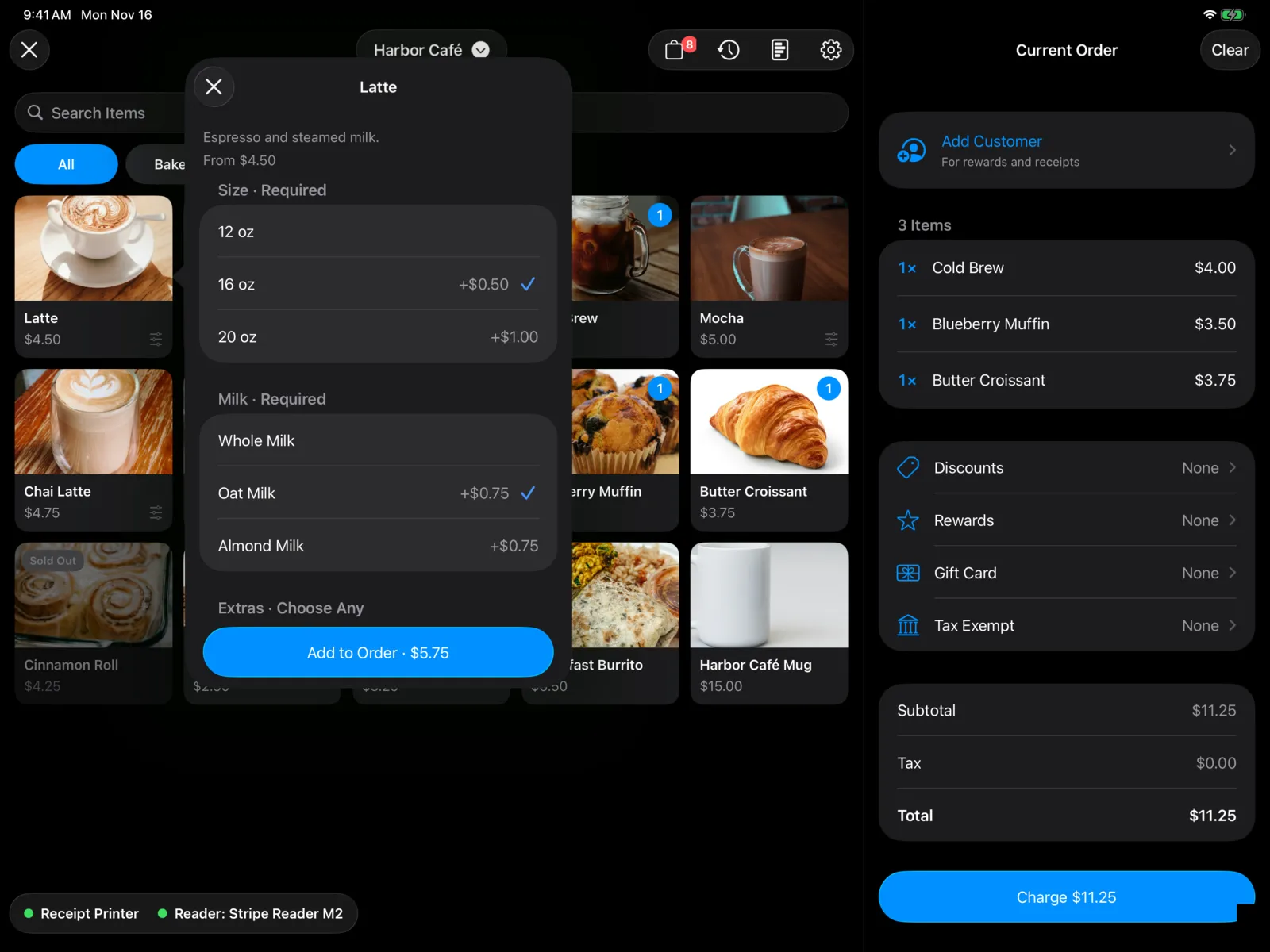
The options show the item’s description and From price, then a section for each choice. Its heading says how to choose, like Milk · Required:
| Heading ends with | What it means |
|---|---|
| Size · Required | Pick one size. |
| Required | Pick one. |
| Required · Choose Any | Pick at least one. |
| Optional | Pick one, or none. |
| Choose Any | Pick as many as you like, or none. |
Options that cost extra show the price, like +$0.75. Sold-out options say Sold Out.
Set the Quantity with − and +. The button at the bottom says what’s still missing, like Choose a Size, until everything required is picked. Then it shows the price, like Add to Order · $5.25.
Select Cancel to close without adding anything.
Change the order
In the Current Order, each line shows the quantity, the item and its options, any reward on it, and the price.
- Change options or quantity: select the line. Make your changes and select Update, or Remove to take it out.
- Add or take away one: swipe the line to the right for +1 and −1.
- Delete a line: swipe it to the left and select Delete.
- More: touch and hold a line for Add One, Remove One, Edit Options…, and Delete.
- Start over: select Clear, then Clear Order.
Under the items are Discounts, Rewards, Gift Card, and Tax Exempt. Each shows what’s applied, or None. See Discounts and gift cards.
At the bottom are the Subtotal, any Discount, Tax (or Tax (Exempt)), any Gift Card amount, and the Total.
Add the customer
Adding the customer is optional. It links the order to the person, for rewards and receipts.
Select Add Customer at the top of the order, then:
- Find Person: search by name, email, or phone.
- Scan Member Code: scan the code in the person’s app with the camera.
Once someone is on the order, select their name to Change Person or Remove from Order.
If you don’t add a customer, you can still type a name and email at Charge.
When you’re ready
Select Charge (it shows the total, like Charge $14.25). See Charge.
New online orders
When someone orders ahead in your app, you hear a sound and New Online Order slides in at the top with their name. Select it to open the order. See Orders board.