
Charge
When the order is ready, select Charge. Charge shows the total, lets the guest add a tip, and takes the payment.
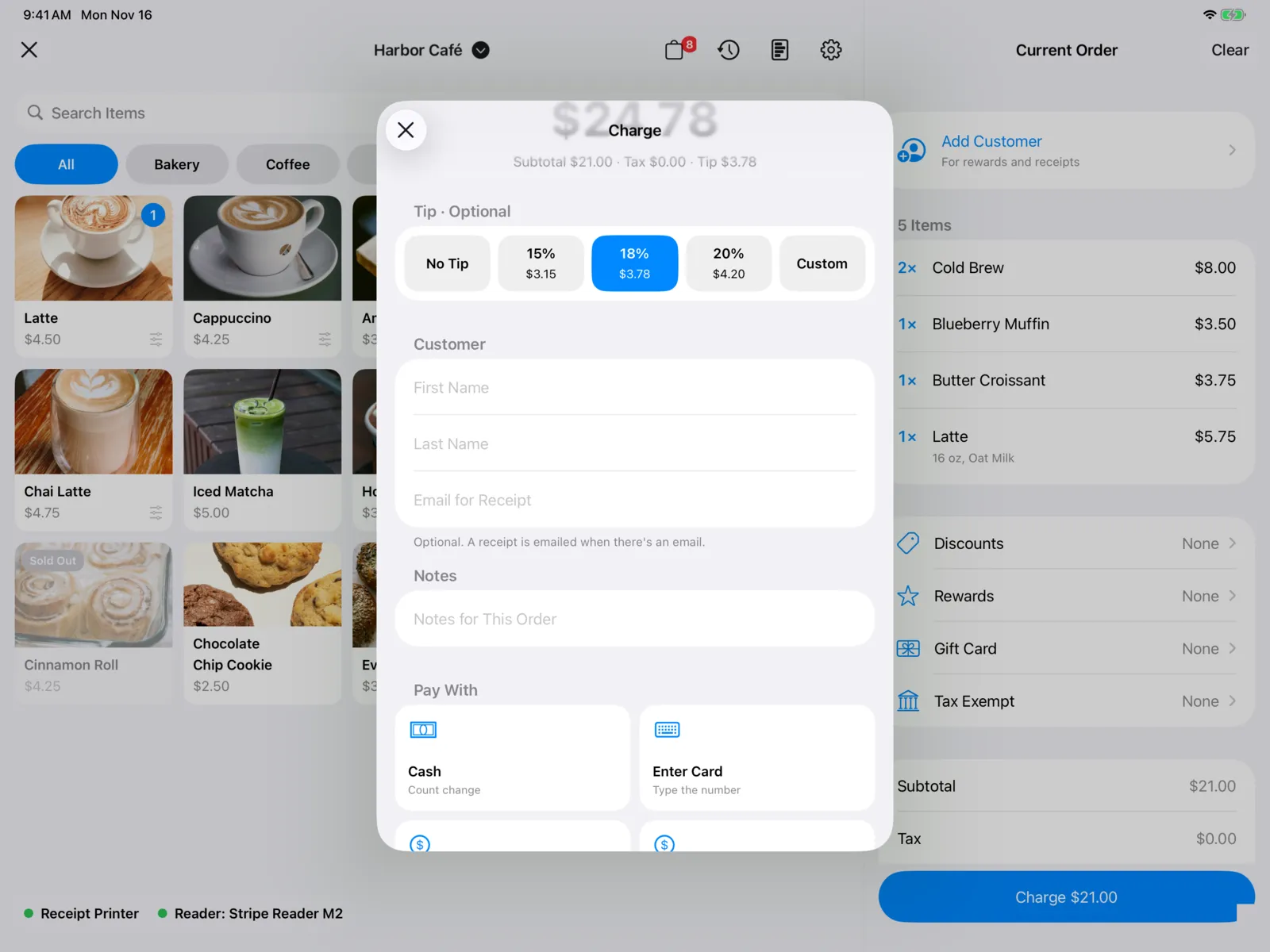
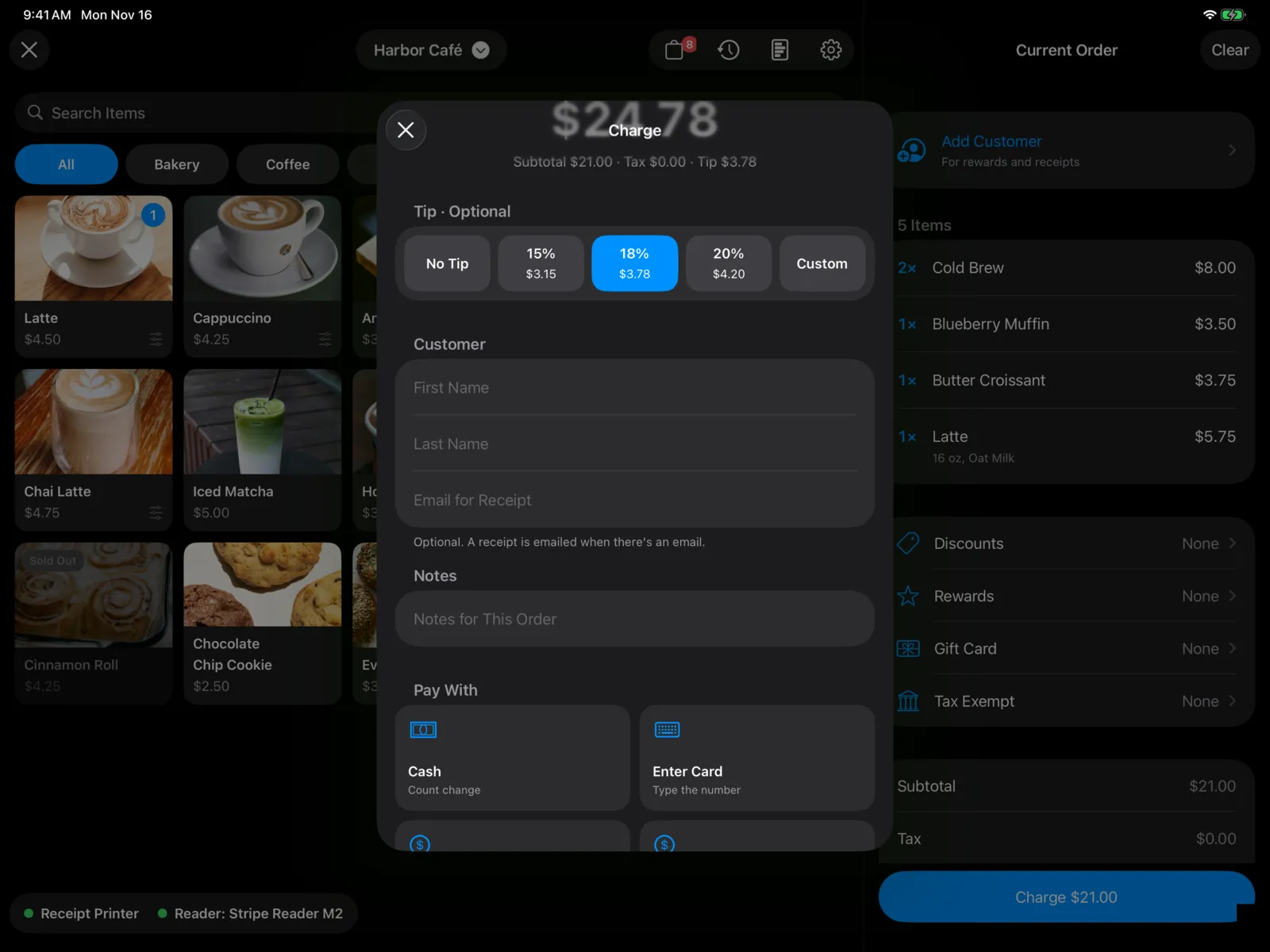
At the top is the total in large type, with how it adds up underneath, like Subtotal $12.50 · Tax $1.03 · Tip $2.25. It updates as you change the tip.
Select Cancel to go back to the order without charging.
Add a tip
Tip · Optional shows when the device asks for tips and the order has something to tip on. No Tip is selected to start, so nothing is added unless someone picks a tip.
- Select a percentage. Each one shows its amount, like 18% and $2.25.
- Select Custom to type an amount on the keypad, then Add $3.00 Tip.
- Select No Tip to take the tip off again.
Tips are worked out on the items after discounts, before tax.
You choose the three percentages, whether to offer Custom, and whether to ask at all in Settings → Point of Sale. They apply to this device only.
Tips on a card reader with a screen
If your card reader has its own screen (WisePOS E, S700, or S710), the guest picks the tip on the reader. Charge shows On the Card Reader with an Automatic label, and the total says Plus any tip the guest adds on the reader.
The tip choices are still there for cash and typed cards, which pick the tip on Charge. If you pick a tip on Charge, the reader won’t ask again. Any tip the guest adds on the reader is included in the sale.
Who it’s for and notes
- Customer (optional): type a First Name, Last Name, and Email for Receipt. A receipt is emailed when there’s an email. If you added the customer to the order, their name is already here.
- Notes: anything the team making the order should know, in Notes for This Order. Notes show on the orders board and in Past Orders.
Pick how they’re paying
Under Pay With, select a tile. The payment starts right away.
| Tile | When you see it | What happens |
|---|---|---|
| Tap to Pay on iPhone | On iPhone | The guest taps their card, phone, or watch on your iPhone. See Tap to Pay on iPhone. |
| Card Reader | When this device has a card reader | Shows the reader’s name. The guest taps, inserts, or swipes on the reader. See Card reader. |
| Cash | Always | Enter what the guest handed you and see the change. See Cash. |
| Enter Card | Always | Type the card number. See Enter a card. |
| Your other payment types, like Campus Cash or Check | When your organization has them | Collect it your own way, then mark the order paid. See Other payment types. |
| Complete Sale | When there’s nothing to collect | For an order that’s fully discounted or covered by a gift card. |
If there’s no card reader and the device can’t use Tap to Pay, you’ll see To take cards in person, connect a card reader in Settings → Card Reader. See Card readers.
Tap to Pay on iPhone
Select Tap to Pay on iPhone
If the device asks for tips and no tip is chosen yet, the tile says Guest picks a tip first.
Hand the iPhone to the guest
They see Add a tip? with the order total, your three tip choices with their amounts, Custom Amount (if you offer it), and No Tip. They pick one.
The guest taps to pay
The screen says Hold the card, phone or watch near the top of this iPhone. Once the card is read, the sale is recorded and Sale Complete appears.
If a tip was already chosen on Charge, the guest goes straight to tapping.
When Tap to Pay isn’t ready
The tile is dimmed and says why:
- Set up in Settings: Tap to Pay isn’t set up on this iPhone yet. See Card readers.
- Needs approval: an admin needs to approve Tap to Pay for this iPhone in the dashboard, under Devices. Select the tile, then Check Again once it’s approved. The payment carries on from there.
Card reader
Select Card Reader. A sheet shows the amount and the reader’s name.
Smart readers (WisePOS E, S700, S710) connect over the internet, so any of your devices can use any of your readers, and the reader doesn’t need to be near the device. The sheet says Sending to Front Desk…, then Tap, insert or swipe the card on Front Desk. (with your reader’s name). Choose which reader a device uses in Card readers.
Bluetooth readers (like the M2) connect to this device. The sheet says Tap, insert or swipe the card on the reader., and shows the reader’s own prompts, like inserting or removing the card.
Once the card is read, the sale is recorded and Sale Complete appears.
To stop, select Cancel. If the card was read just before you canceled, the payment still counts and the sale is recorded.
If the smart reader can’t take the card
The sheet shows what went wrong, like That reader is busy with another payment., with two choices:
- Try Again sends the payment to the same reader.
- Use Another Reader lists your organization’s other smart readers. Offline readers can’t be picked, and busy ones say (Busy). The switch is for this payment only; the device keeps its usual reader.
Or select Cancel to pick another way to pay.
Cash
Select Cash
The screen shows the total and up to four quick amounts: the exact total, the next dollar, and the next bills up. For $13.40, that’s $13.40, $14.00, $15.00, and $20.00.
Enter what the guest handed you
Select a quick amount, or type it on the keypad and select Take $20.00. The amount has to be at least the total.
Give change
Sale Complete shows Change Due in large type, with the cash and total underneath, like Cash $20.00 · Total $13.40. If they paid the exact amount, it says No Change Due.
Enter a card
Select Enter Card, then type the card number, expiry, and CVC, the Name on Card, and the ZIP Code. Select Pay $14.25.
The card is charged once and isn’t saved. Some cards ask for an extra check from the guest’s bank before they go through.
Other payment types
Your organization can have other ways to pay that aren’t a card or cash, like Campus Cash or Check. Each one has its own tile, marked Mark as paid.
- Select the tile. You’ll see Collect $14.25 with Campus Cash.
- Take the payment your usual way.
- Select Mark as Paid.
The order is recorded with that payment type, and it shows by name on Sale Complete, in Past Orders, on receipts, and in Today’s summary.
Sale Complete
Sale Complete shows Paid with the amount and how it was paid, like Card or Campus Cash. For cash, it shows the change due instead. Any tip is listed too.
Select New Sale to clear the order and start the next one. Any gift card sold on the order stays sold.
Receipts and the cash drawer
On iPad with a receipt printer:
| Printer setting | What happens after a sale |
|---|---|
| Print Receipts on, Ask Before Printing off | The receipt prints by itself. Select Print Another Receipt for a second copy. |
| Print Receipts and Ask Before Printing on | Select Print Receipt if the guest wants one. |
| Print Receipts off | No receipt prints. |
For cash sales, the cash drawer opens: with the receipt when it prints, or right away when it doesn’t.
If a payment doesn’t go through
- Payment Didn’t Go Through: the card was declined or the payment couldn’t be taken. The message says why. Try again, or pick another way to pay.
- Sale Not Saved: the card was approved, but the sale couldn’t be saved, usually because the connection dropped. Select Try Again. The card won’t be charged again. Charge stays open until the sale is saved.
If you select Give Up, you’re asked to confirm with Give Up on This Sale?, because the order won’t be saved. If the guest’s card shows a charge, refund it from the Stripe Dashboard. Select Keep Trying to go back.
Earlier sales that didn’t finish
If the app closes, crashes, or loses power while a smart reader is taking a card, nothing is lost. The next time you open Point of Sale on that device, it sorts out the payment and tells you what happened:
| Message | What it means |
|---|---|
| Earlier Sale Finished | The card was read before the app closed, so the sale was recorded now. |
| Earlier Card Payment Canceled | The payment didn’t finish before the app closed, so it was canceled. The card wasn’t charged. |
| Earlier Card Payment | The card was already charged. Check Past Orders to make sure the sale is there. |
| Earlier Sale Not Recorded Yet | The card was approved, but the sale couldn’t be saved yet. It tries again the next time Point of Sale opens. |
Each message names the amount, the customer, and the reader.