
Home
The home screen is where every feature starts. It puts today’s next event first, then a tile for each feature with a live count of what’s going on.
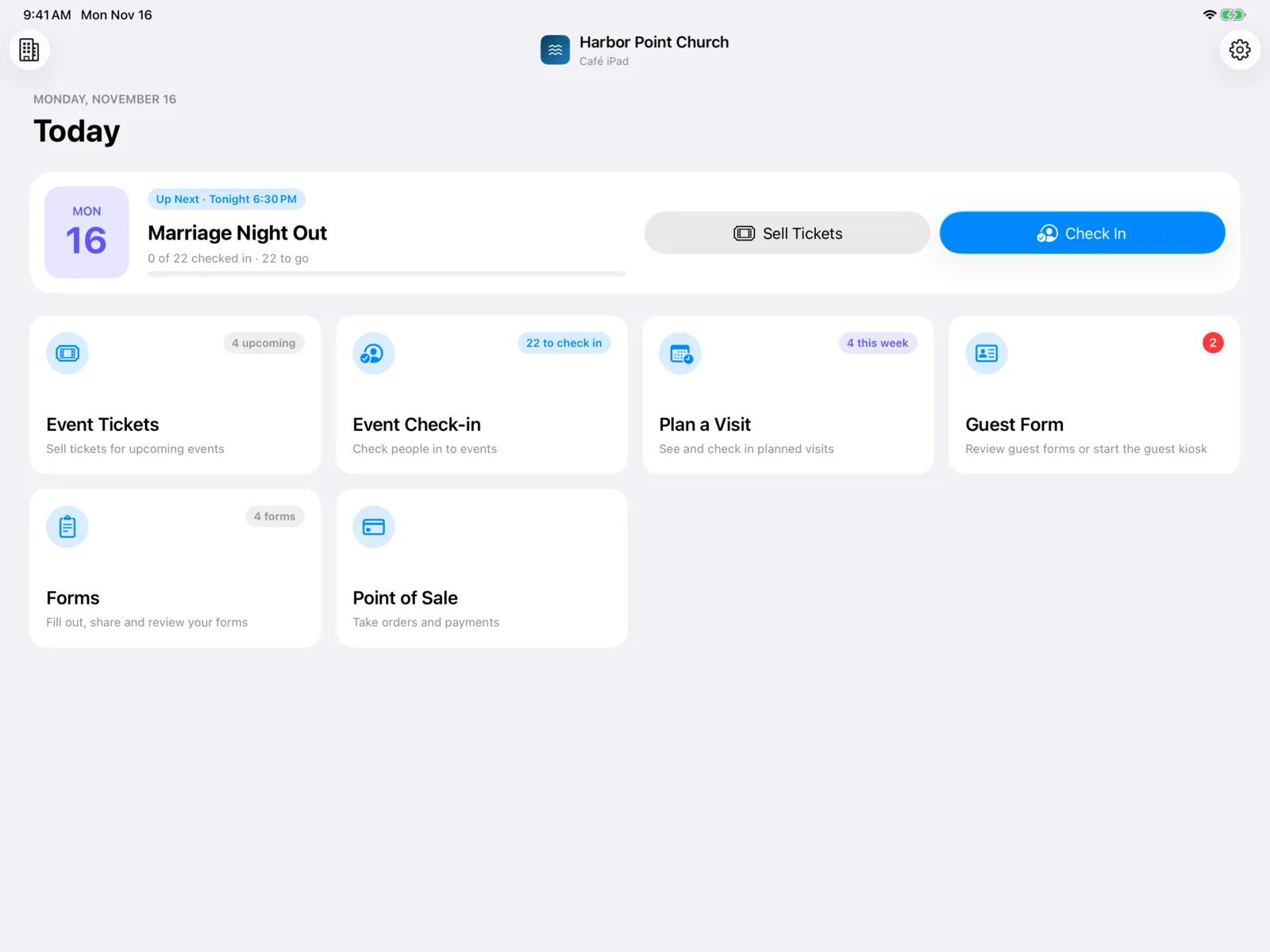
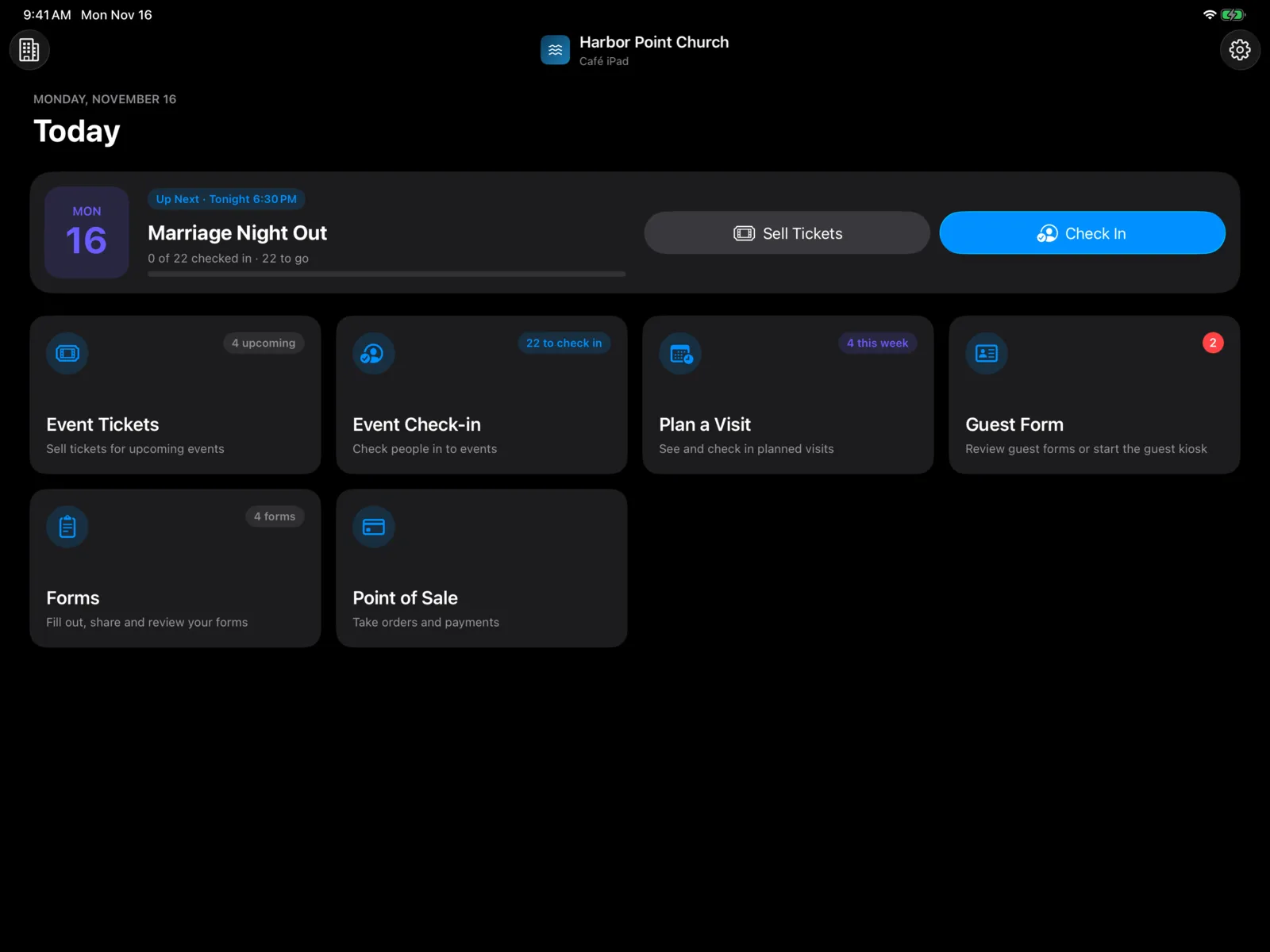
At the top
- Your organization’s logo and name, with this device’s name under it, so you always know which organization and device you’re on.
- The building button (top left) switches between the organizations on this device, with a check mark on the one in use. Add Organization adds another. See More than one organization.
- The gear button (top right) opens Settings.
Today and Up Next
Under Today and the date, the Up Next card shows your next event with tickets: today’s next event (one that started in the last few hours still counts), or if there’s none today, the next one in the coming week. When there’s nothing in the next week, the card doesn’t show.
The card has:
- When it starts, like Up Next · Tonight 6:30 PM or Up Next · Tomorrow 9:00 AM.
- The event’s name.
- How it’s going. For today’s event, a progress bar with how many are checked in, like 7 of 38 checked in · 31 to go. For a later event, how many tickets are sold. No tickets yet if none are.
- Check In opens Event check-in straight on that event.
- Sell Tickets opens Sell tickets straight on that event.
To get to a different event from there, go Back to the list of events.
Features
Each feature has a tile (on iPad) or a row (on iPhone). Select it to open the feature.
| Feature | What its count shows |
|---|---|
| Event Tickets | How many upcoming events have tickets, like 3 upcoming. |
| Event Check-in | For today’s Up Next event, how many people are left to check in, like 31 to check in. All checked in once everyone is. |
| Plan a Visit | Visits planned from today through the next 7 days, like 5 this week. |
| Guest Form | Guest forms nobody has read yet, as a red number. |
| Forms | How many forms your organization has, like 4 forms. |
| Point of Sale | Open online orders, like 2 online orders. This shows once Point of Sale has been opened on this device. |
A feature with nothing to count, or a count that hasn’t loaded yet, shows its description instead, like “Take orders and payments”.
iPad and iPhone
- On iPad, features are tiles in a grid. Each tile has its icon, its count label in the top corner, and its name and description.
- On iPhone, features are rows in a list. The live line (like “5 visits planned this week”) takes the place of the description, and only red numbers show on the right.
An iPad in Split View, or in a narrow window, shows the iPhone layout.
Keep it up to date
The counts load in the background and refresh each time you come back to the home screen. Pull down to refresh them yourself.