
Groups and messages
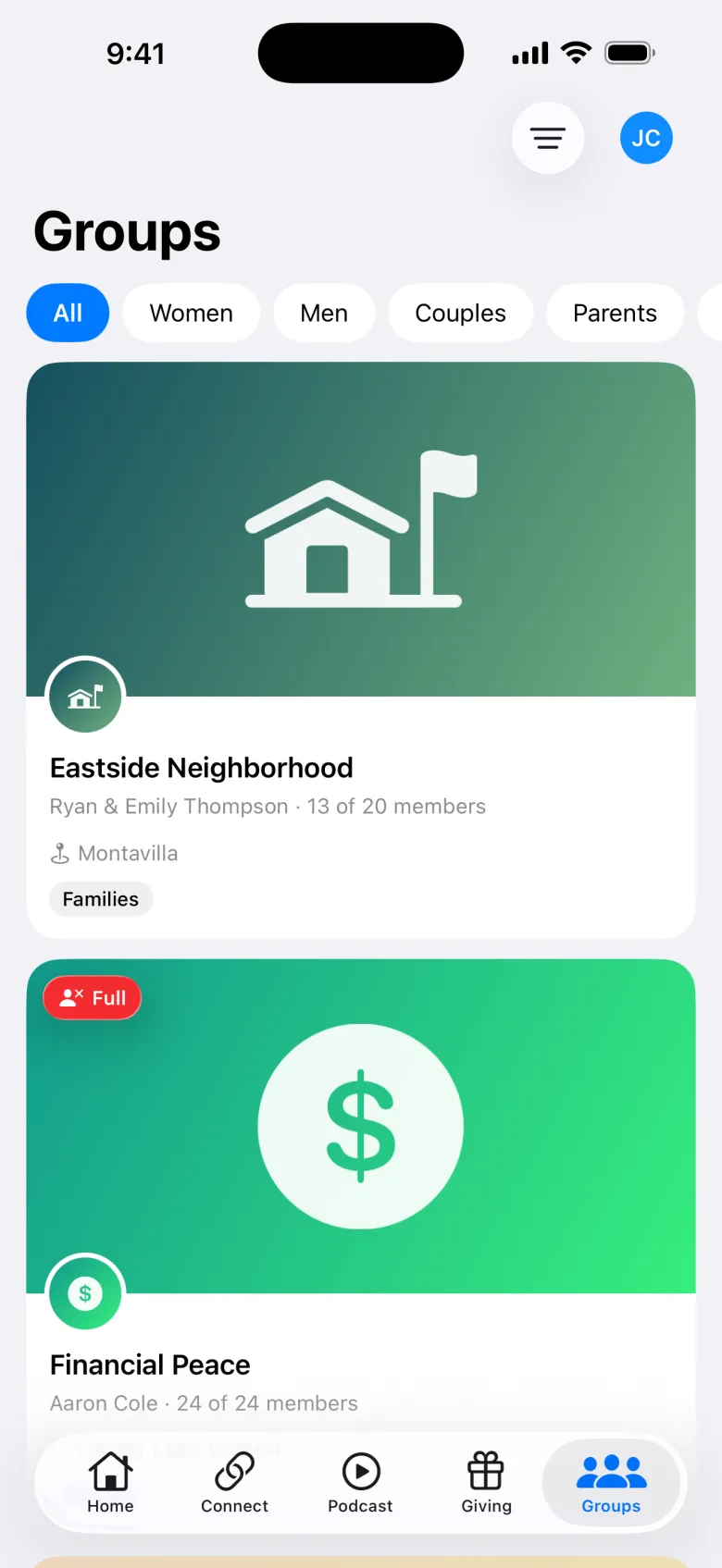
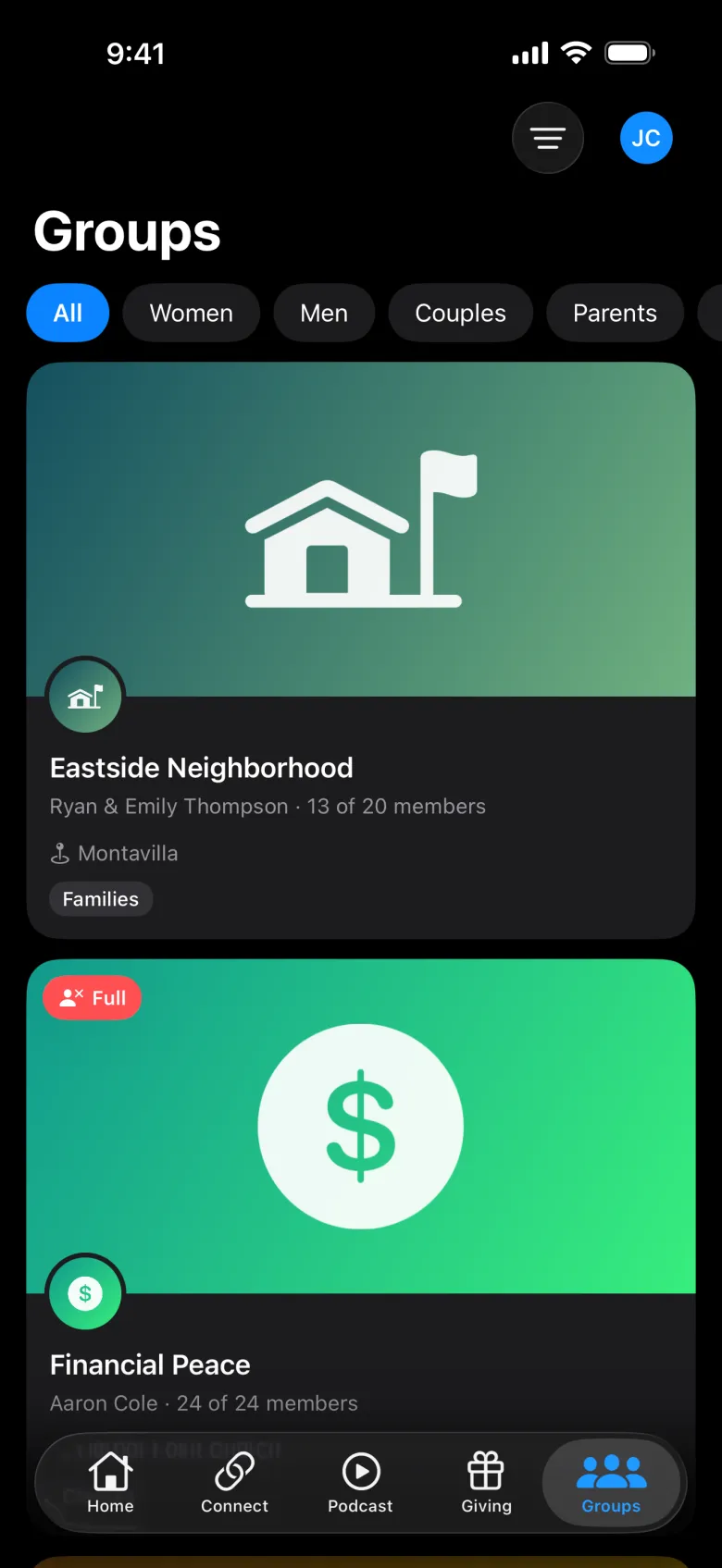
Find a group
The Groups tab lists your groups with how many members they have, how many spots are left, and who leads them. People can search and filter by category. Full groups are hidden from the list.
Join a group
On a group’s page, people see when and where it meets, the leaders, members, and what to expect. Then:
- Request to Join: leaders approve new members. People get a notification when they reply.
- Join Waitlist: when the group is full. Leaders see the request when a spot opens.
Requests land in Join requests in the dashboard, and with the group’s leaders in the app. If a group only shows members its address, others see the general area until they’re approved.
Once they’re in, the group chat, lesson notes, and the address unlock.
Group chat
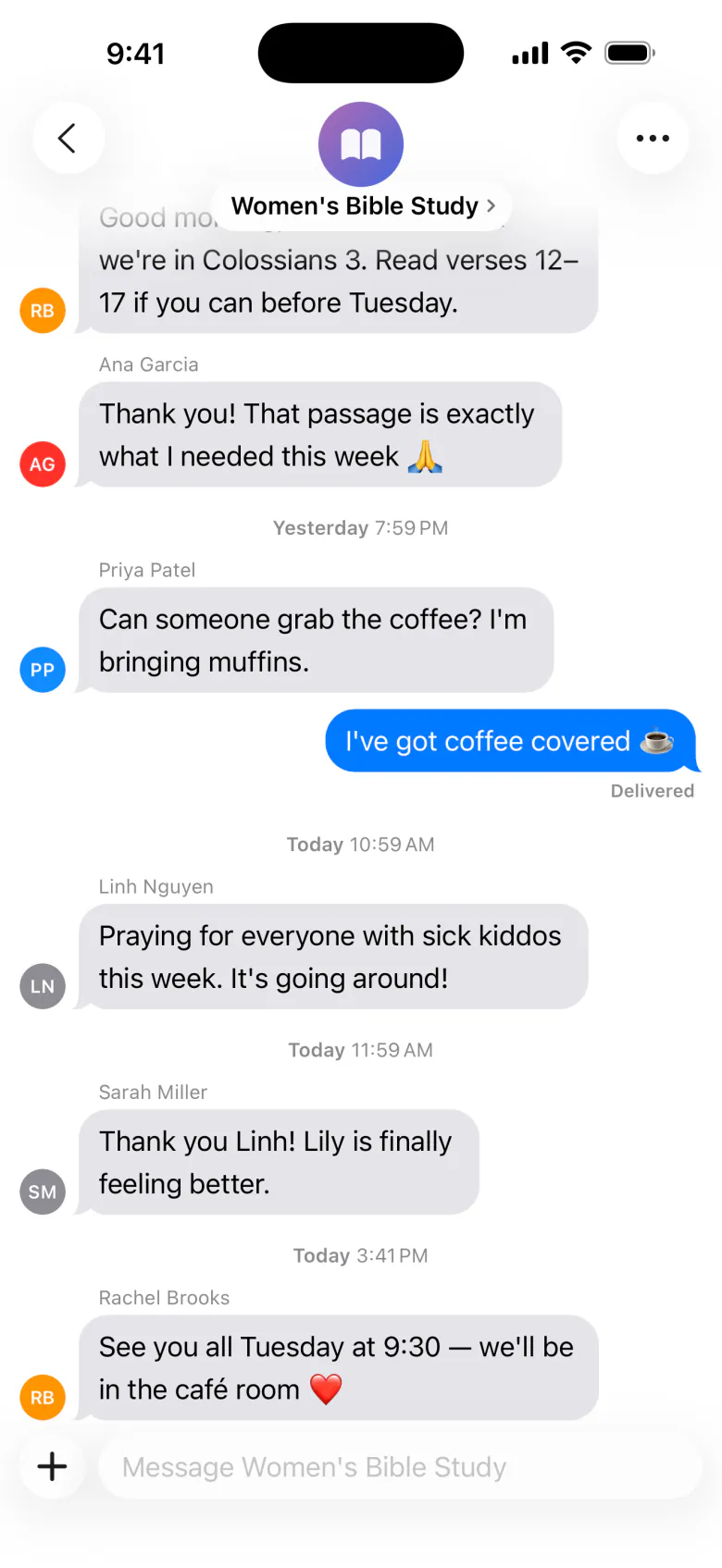
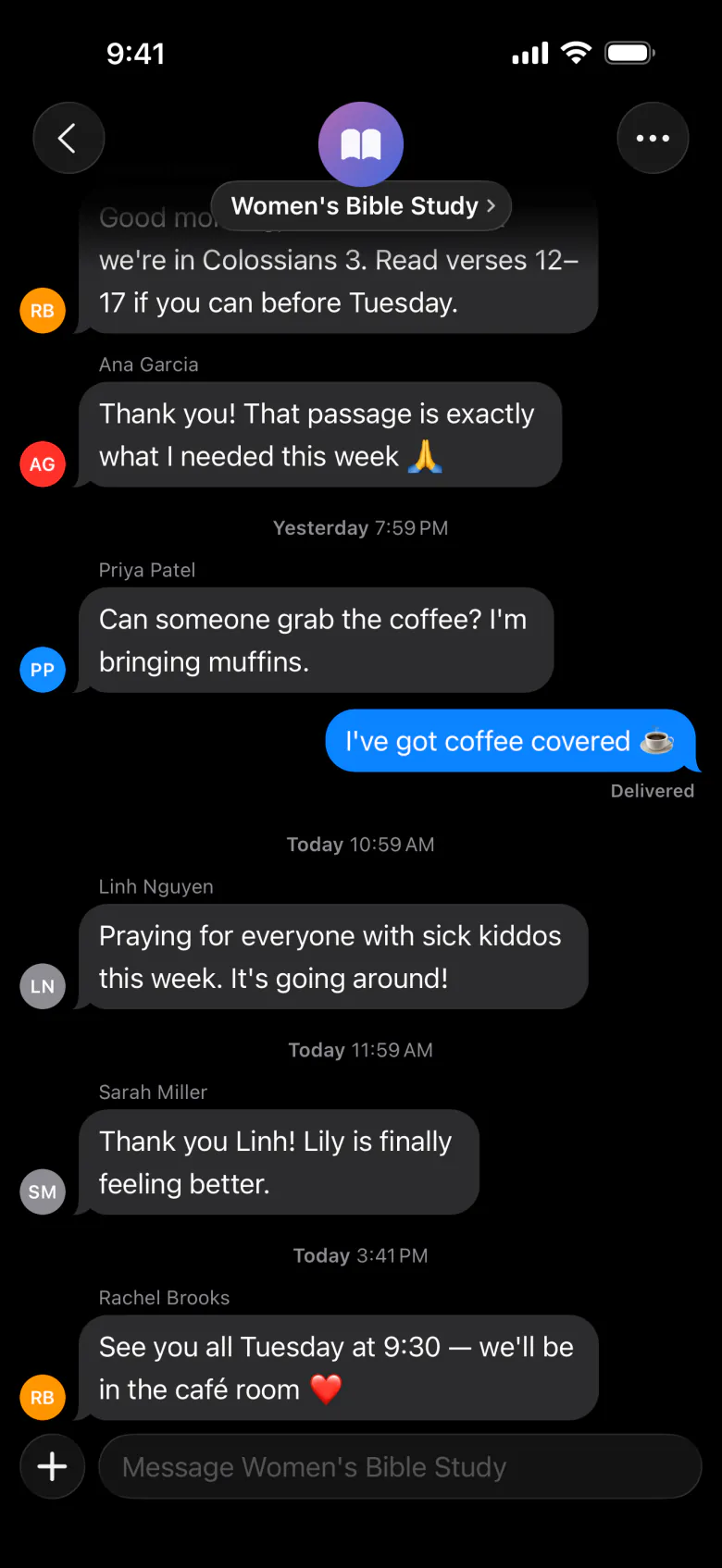
Members chat with the whole group, react to messages, and post photos, Polls, Sign-up lists, and Date sign-ups. They can also start Smaller Chats with part of the group, like a planning team or prayer partners. Only the people in a smaller chat can see it.
Messages
The Messages screen brings together Groups, Direct messages, and Prayer (replies to prayer requests). People can pin, mute, report, and block. Direct messages follow age rules and parent controls.
For group leaders
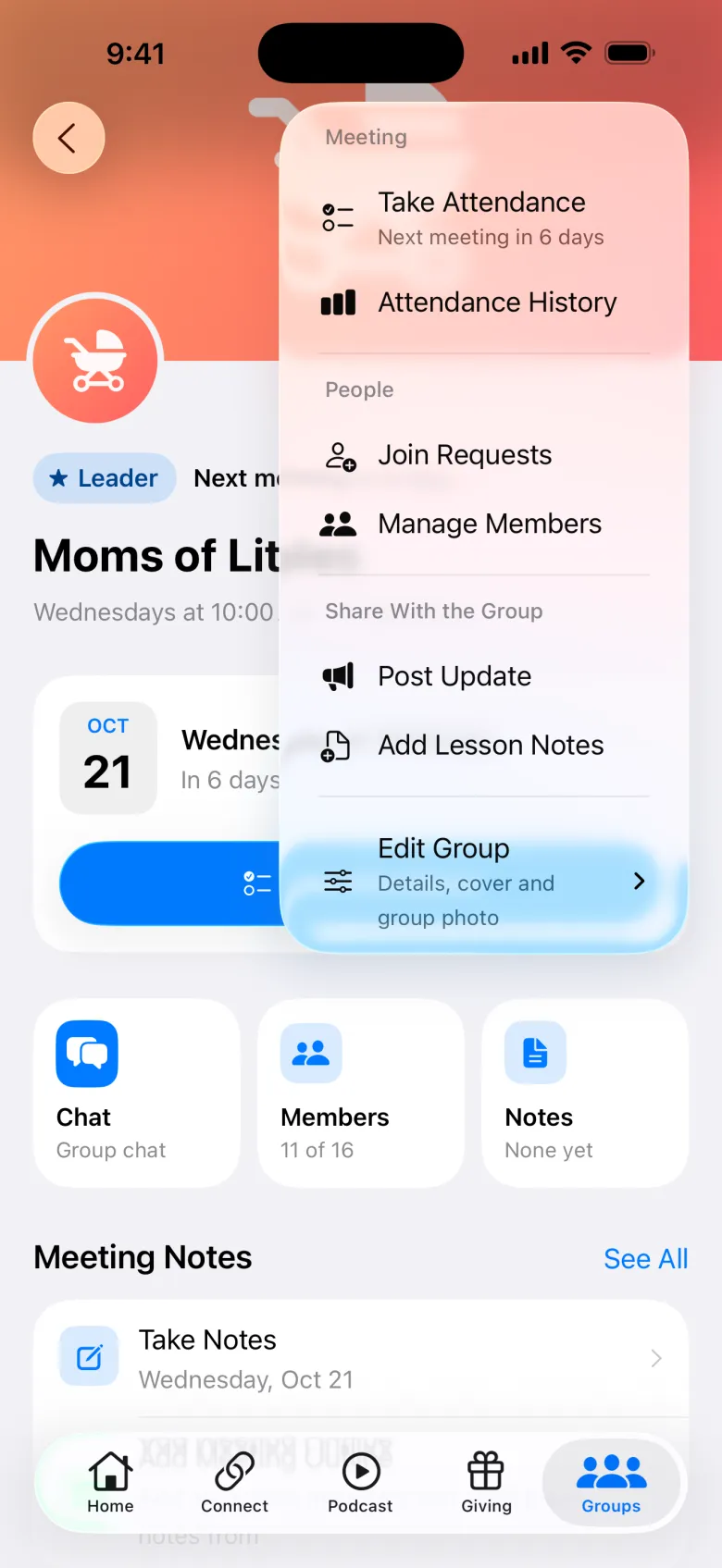
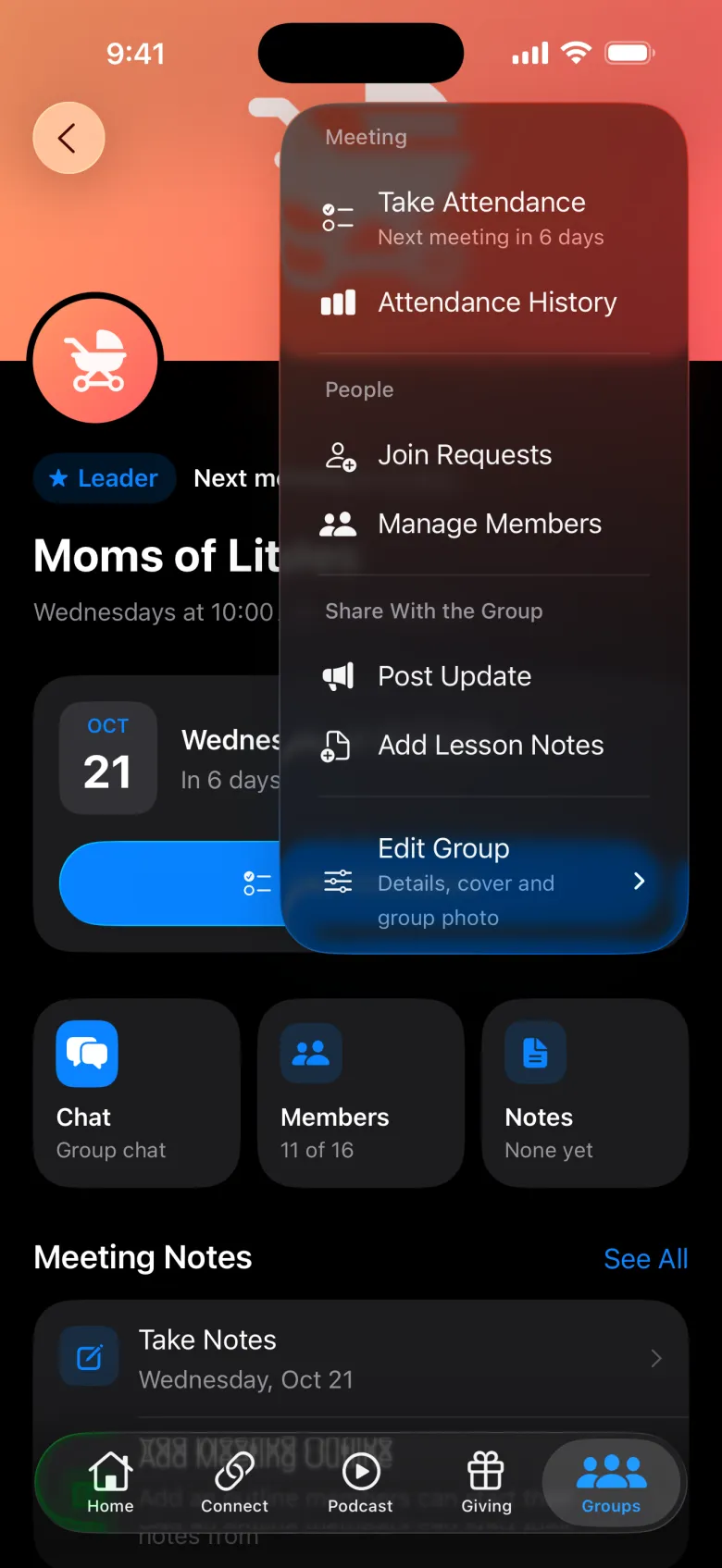
Leaders (group admins) run their group from the app:
- Take Attendance: tap the people who are here, add visitors, and save. The app reminds leaders when the group has a weekly schedule.
- Join Requests: approve or decline, with an optional reason.
- Manage Members: remove someone from the group.
- Post Update: one pinned update at the top of the group page, like a change of plans.
- Meeting Outline: an outline members can start their notes from.
- Edit Details: suggest changes to the meeting time, address, or description, or a new photo. Changes go to your staff for approval in Change requests.