
Self-service check-in
A self-service kiosk lets families check their own kids in. Put it somewhere easy to find, with the label printer next to it.
What families do
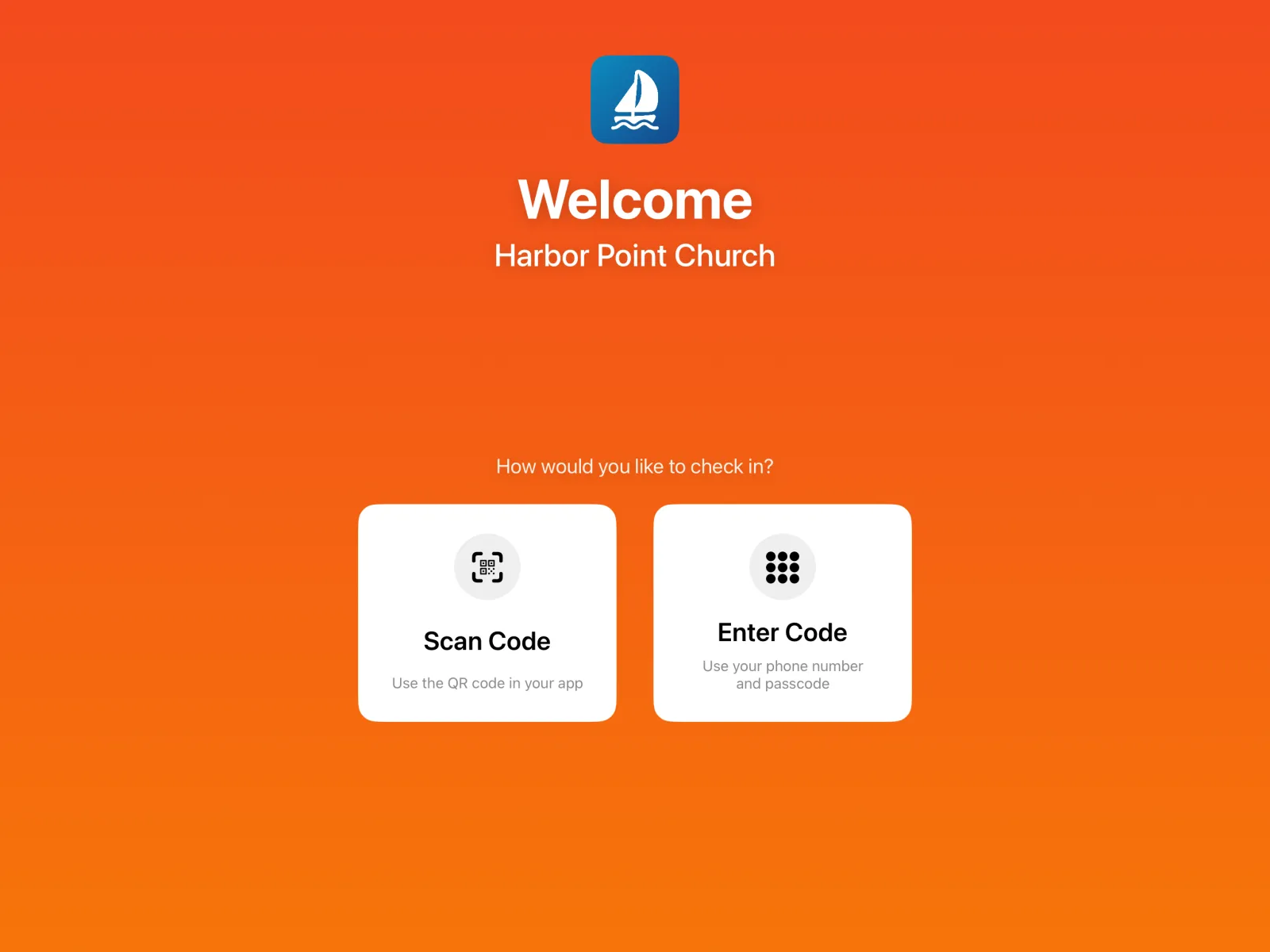
Choose how to check in
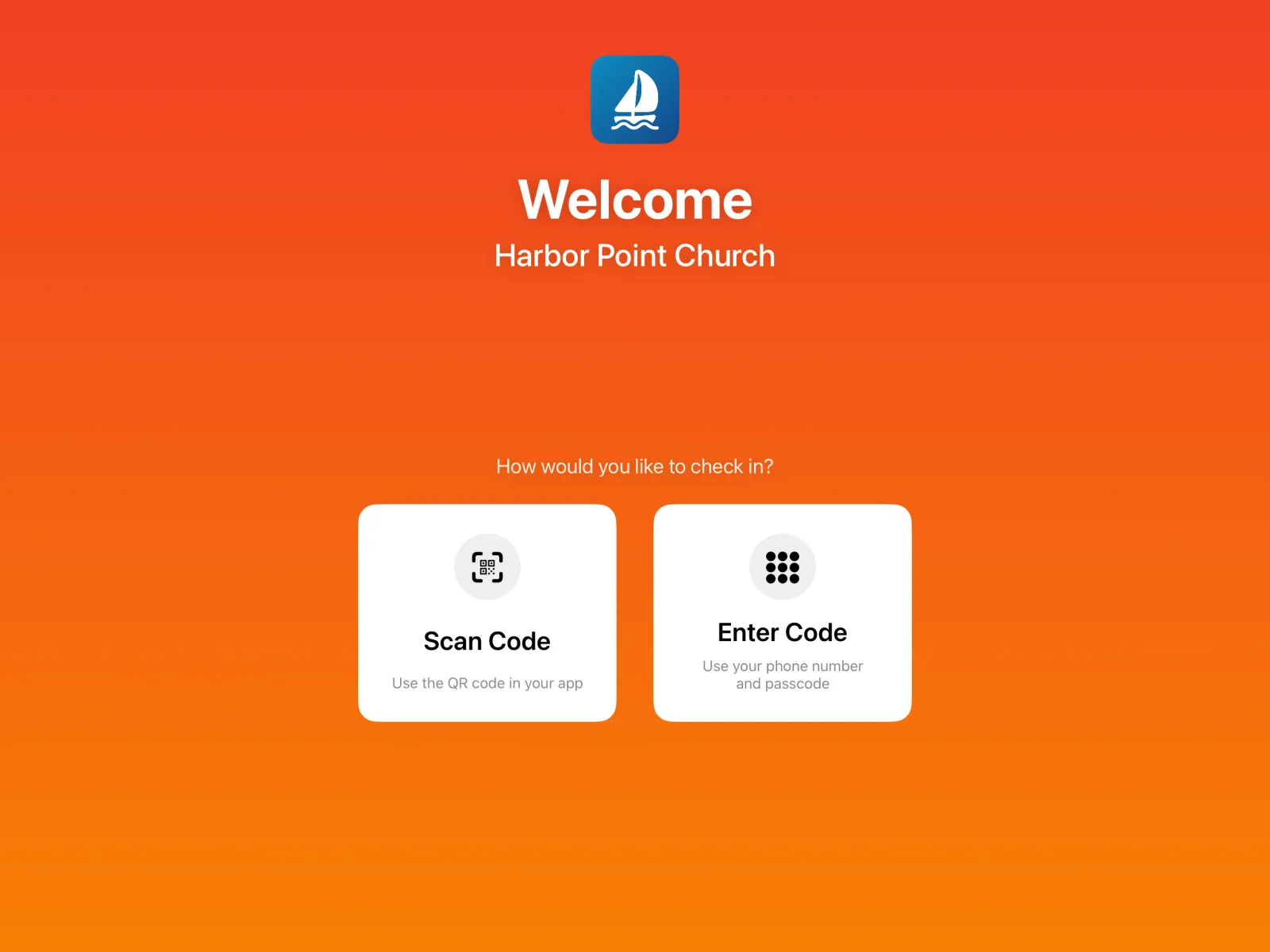
The welcome screen asks How would you like to check in?
- Scan Code: hold up the check-in pass from the Culminate Life app to the camera (or a scanner).
- Enter Code: type the phone number on the family’s account, then their 4-digit passcode.
Select the children
The kiosk greets them by name and lists their children. They tap the children they’re checking in, then Check In. Children who are already checked in are marked Already checked in.
Parents who want a paper tag for pickup can check Print check-out ticket.
Labels print
They’ll see Printing check-in labels, then Do not forget your labels and Do not forget to Check-out. Each child gets a name tag, and parents get their pick-up pass in the app.
If a campaign is active, families see it during check-in, like “VBS sign-ups are open!”.
When something stops a check-in
| Message | What it means | What to do |
|---|---|---|
| Phone number and passcode are incorrect. | The number or passcode doesn’t match an account. | Check the number, or have a staff member look them up at an admin desk. |
| Code does not match. | The scanned code isn’t a check-in pass for this organization. | Make sure they’re showing their check-in pass, not an event ticket. |
| Information incomplete | A child is missing details, like a grade or emergency contact. | Ask the parent to finish their child’s info in the app, or update it at an admin desk. |
| Check-in isn’t offered for child | The child’s grade isn’t in this location’s check-in group. | Send them to the right station, or check the grades in Check-in settings. |
| Printing Error | The label didn’t print. | See If printing fails. |
Make it look like you
In Settings → Self Service you can change the kiosk’s background and style. See Settings.