
Plan a visit and forms
Plan a visit
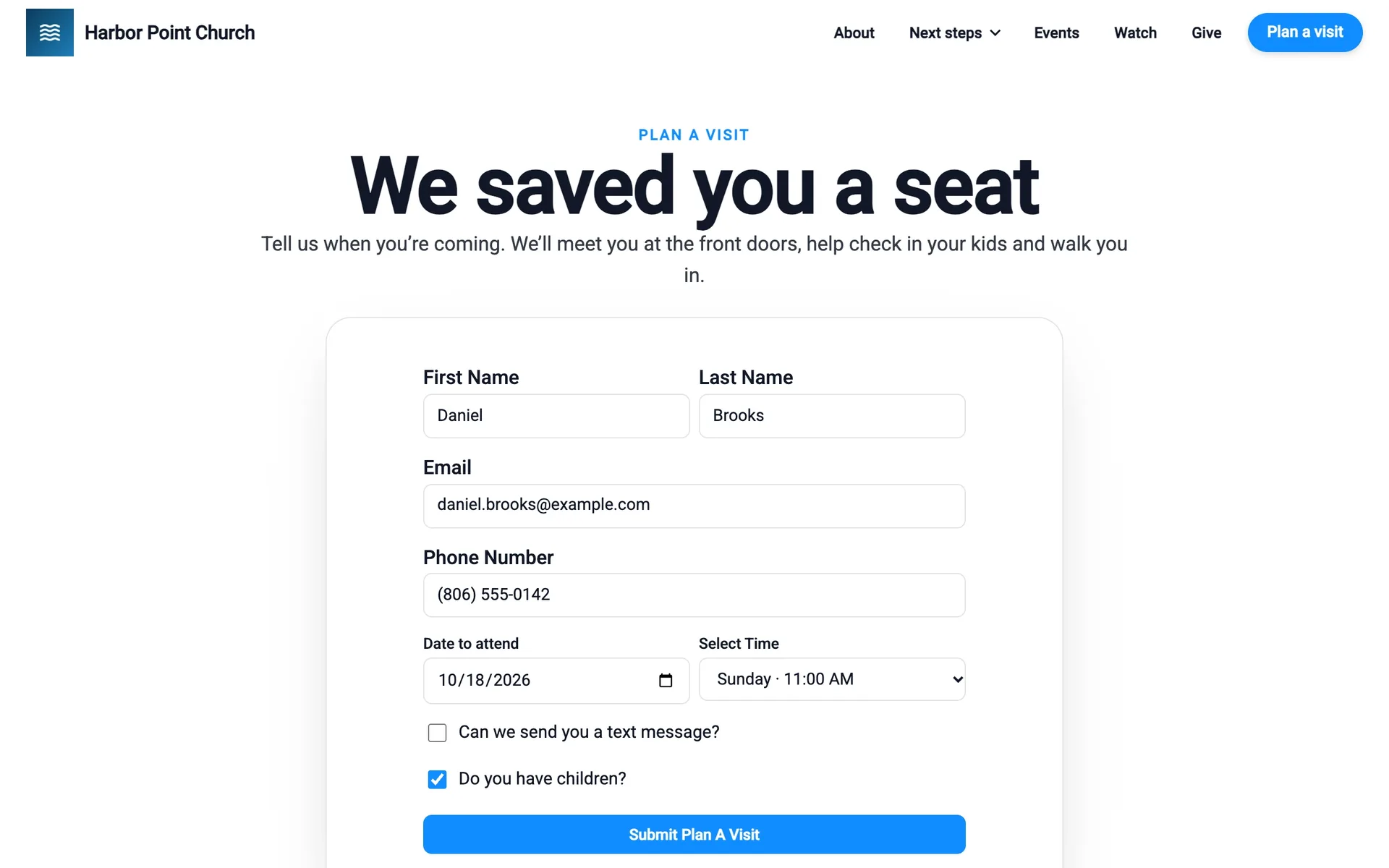
The Plan a visit section lets first-time guests tell you when they’re coming. Add it to a page in the site editor, and link to it from your menu or a Hero button. Visits show in Plan a visit in the dashboard.
Fill in the form
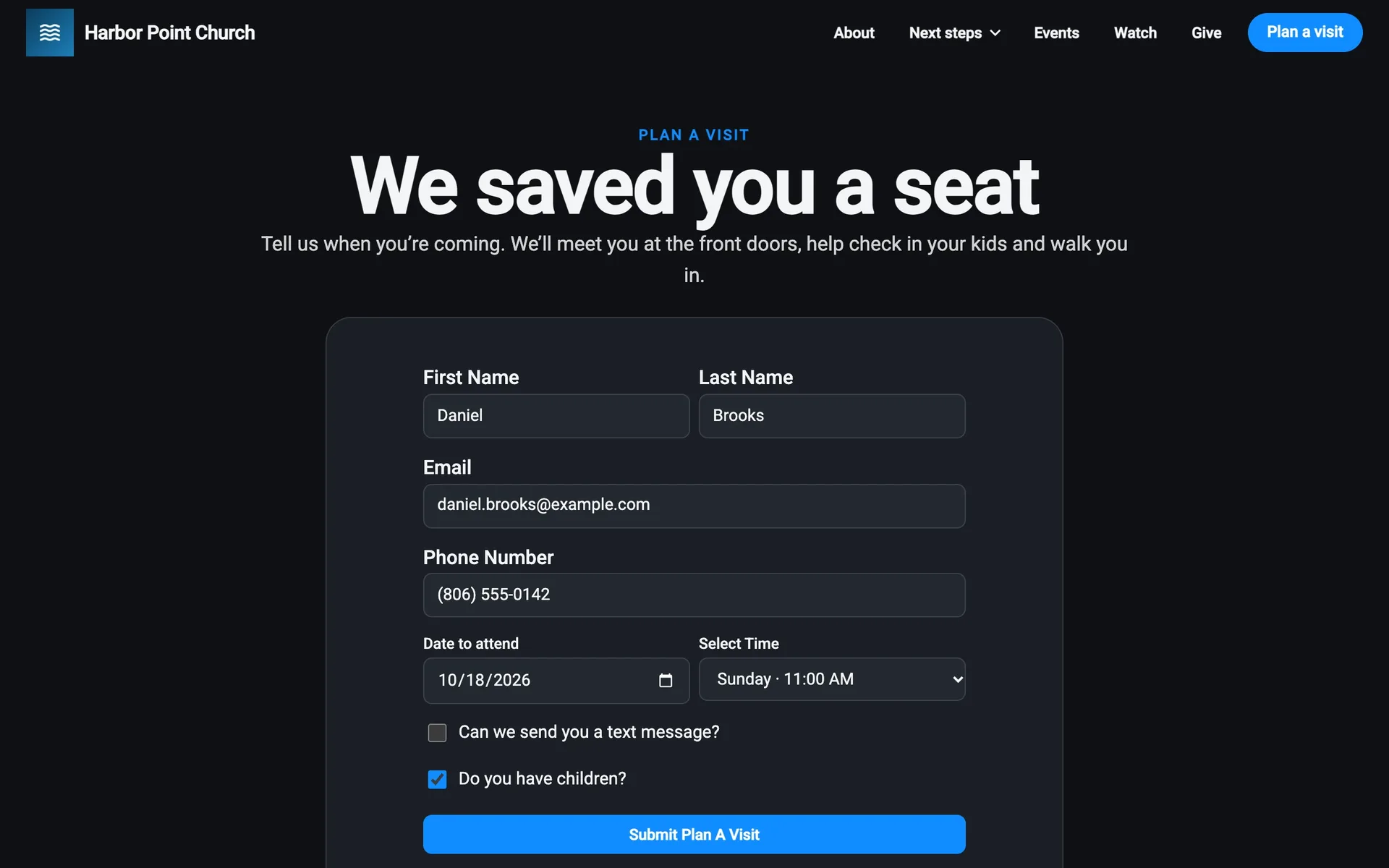
First Name, Last Name, Email, Phone Number, the Date to attend, and the service time (Select Time, from your service times). Every field is needed. If something’s missing, the form says Hold on and what to fix.
Choose about texts
The checkbox Yes, your name can text me at this number to follow up about my visit. is never ticked for them. Under it is the disclosure: texts are only about their visit, never marketing, and they can reply HELP or STOP. Your Privacy Policy and SMS Terms are linked. See Texting rules.
Bringing kids?
They tick Do you have children? if they are.
Submit
They select Submit Plan A Visit.
The thank-you says We can’t wait to see you with the date and time. If they said they have children, Bringing the kids? offers Get ready for check-in, so they can add their children before Sunday. Then See you soon closes it.
If they’re signed in, the visit is linked to their profile.
Prayer requests
The prayer request section has a Message box and Submit Prayer Request. People need to be signed in: signed out, it asks them to sign in or create an account. Requests go to Prayer requests, and your replies show in their Messages under Prayer.
Forms
A form section shows one of your forms on a page. People fill it in, using Next and Back if it has several pages, then select Submit. They see Thank You when it’s sent. If something required is missing, it says so.
What people see depends on how you built it. Some questions only show based on earlier answers (Show only if), some ask for a file upload (File uploads), and some repeat for each person they’re filling it in for (Ask once for each person). When they’re signed in, answers you already know can be filled in for them (Save answers to known information).
Forms can also be linked from an announcement, with Fill Out. Those need sign-in.
Guest forms
The guest form section shows your guest form with Complete Guest Form. It opens in a window with Next, Back, and Save.